
www spotify com Pair Galaxy Watch : Spotify on Samsung Wearables
Control the music from your wrist with Samsung Galaxy Watch. Once Paired at www.spotify.com/pair, you can play directly from your wrist, or to another device with Bluetooth or Spotify Connect.
- Play, pause, and skip music and podcasts
- Save music
- Shuffle and repeat
- Play from Your Library, Browse, and Recently Played
If you have Premium, you can also:
- Control what plays on another device with Spotify Connect
- Download playlists to listen to offline
- Search with text controls
- Enjoy Premium sound quality
Note: Features may vary depending on device model.
Supported devices
- Gear S3, Gear Sport, and Gear Fit 2 and Fit 2 Pro
- Android 4.4 and above with a minimum of 1.5GB RAM
- iPhone 5 or above on iOS 9.0 or above
- Galaxy Watch
- Android 5.0 and above with a minimum of 1.5GB RAM
- iPhone 5 or above on iOS 9.0 or above
Get Spotify on Samsung wearables
Just like on your phone, you can install, customise, and uninstall apps on your Galaxy watch. Personalise your smartwatch to fit your needs and preference.
Please be advised that your Galaxy Watch Active will require an internet connection in order to download apps or watch faces.
1. Launch the PlayStore
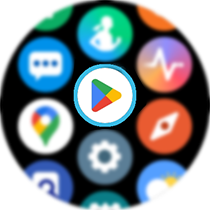
2. Tap on  to search for a specific application
 to search for a specific application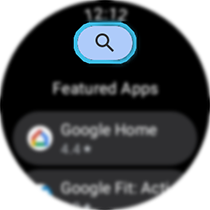
3. Tap on app you would like to install
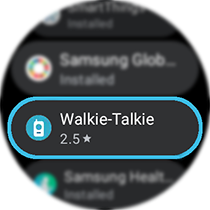
4. Then tap on Install to download
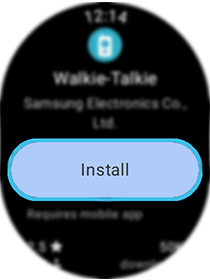
Once installed, you can play directly from your wrist, or to another device with Bluetooth or Spotify Connect.
If you usually log in with Facebook, you can create a Spotify password with the email address registered on your account.
Spotify Connect
With Spotify Connect, you can use one device to remotely control listening on another.
To check if your device is compatible with Spotify Connect, see Spotify Listen Everywhere or check with the device’s manufacturer.
Use Spotify Connect
When connecting to the speaker for the first time, all devices need to be on the same WiFi.
- Open Spotify and play something.
- Press at the bottom of the screen.
- Pick the device you want to play on.
Note: If you pause playing for more than 10 minutes, you might need to reconnect.
Don’t see your device?
- If you’re seeing more than one device of the same name (e.g. iPhone), try connecting to each in turn.
- Try logging into the device using your Spotify credentials and you should be able to see it in the Spotify app even if it isn’t on the same WiFi.
- [Mobile] Switch off Show local devices only in the Spotify mobile app Settings > Devices. This lets the app see devices that currently aren’t on your WiFi network.
- [Web player] On the web player you can only use devices you’ve already logged into, or Google Cast devices on your current network (if using Chrome). If your device isn’t showing, try using the Spotify app instead.
- [iPhone] Make sure you provide Spotify access to your local network. Go to iPhone Settings > Spotify > Local Network, and toggle it on.
Connect not working?
- Restart the Spotify app.
- Restart your speaker, Smart display, etc.
- Restart the device running the Spotify app.
- Make sure your Spotify app is up-to-date.
- Make sure all devices’ software is up-to-date.
- Try connecting devices to the same WiFi.
- Restart your WiFi or try a different WiFi network.
- [Android TV] Allow Spotify to display over other apps. Go to TV Settings > Apps > Special app access > Display over other apps.
Don’t recognize a device?
You may have left your account logged in on someone else’s device. If you don’t have access to that device, ask its owner to log out of your account.
You can also:
- Remove the device from the list to avoid connecting to it by mistake: click on the three dots next to the device you want to remove > click Forget Device.
- Unlink your Spotify account from the manufacturer’s app, like Amazon Alexa.
- Sign out everywhere on your account page, and for extra safety reset your password.
