
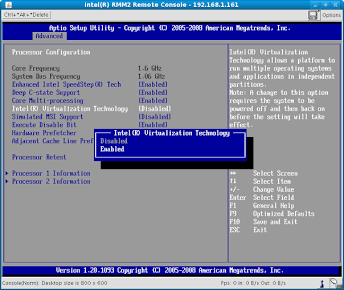
Quick Answer: The virtualization support not detected docker desktop failed to start error occurs because Docker requires hardware virtualization to run containers, but it is currently disabled on your machine. To fix it instantly:
1. Restart your PC and enter the BIOS/UEFI settings (usually by pressing F2, F10, or DEL).
2. Enable Intel VT-x or AMD-V (SVM).
3. Boot into Windows, open “Turn Windows features on or off”, and check both Virtual Machine Platform and Windows Subsystem for Linux (WSL). Restart your computer and launch Docker.
If you are setting up a local development environment, nothing halts your productivity faster than launching Docker Desktop and being met with a fatal crash screen. Docker heavily relies on virtual machines to containerize applications. When it cannot detect the necessary hardware permissions from your CPU, it simply cannot start.
Because Windows 10 and Windows 11 have introduced tighter security layers (like Core Isolation and VBS), virtualization errors have become increasingly common. Let’s break down exactly what the community is searching for and how to resolve these frustrating blockers.
Top 5 Searches & Keywords Related to This Docker Error
When developers encounter this crash, they often search for specific variations of the error depending on their OS or CPU. Here are the top LLM and search engine queries, explained:
| Google Search / Keyword | Short Explanation & Answer |
|---|---|
| “How to enable virtualization in BIOS for Docker” | Docker needs physical CPU access. Answer: Boot into BIOS, navigate to Advanced CPU settings, and toggle ‘Intel Virtualization Technology’ or AMD ‘SVM Mode’ to Enabled. |
| “Docker desktop failed to start WSL 2” | Docker uses WSL 2 as its backend on modern Windows. Answer: Open PowerShell as Admin and run wsl --update to ensure the Linux subsystem is fully functional. |
| “Virtualization enabled in BIOS but Docker still failing” | The hardware is ready, but Windows is ignoring it. Answer: You must activate “Virtual Machine Platform” via the Windows Features menu. |
| “Windows 11 Docker virtualization not detected” | Windows 11 security settings can block Hyper-V. Answer: Check if Core Isolation/Memory Integrity is conflicting with your virtualization hypervisor. |
| “Hyper-V missing in Windows Home Docker” | Windows Home Edition does not natively include Hyper-V. Answer: Docker Desktop bypasses this by using the WSL 2 integration instead. Ensure WSL is enabled. |
How to Fix Star Citizen Error Code 5006: The Ultimate Login Guide
Step-by-Step Fixes to Get Docker Running
To permanently resolve this error, follow these three crucial phases. Skipping any of these steps may result in the error persisting.
Phase 1: Enable Hardware Virtualization in BIOS/UEFI
- Restart your computer and rapidly press your motherboard’s BIOS key (F2, F10, F12, or DEL).
- Navigate to the Advanced or CPU Configuration tab.
- Locate virtualization. If you have an Intel processor, look for Intel VT-x or Intel Virtualization Technology. If you have AMD, look for SVM Mode or Secure Virtual Machine.
- Change the setting from Disabled to Enabled, save your changes, and exit.
Phase 2: Enable Windows Features
Even with BIOS enabled, Windows needs to be told to allow virtual machines. To do this:
- Press the Windows key, type Turn Windows features on or off, and press Enter.
- Scroll down and check the box for Virtual Machine Platform.
- Check the box for Windows Subsystem for Linux.
- Optional: If you are using Windows Pro/Enterprise and prefer the legacy backend, check Hyper-V.
- Click OK and restart your computer when prompted.
Phase 3: Update WSL via Command Line
If you are still facing issues, the Windows Subsystem for Linux might be outdated or corrupted. Open PowerShell as an Administrator and execute the following commands:
wsl --update
wsl --set-default-version 2
For official documentation on troubleshooting the Linux subsystem, we recommend checking the Microsoft WSL Installation Guide. Additionally, to ensure your containers run optimally once Docker is up, review our internal resource on optimizing Docker Desktop performance with WSL 2.
TL;DR: The Troubleshooting Checklist
- Check the BIOS: Hardware virtualization (VT-x or AMD-V/SVM) must be enabled at the motherboard level first.
- Windows Features: Ensure “Virtual Machine Platform” and “Windows Subsystem for Linux” are turned on in your OS settings.
- Update WSL: Run
wsl --updatein an elevated PowerShell to guarantee the backend is functioning. - Restart: Always perform a full system restart after changing BIOS or Windows features before attempting to launch Docker Desktop again.
