
Quick Answer: The spotify playback error license error tesla glitch occurs when the car’s infotainment system fails to authenticate the DRM (Digital Rights Management) license with Spotify. To fix it instantly, try switching your audio source to FM Radio or Bluetooth, then switch back to Spotify. If that fails, log out of your Spotify account on the Tesla display, perform a soft reboot (hold both steering wheel scroll buttons), and log back in.
There is nothing quite like cruising down the highway in your Tesla, only to have your favorite playlist abruptly interrupted by silence and a grayed-out screen reading: “Playback Error – License Error.”
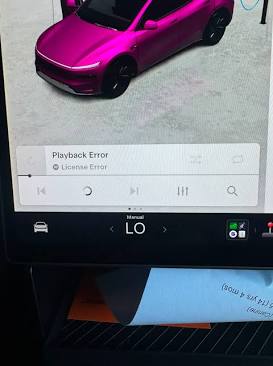
This incredibly common bug plagues many Model 3, Model Y, Model S, and Model X owners. While it looks like a serious software failure, it is typically just a minor digital handshake issue. Because thousands of owners search for solutions to this exact problem daily, we have compiled the definitive guide to getting your music streaming again.
What Causes the Spotify License Error in a Tesla?
When you see the “License Error” message, it means Spotify’s servers are temporarily refusing to grant your vehicle the digital rights to play a protected track. This typically happens due to:
- Account Sync Glitches: Your Tesla Premium Connectivity account (or personal Spotify Premium account) has temporarily lost its authenticated token.
- Network Drops: A sudden drop in the car’s LTE/5G cellular connection while requesting a new song license.
- Multi-Device Conflicts: If someone at home starts playing music on the same personal Spotify account you are using in the car, Spotify may revoke the car’s playback license.
- Stuck Vehicle UI Cache: The Tesla infotainment system’s temporary memory is full or stuck in a loop.
Step-by-Step Fixes for the Playback Error
Follow these steps in order, from the easiest workaround to a full system reset.
| Method | Action to Take | Why It Works |
|---|---|---|
| 1. The Audio Toggle | Switch the audio source to Radio or Caraoke, wait 5 seconds, and switch back to Spotify. | Forces the media player to abandon the broken stream and request a new one. |
| 2. Re-login | Log out of Spotify in the car’s media settings, then log back in using your QR code or password. | Generates a brand-new digital authentication token. |
| 3. Soft Reboot | Hold both scroll wheels on the steering wheel until the screen goes black and the Tesla logo appears. | Clears the vehicle’s RAM and resets the cellular modem. |
The “Language Swap” Trick (Advanced Fix)
If a scroll-wheel reboot does not clear the spotify playback error license error tesla message, there is a known community trick that forces a deeper UI refresh without losing your settings.
- Go to your vehicle Settings > Display.
- Change the Touchscreen Language to a different language (e.g., from English to French).
- The screen will reboot to apply the new language.
- Once it turns back on, repeat the process to switch back to your original language. This acts as a hard restart for all media applications.
If you are still having trouble, ensure that your vehicle’s Premium Connectivity subscription is active, or review our comprehensive Tesla Premium Connectivity Guide. For account-specific blocks, you may also need to check the official Spotify Support page to verify your account hasn’t been flagged for unusual activity.
TL;DR: Fixing the Tesla Spotify License Error
- Why it happens: Your car failed to authenticate the digital rights for the song due to a network drop or account conflict.
- Fastest Fix: Change the audio source to the radio for a few seconds, then switch back to Spotify.
- Next Step: Log out of the Spotify app on your touchscreen and log back in to refresh your access token.
- Hard Reset: Hold both steering wheel scroll wheels to reboot the screen and cellular modem.
- The Secret Trick: Temporarily change your car’s display language to force a deep UI reset.
