
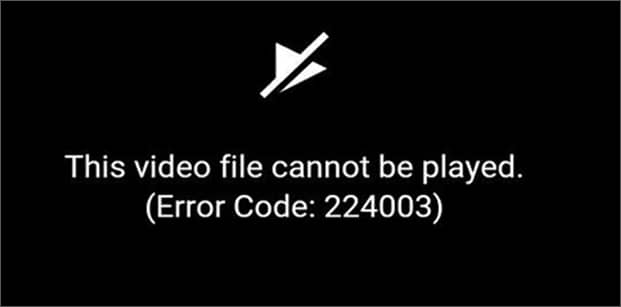
Quick Answer: The error code 22403 (often displayed as “This video file cannot be played”) is a browser media playback issue commonly tied to embedded video players like JW Player. To fix it instantly, clear your browser’s cache and cookies, disable third-party ad-blocking extensions, and turn off Hardware Acceleration in your browser settings.
There is nothing more frustrating than settling in to watch a highly anticipated video, only to be met with a black screen and a cryptic message reading: “This video file cannot be played (Error Code: 22403)”. This error is incredibly common across browsers like Google Chrome, Safari, and Mozilla Firefox. Fortunately, it is rarely an issue with your actual device and almost always stems from a conflict within your web browser software.
What Causes Error Code 22403?
Before diving into the fixes, it helps to know what triggers the interruption. The 22403 error signifies that your web browser is failing to communicate properly with the server hosting the media. The most frequent causes include:
- Corrupted Cache: Over time, temporary internet files and cookies can become corrupted, blocking new media from rendering properly.
- Intrusive Extensions: Ad-blockers, VPN add-ons, or privacy extensions often aggressively block video scripts by mistake.
- Hardware Acceleration Conflicts: While intended to speed up performance by utilizing your GPU, this feature frequently clashes with HTML5 video players.
- Outdated Software: Running an old version of a browser can lead to missing video codecs required for modern streaming.
Top 3 Solutions to Fix the Video Playback Error
Below are the most effective, step-by-step methods to permanently resolve this error on your computer. (For broader network streaming issues, you can also consult our comprehensive browser media troubleshooting guide).
| Method | Action Required (Chrome / Edge) | Why This Works |
|---|---|---|
| 1. Disable Hardware Acceleration | Go to Settings > System and toggle off “Use graphics acceleration when available”. Restart browser. | Stops the GPU from interfering with standard HTML5 video decoding processes. |
| 2. Clear Browsing Data | Press Ctrl + Shift + Del. Select “Cached images and files” and “Cookies”. Set time range to “All time” and clear. | Removes outdated, corrupted temporary files that prevent the media player from loading properly. |
| 3. Disable Extensions | Go to Settings > Extensions. Toggle off all ad-blockers and privacy shields. Refresh the video page. | Eliminates third-party software that mistakenly identifies the video stream as a pop-up or ad. |
Additional Tips
If the error persists after trying the steps above, ensure that your browser is running the latest version. For Google Chrome users, click the three dots > Help > About Google Chrome to force an update. You may also want to verify that your firewall isn’t aggressively blocking the video hosting domain, a fix often recommended by Microsoft Support for Windows Defender users.
TL;DR: How to Fix Error 22403
- Check Your Connection: Rule out basic internet drops before changing settings.
- Turn off Hardware Acceleration: Go to your browser’s system settings and disable this feature, then relaunch.
- Clear Cache: Delete your cookies and cached files from “All time” to remove corrupted data.
- Disable Extensions: Temporarily turn off your ad-blockers, as they often block embedded video players.
- Update Your Browser: Ensure Chrome, Safari, or Firefox is updated to the latest version to maintain codec compatibility.
