
Quick Answer
To quickly fix error code 0x80070035 (the network path was not found), ensure your target PC is turned on and connected to the same network. Then, go to Network and Sharing Center > Advanced sharing settings and turn on Network discovery and File and printer sharing. Finally, ensure the TCP/IP NetBIOS Helper service is running in Windows Services.
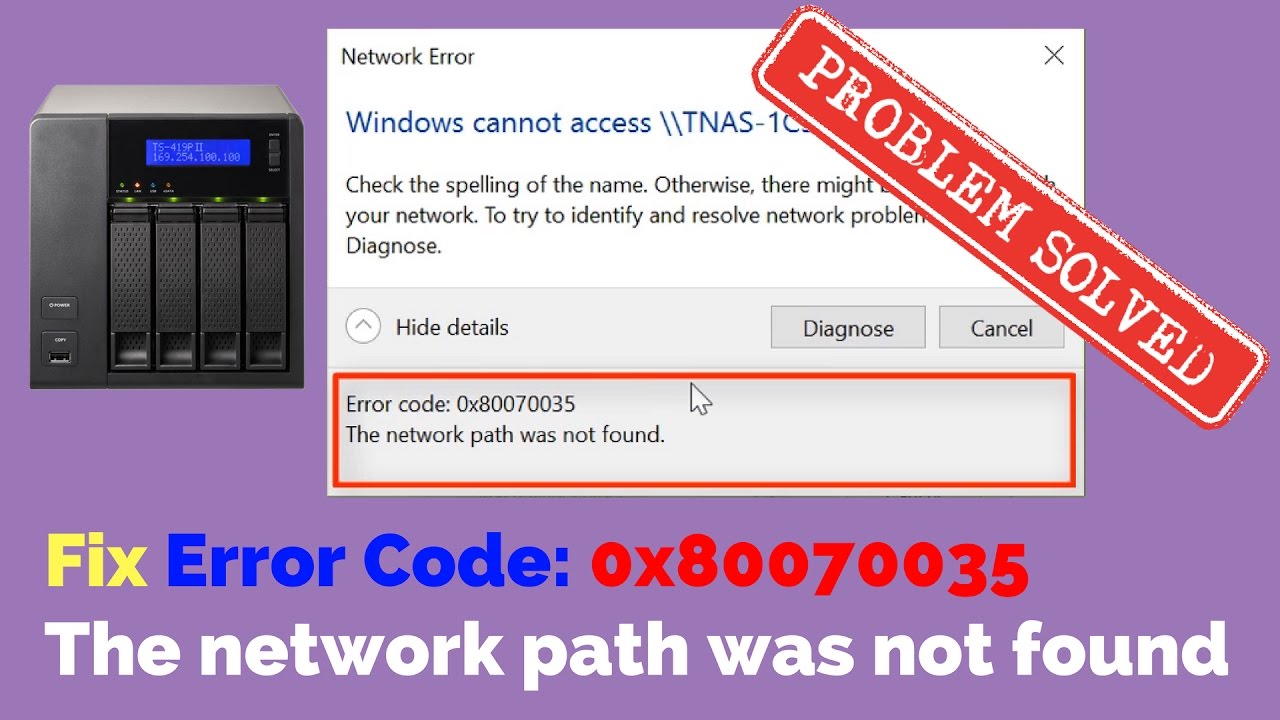
Trying to access a shared folder or printer on your local network only to be hit with “Error code: 0x80070035. The network path was not found” is a common headache for Windows users. This error essentially means your computer cannot find or communicate with the device you are trying to reach.
Whether you are setting up a home office network or managing corporate file shares, this guide will walk you through the most effective technical solutions to resolve this connectivity block.
Primary Causes of Error 0x80070035
Before diving into the fixes, it helps to understand why Windows throws this specific error. The most common triggers include:
- Disabled Network Discovery: The target machine isn’t broadcasting its presence on the network.
- Firewall Blocks: Antivirus or Windows Defender is actively blocking incoming SMB (Server Message Block) traffic.
- NetBIOS Disabled: NetBIOS over TCP/IP is required for older network sharing protocols to function properly.
- Misconfigured Network Credentials: Invalid cached passwords for the target machine.
Step-by-Step Solutions
1. Enable Network Discovery and File Sharing
This is the most frequent culprit. You must ensure both computers allow sharing.
- Press
Windows Key + R, typecontrol, and hit Enter. - Navigate to Network and Sharing Center > Change advanced sharing settings.
- Under the Private profile, check Turn on network discovery (and check the box for automatic setup).
- Check Turn on file and printer sharing. Save changes.
2. Enable NetBIOS over TCP/IP
If you are trying to access a device via its hostname rather than its IP address, NetBIOS is crucial.
- Press
Windows Key + R, typencpa.cpl, and hit Enter. - Right-click your active network adapter and select Properties.
- Select Internet Protocol Version 4 (TCP/IPv4) and click Properties, then Advanced.
- Go to the WINS tab, select Enable NetBIOS over TCP/IP, and click OK.
Troubleshooting Matrix: Which Fix Should You Try First?
| Symptom | Likely Cause | Recommended Action |
|---|---|---|
| Can ping IP, but name fails | DNS/NetBIOS issue | Enable NetBIOS over TCP/IP |
| Cannot see PC in Network list | Discovery disabled | Turn on Network Discovery |
| Fails instantly on fresh Windows install | SMBv1 disabled by default | Check Windows Features for SMB support |
If these steps do not resolve the issue, you may need to temporarily disable your third-party firewall to see if it is blocking SMB traffic. For more advanced network configuration, Microsoft offers official SMB troubleshooting documentation.
Ensure your local network is secure while performing these steps. Read our guide on securing local Windows networks for best practices on managing file shares safely.
TL;DR Summary
- Error 0x80070035 means your PC cannot locate the target device on the network.
- Step 1: Turn on Network Discovery and File Sharing on both computers.
- Step 2: Enable NetBIOS over TCP/IP in your network adapter settings.
- Step 3: Ensure third-party firewalls aren’t blocking local network traffic.
