
Pokémon access denied error 15 means a security firewall blocked your IP. Fix it in minutes: clear cache, drop the VPN, switch networks and reset your IP.
Pokémon access denied error 15: what it means and how to fix it fast
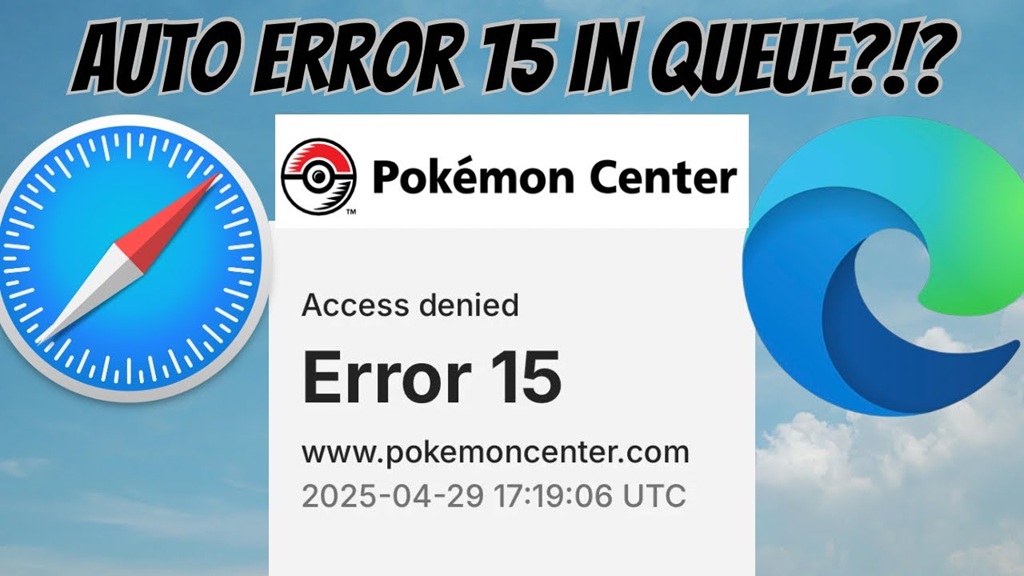
If you opened Pokémon GO or Pokémon Center and hit a blank screen reading “Access Denied, your request was blocked by the security rules, Error 15,” you were not banned and your account is fine. A web firewall flagged your connection as suspicious and stopped the page from loading. This guide explains exactly why it happens and walks you through every fix, from the 30 second router reset to the deeper browser and network steps.
Quick answer
Pokémon access denied error 15 is a security block, not an account ban. The Pokémon login system (powered by Imperva and Cloudflare) flagged your IP address as suspicious. To fix it, turn off any VPN or proxy, clear your browser cache and cookies, disable ad blocker extensions, then restart your router to get a fresh IP address. Switching from Wi-Fi to mobile data clears it for most people in under a minute.
What is Pokémon access denied error 15
Error 15 is a temporary access restriction triggered by the web application firewall that protects Pokémon services. When you log into Pokémon GO with a Pokémon Trainer Club account, the app sends you to access.pokemon.com in your browser. That page sits behind Imperva (Incapsula). The Pokémon Center store sits behind a Cloudflare firewall. Both systems watch incoming traffic and block anything that looks automated, abusive or geographically blocked.
When the firewall blocks you, it often shows a Reference ID, a unique code tied to your blocked session. Your username and password were never even checked. The request was stopped before login, which is why correct credentials still fail.
What triggers error 15
| Trigger | Why it gets flagged |
|---|---|
| VPN or proxy | Shared and datacenter IPs are common with bots, so the firewall blocks them by default. |
| Shared or flagged IP | Public Wi-Fi and some ISPs route many users through one IP, raising the traffic flag. |
| Old cache and cookies | Stale security tokens stored by your browser are read as an invalid session. |
| Ad blockers and extensions | Privacy and tracking blockers strip the checks the firewall expects to see. |
| Blocked region | Pokémon Center serves only some countries, so other regions get denied. |
| Too many login attempts | Rapid repeated requests look like a brute force or bot pattern. |
How to fix Pokémon access denied error 15
Work through these in order. Most people are back in by step 3.
Step 1: Turn off your VPN or proxy
This is the single most common cause. Disable any VPN app, browser proxy or privacy DNS, then reload the page. If you genuinely need a VPN for a blocked region, see step 7 instead.
Step 2: Switch from Wi-Fi to mobile data
Mobile data gives you a different IP that the firewall has not flagged. Turn off Wi-Fi, switch to cellular and try again. This is the fastest test to confirm the block is IP based.
Step 3: Restart your router to refresh your IP
Unplug your router, wait 60 seconds and plug it back in. Many home connections get a new IP address on reconnect, which lifts a temporary block instantly.
Step 4: Clear cache and cookies
On a browser, open settings, clear browsing data and remove cached images and cookies for the last 24 hours. In Pokémon GO, go to phone Settings, Apps, Pokémon GO, Storage, then clear cache. This wipes the stale tokens behind the block.
Step 5: Disable ad blockers and privacy extensions
Turn off ad blockers, tracking blockers and script blockers, especially on Opera, Brave or Chrome with heavy extensions. Reload the login page with extensions off. Several players solved error 15 purely by disabling these.
Step 6: Try a different browser or device
Because Pokémon GO opens login in your default browser, switching that default to a clean Chrome, Safari, Firefox or Edge often dodges the block. Make sure the browser is fully updated.
Step 7: Check your region
The Pokémon Center store works only in supported countries such as the US, Canada, UK and parts of Europe. If you are outside those, a trusted VPN set to a supported country is the correct fix here, the opposite of step 1.
Quick fix by device
| Device | First thing to try |
|---|---|
| Android | Settings, Apps, Pokémon GO, Storage, Clear cache, then reopen on mobile data. |
| iPhone | Settings, Safari, Clear History and Website Data, then turn off any VPN profile. |
| Windows or Mac | Disable browser extensions, clear cookies for pokemon.com, then reload. |
| Router level | Power cycle for 60 seconds to request a fresh IP from your ISP. |
Stop it coming back
Keep the Pokémon GO app and your browser updated, avoid free VPNs and public Wi-Fi when logging in, and do not spam the login button. If you get blocked, wait a few minutes before retrying so the firewall timer can reset.
Frequently asked questions
Is error 15 a permanent ban on my account?
No. Error 15 is a temporary firewall block on your connection, not an account ban. Your login was never even processed. It usually clears within minutes once you change your IP or remove what triggered it.
Why does it happen when my password is correct?
The block happens before the password is checked. The security firewall stops the request based on your IP and traffic pattern, so credentials never matter at that stage.
Should I use a VPN to fix error 15?
Usually no. A VPN is a top trigger and should be turned off first. The only exception is when you are in an unsupported region for Pokémon Center, where a VPN set to a supported country is the correct fix.
What is the Reference ID on the error screen?
It is a unique code the firewall generates for your blocked session. You do not need it to fix the error, but Pokémon support may ask for it if the block does not clear on its own.
How long does Pokémon error 15 last?
Most blocks lift within a few minutes to a couple of hours. Changing your IP, clearing cache or switching networks usually removes it right away instead of waiting.

Pingback: Error 1076 Gemini "The Process Terminated Unexpectedly" - Seminarsonly.com