Gyazo Error 502: Quick Fix for Bad Gateway Error
How to Fix the Bad Gateway Upload Error
Gyazo Error 502 commonly appears when you capture an image and Gyazo tries to upload or open it online.
Instead of seeing your screenshot, you may receive an internal server error, 502 Bad Gateway, or a message saying Gyazo cannot upload the image.
What Causes Gyazo Error 502?
Gyazo Error 502 is primarily a server-side or gateway error—not a graphics-driver, Windows registry, or game-file problem.
Gyazo’s official documentation says its Error 502 can occur because of server overload and is usually temporary. In rarer cases, there may be another issue affecting Gyazo’s servers.
Technically, HTTP status code 502 Bad Gateway means a server acting as a gateway or proxy received an invalid response from an upstream server.
| Question | Answer |
|---|---|
| What is Error 502? | A Bad Gateway server response. |
| Is it normally a PC hardware problem? | No. A genuine HTTP 502 generally points to the server/gateway request path. |
| Does Gyazo document it? | Yes. Gyazo specifically documents Error 502 as usually temporary and commonly associated with server overload. |
| Should you edit the Registry? | No. There is no documented reason to edit Windows Registry settings for Gyazo Error 502. |
⚡ Quick Fix (TL;DR)
- Wait briefly and retry the upload. Gyazo says Error 502 is usually temporary.
- Try capturing and uploading a new screenshot.
- Open Gyazo again and retry the failed action.
- If Gyazo works on another network or device, check your VPN, proxy, firewall, or custom DNS configuration.
- If 502 errors continue, contact Gyazo Support because persistent 50X errors can require action on Gyazo’s side.
How to Fix Gyazo Error 502
Try the methods below in order. Because Error 502 is normally related to the server request path, start with the least invasive solutions.
Method 1: Wait and Retry the Screenshot
This should be your first step because Gyazo states that its 502 upload error is typically temporary.
- Close the current Gyazo error page.
- Wait briefly before trying again.
- Open Gyazo.
- Take a small test screenshot.
- Check whether the new screenshot uploads normally.
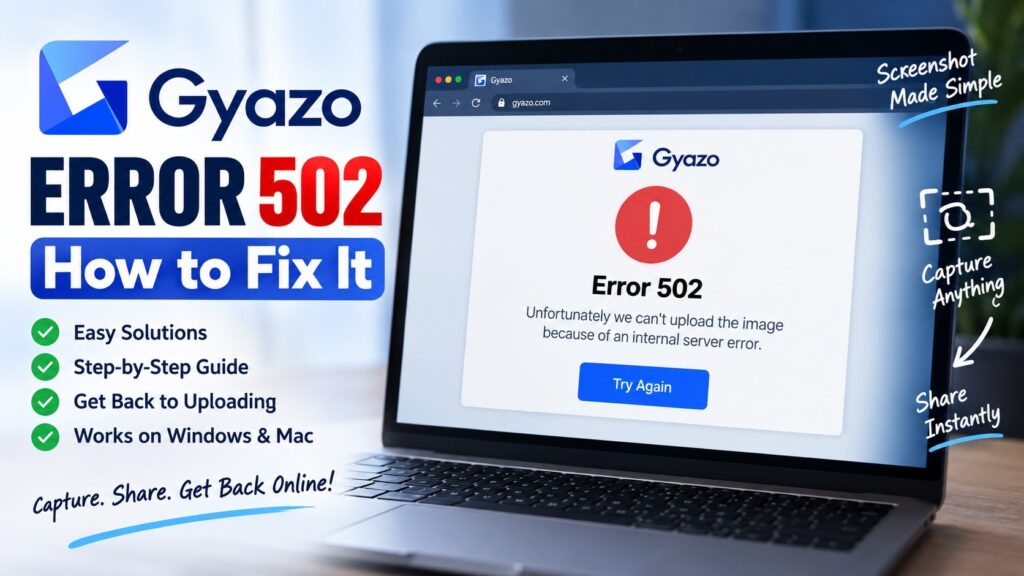
Unfortunately we can’t upload the image because of an internal server error.
Illustration: If you see a Gyazo 502 upload error, retrying after a short interval is the appropriate first action.
Also Read : Xbox Error Code 0x80080005: How to Fix It
Method 2: Reload the Gyazo Page
If the screenshot appears to have uploaded but its Gyazo page shows a 502 response, reload the page before changing anything on your computer.
- On Windows, press Ctrl + R to reload.
- Or click your browser’s Reload button.
- If necessary, open the Gyazo link in a new tab.
- Check whether the image loads normally after the retry.
A temporary upstream/server communication failure can disappear when the next request succeeds.
Method 3: Try a New Gyazo Capture
Testing a second capture helps determine whether you experienced a temporary failed request.
- Open the Gyazo application.
- Select a small area of your screen.
- Wait for the browser to open the resulting Gyazo page.
- If it works, the original 502 was most likely temporary.
Method 4: Check Whether Your Network Is Involved
A 502 normally requires investigation on the server side, but networking software on the user’s device can occasionally interfere with the request path.
This check is particularly useful when Gyazo works for other users or works correctly when you switch networks.
- If you are connected through a VPN, temporarily disconnect it and test Gyazo again.
- If you manually configured a proxy server, test without the proxy.
- Check whether security software or a firewall is preventing Gyazo from reaching the internet.
- Try another trusted connection, such as your mobile hotspot, for comparison.
Method 5: Restart Gyazo
If the server has recovered but the current upload attempt remains stuck, restart Gyazo and create another capture.
- Close the Gyazo application.
- If Gyazo remains active in the Windows system tray, exit it there as well.
- Open Gyazo again.
- Create a new screenshot and test the upload.
Method 6: Reinstall Gyazo Only If the App Itself Is Malfunctioning
Do not reinstall Gyazo simply because you saw one 502 error. Gyazo identifies 502 as a server error.
However, if Gyazo continues malfunctioning even after the 502 condition has disappeared, Gyazo’s general application troubleshooting documentation recommends making sure your operating system is supported and reinstalling/updating the application.
- Make sure Windows or macOS is updated.
- Download the current Gyazo installer from the official Gyazo website.
- Install Gyazo again.
- Test a new screenshot.
Method 7: Contact Gyazo Support for Persistent 502 Errors
If the same 502 error keeps returning, the most useful next step is reporting it to Gyazo.
Gyazo’s documentation says users who encounter a 50X server error should contact the company so the service problem can be investigated.
Include:
- The exact error message.
- The approximate time the error occurred.
- Your operating system.
- Your Gyazo application version, if available.
- Whether uploads fail every time or only occasionally.
- Whether the problem happens on another network.
- A screenshot of the error, if possible.
Gyazo 502 Diagnosis Table
| What You Notice | Most Useful Action | Why |
|---|---|---|
| One screenshot returns 502 | Wait and retry | The failure may be temporary. |
| Every Gyazo capture returns 502 | Retry later and report persistent failures | Gyazo identifies 50X responses as server errors. |
| Fails only while VPN is connected | Test without VPN | The network path or proxy may be interfering. |
| Fails on Wi-Fi but works on mobile hotspot | Investigate the original network | The comparison points toward a local network-path issue. |
| Gyazo itself won’t launch | Use Gyazo application troubleshooting | That is a different symptom from a 502 HTTP response. |
What You Should Not Do for Gyazo Error 502
Some generic troubleshooting articles recommend aggressive Windows changes for every error code. Those steps are not supported by the documented meaning of Gyazo Error 502.
- Do not edit the Windows Registry.
- Do not reinstall your graphics driver solely because of Error 502.
- Do not verify Steam game files—the error is unrelated to Steam game files.
- Do not disable Windows security permanently.
- Do not delete personal Gyazo files or account data.
- Do not install unofficial “502 repair” utilities.
Visual Troubleshooting: What to Click
Browser:
Step 2: Click Reload once.
Step 3: If the Gyazo page still returns 502, create another capture after a short interval.
Do not repeatedly refresh dozens of times. If Gyazo’s servers are experiencing an issue, excessive retries will not repair the upstream service.
Quick Answers
What does Gyazo Error 502 mean?
It means a server acting as a gateway or proxy received an invalid response from an upstream server. Gyazo classifies 502 among its server-side 50X errors.
Is Gyazo Error 502 usually temporary?
Yes. Gyazo’s official Error 502 documentation says the problem is typically caused by server overload and is usually temporary.
Can my internet connection cause it?
The HTTP 502 response itself normally points to the server/gateway path. However, unusual client networking configurations—including VPNs, proxies, firewalls, or custom DNS/network setups—can sometimes affect how a request reaches a service. Testing another network is therefore useful for diagnosis.
Should I reinstall Gyazo?
Not for a single 502 error. First retry later. Consider application troubleshooting or reinstalling only when Gyazo itself continues malfunctioning beyond the temporary 502 condition.
Should I clear my browser cache?
It can be useful for certain browser/display issues, but clearing your cache is not the primary documented fix for Gyazo Error 502. Start by retrying because Gyazo identifies this particular error as normally temporary.
What if Gyazo Error 502 continues for hours?
Report the issue to Gyazo Support. Gyazo’s server-error guidance specifically recommends contacting them when a 50X error occurs and service does not recover.
Gyazo Error 502 — Key Facts
- Gyazo Error 502 is a server/gateway error.
- Gyazo says its Error 502 is typically associated with server overload and is usually temporary.
- A standard HTTP 502 response means a gateway or proxy received an invalid response from an upstream server.
- The best first response is to wait briefly and retry.
- Persistent 50X errors should be reported to Gyazo Support.
- VPN, proxy, firewall, DNS, and network tests are useful mainly when the service appears to work elsewhere.
- Registry edits and graphics-driver changes are not documented Gyazo Error 502 fixes.
Authoritative Sources
- Gyazo Help — Internal Server Error (Error 502)
- Gyazo Help — Client and Server Errors, 400 and 500
- MDN Web Docs — HTTP 502 Bad Gateway
💬 Still Experiencing Issues?
If none of the steps above worked, drop a comment below detailing your PC hardware specifications and what you were doing when the error occurred, along with whether Gyazo works on another network, and I will do my best to help you troubleshoot!
TL;DR
- Gyazo Error 502 means Bad Gateway.
- Gyazo says the error is usually temporary and commonly caused by server overload.
- Wait briefly, then retry your screenshot or reload the page.
- If it occurs only on one connection, test your VPN, proxy, firewall, DNS, or another network.
- Do not edit the Registry or reinstall drivers for this error.
- If the error persists, report it to Gyazo Support.
Last reviewed: September 18, 2026. This guide distinguishes Gyazo’s documented Error 502 behavior from generic troubleshooting advice and prioritizes the official Gyazo support guidance.
One thought on “Gyazo Error 502: Quick Fix for Bad Gateway Error”