
textnow.messaging and Calling : TextNow | Get Free Calling and Texting with TextNow
TextNow has a number of options that allow you to tailor your messaging and calling preferences to your liking. Below we’ll take a look at how to update these preferences on the TextNow website and in the app.
Cut the cord from your wireless service provider. The TextNow app gives you the same nationwide phone service starting at $0/month.
Use TextNow SIM card with your unlocked Android or iPhone and get free cell phone coverage on one of the nation’s largest wireless networks. Stay connected anywhere in the U.S without ever paying for a monthly phone bill.
Messaging & Calling Preferences
TextNow has a number of options that allow you to tailor your messaging and calling preferences to your liking. Below we’ll take a look at how to update these preferences on the TextNow website and in the app.
On TextNow.com:
1. Log in on the TextNow website.
2. Navigate to your Account page by clicking My Account in the upper-right corner, or by selecting My Wireless Account from the menu on the Conversations page.
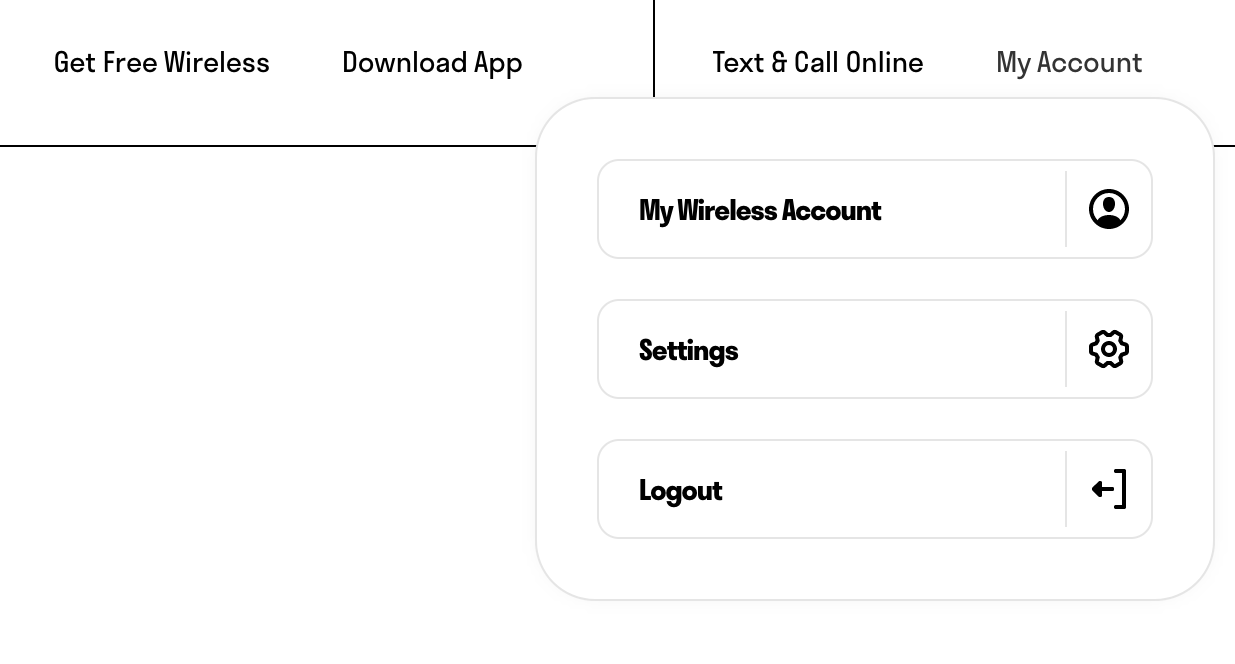
3. From the drop-down, select Settings.
4. Click on Messaging & Calling.
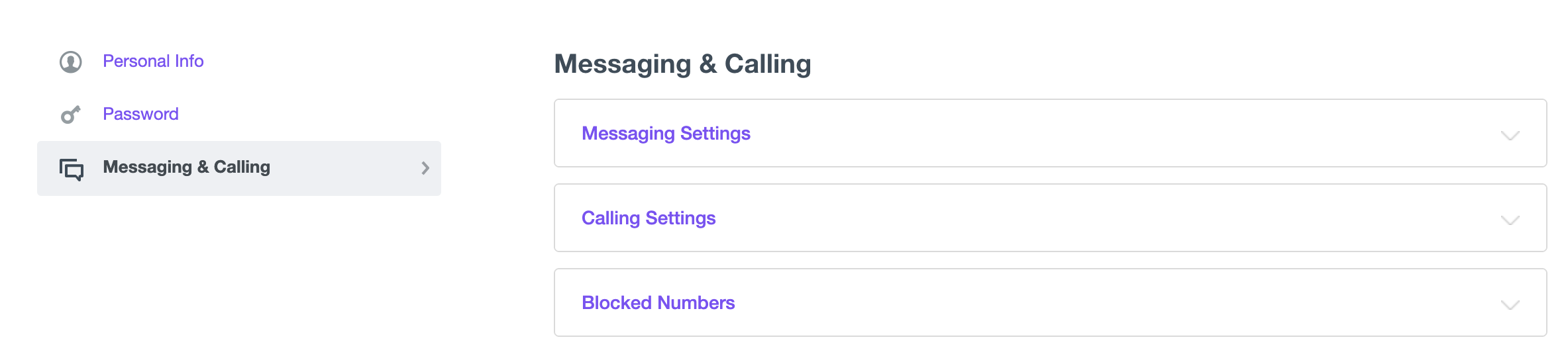
5. To change your messaging preferences, select Messaging Settings.
6. From here, you can choose if you want to hear notification sounds for incoming messages when you’re using a browser, and to show a notification on your desktop when you get a new message. You can also select Send me an email to get an email whenever you receive a text.
And finally, you can edit or remove the signature that appears at the bottom of your texts here as well.
7. By selecting Calling Settings, you can turn on the ability to send missed calls to voicemail.
8. Under Blocked Numbers, you can see your list of numbers you’ve blocked, and unblock them if you wish.
In the TextNow app:
1. Open your TextNow app and sign into your account.
2. Click on the main menu button in the upper-left corner, and then select Settings.
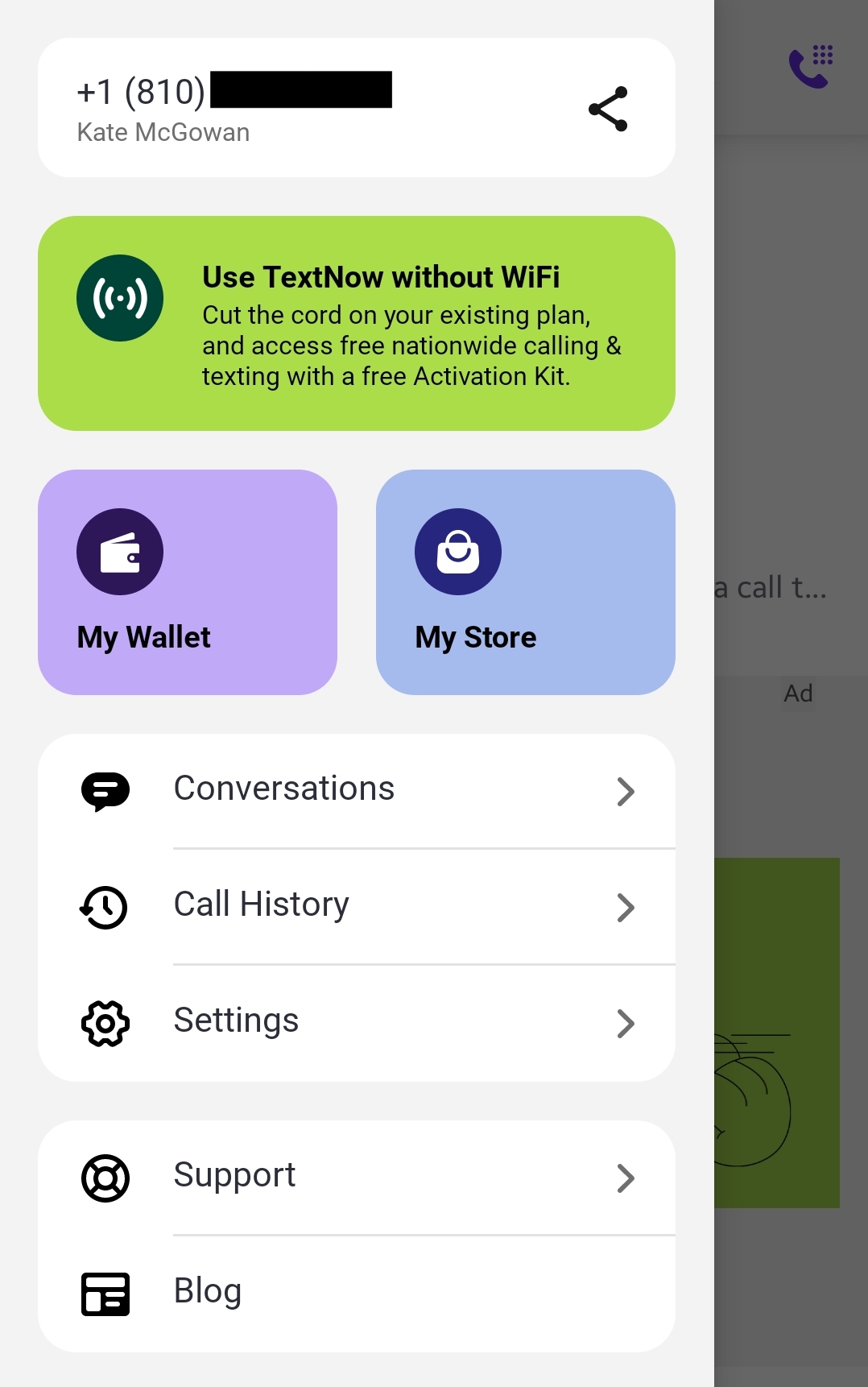
3. Tap on Messaging for your messaging options:
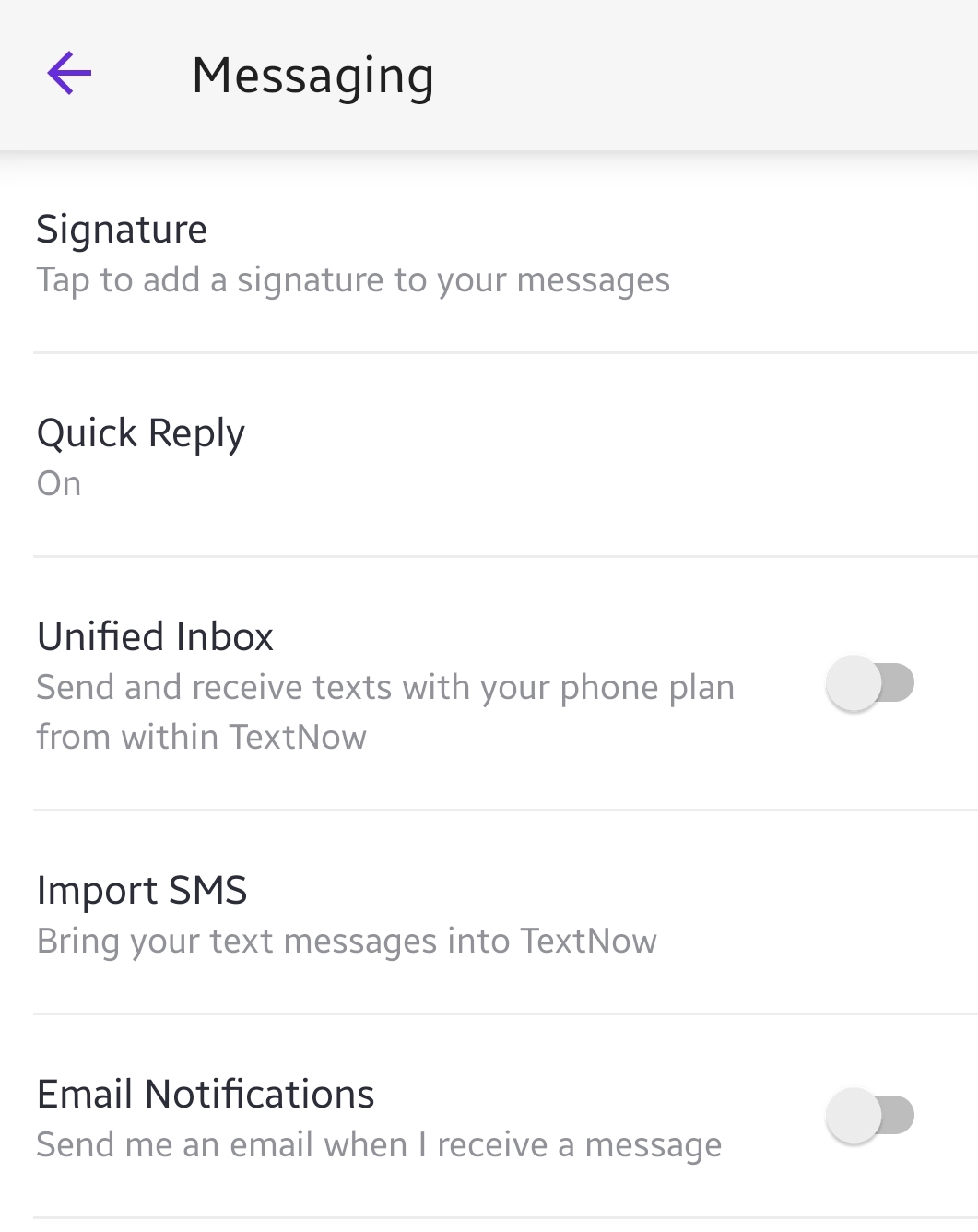
Under Messaging, you can:
- Signature: Add, edit or remove the signature that appears at the end of each of your texts
- Quick Reply: Set your preferences for floating chat heads, popup replies, and quick replies from the lock screen.
- Unified Inbox: Send an receive messages from your wireless provider by using your native phone number through the TextNow app.
- Import SMS: Bring the text messages from your phone into the TextNow app
- Email notifications: Have TextNow send an email to the email address you have on your account everytime you receive a text.
4. Tap on Calling for your calling options:
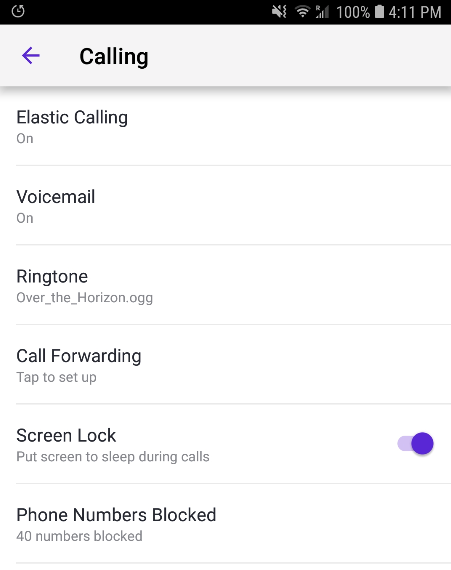
Here’s a quick rundown of the options under Calling:
- Elastic Calling: Set up TextNow to use your phone’s already existing 3G/4G data connection or voice network to start or complete a call when off wifi.
- Voicemail: Turn voicemail on or off, and set up a custom greeting.
- Ringtone: Choose a different ringtone from either the ones packed with TextNow, or from another audio file on your
- Call Forwarding: Set up your call forwarding number (Note: This option is not available for free users).
- Screen Lock: Toggle the screen on or off during calls.
- Phone Numbers Blocked: Your list of phone numbers that you’ve blocked, along with an option to unblock one or all of them.
