
If you’ve forgotten your Apple device passcode go to Support Center at support.apple.com/passcode or you can use your Apple ID and password to erase and reset your device without a computer.
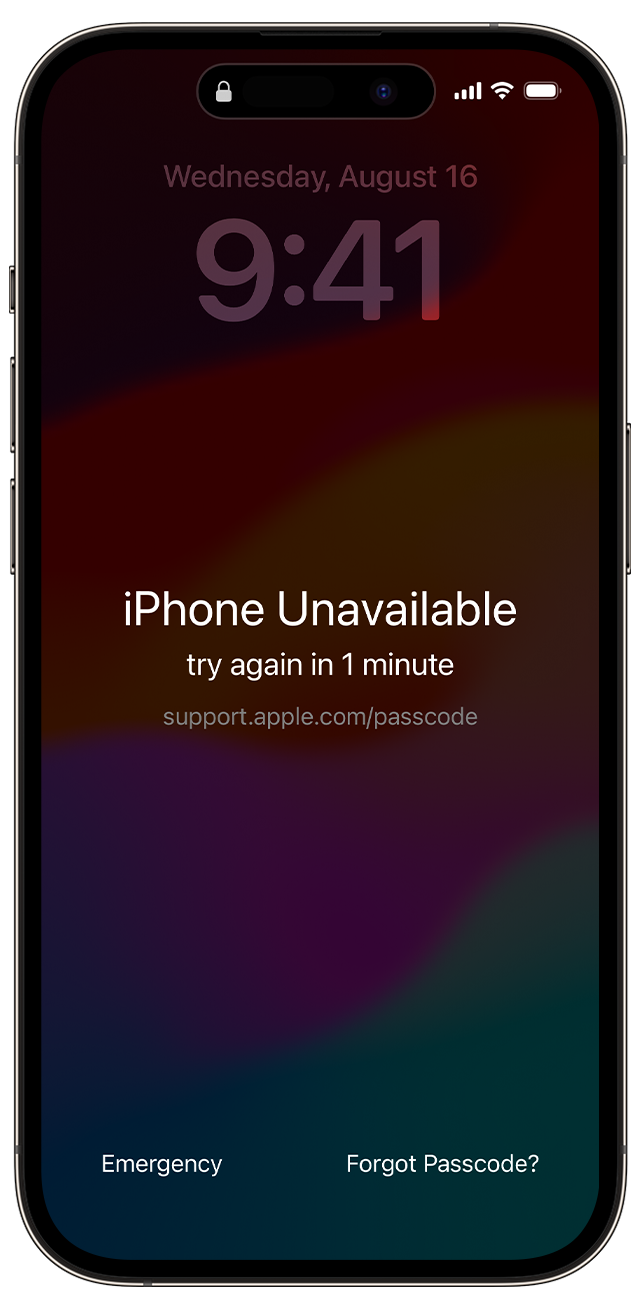
When you see the message “support.apple.com/iphone/passcode” on your device’s screen, it indicates that the passcode has been entered incorrectly too many times. This triggers a built-in security feature that locks your device for increasing time periods—ultimately requiring a reset if unsuccessful attempts continue.
How to Resolve It
Option 1: Reset Directly on Device (iOS 17 or later)
If your device is running iOS 17 or later and you’re connected to Wi‑Fi or mobile data and have Find My enabled, you’ll see a Forgot Passcode? or Security Lockout option on the lock screen. Clicking this allows you to:
-
Reset the device using your Apple ID and password.
-
Erase all data and settings.
-
Set it up again and create a new passcode.
This method works without a computer.
Option 2: Use a Computer (All Supported iOS Versions)
If you’re not able to reset directly on the device:
-
Connect the device to a Mac or PC using Finder (macOS Catalina or later) or iTunes (on Windows or older macOS versions).
-
Put the device into Recovery Mode (steps vary by model).
-
Choose the Restore option when prompted—this will erase the device and update it to the latest iOS.
-
After restoring, you can set up the device from scratch or use a backup.
Before you reset your device
-
You need to have a device that uses visionOS, iOS 15.2 or iPadOS 15.2 or later.
-
Your device needs to be connected to a mobile or Wi-Fi network.*
-
You’ll need the Apple ID and password that you used to set up your device.
On your iPhone or iPad, the Forgotten Passcode? option appears when you have a device that uses iOS 17 or iPadOS 17 or later, and you are connected to a mobile or Wi-Fi network. An Erase [Device] option appears if you have a device that uses iOS 15.2, iPadOS 15.2, iOS 16 or iPadOS 16, and you are connected to a mobile or Wi-Fi network.
How to reset your device in iOS 17
If you’re using an eSIM on iOS 16 or earlier, contact your network provider before following these steps and ask for a QR code to set up your eSIM again.
1. From your device’s Lock Screen, try to enter your passcode until the “[Device] Unavailable” screen appears and your device asks you to try again later.
2. When you’re able to, tap the Forgot Passcode? option in the bottom corner of the screen.
3. On the Security Lockout screen, tap Start [Device] Reset to confirm.
4. Enter your Apple ID password to sign out of your Apple ID on your device
5. Tap Erase [Device] to permanently delete all of your data and settings. If you use an eSIM with iOS 17 or later, you can also choose to keep your eSIM and erase your data, or to delete your eSIM and erase your data
6. When your device restarts, follow the onscreen instructions to set up your device again, restore your data and settings from a backup, and set a new passcode.
If you can’t follow these steps, you can use a computer to reset your device.
You can only reach the “Security Lockout” screen if you have an active mobile or Wi-Fi connection and enabled Find My on your device previously. After you try to enter your password ten times, your device will either erase itself or show Security Lockout and the Forgot Passcode? option without a timer, depending on how you set up your device previously.
Also Read : How do I recover my Apple ID passcode
If you recently changed passcodes, use your old passcode to temporarily sign in
When you change your passcode in iOS 17 and later, Passcode Reset will give you 72 hours when your old iPhone passcode can be used to sign in to your phone. When you sign in to your iPhone this way, you must change your passcode again immediately.
To use Passcode Reset:
-
From your device’s Lock Screen, try to enter your passcode until the “[Device] Unavailable” screen appears and your device asks you to try again later.
-
When you’re able to, tap the Forgot Passcode? option in the bottom corner of the screen.
-
Tap Try Passcode Reset.
-
Enter your old passcode, then follow the onscreen instructions to set a new passcode.
Passcode Reset is not available on Apple Vision Pro.
How do I access my Apple passcode?
1. On your Mac, choose Apple menu > System Settings, then click “Sign in with your Apple ID” at the top of the sidebar.
2. Click Forgot Password, enter your Apple ID (or another email address or phone number on file), click Continue, then follow the onscreen instructions.
