
Set up to activate your AirTag using your iPhone, iPad or iPod touch
To activate your AirTag, remove the wrap around the product and pull out the tab to activate the battery. Your AirTag will play a sound. Hold your AirTag near your iPhone, iPad or iPod touch, then tap Connect.
With AirTag, you can keep track of everyday items, such as your keys or a backpack. Find out how to set up your AirTag with your iPhone, iPad or iPod touch.
What you need
- An iPhone, iPad or iPod touch with iOS 14.5 or iPadOS 14.5 or later and two-factor authentication turned on.
- Find My turned on.
- Bluetooth turned on.
- A strong Wi-Fi or mobile connection.
- Location Services turned on: Go to Settings > Privacy > Location Services.
- To be able to use Precision Finding and to see the most accurate location for your AirTag, turn on Location Access for Find My. Go to Settings > Privacy > Location Services, then scroll down and tap Find My. Tick While Using the App or While Using the App or Widgets. Then, turn on Precise Location.
If you have a Managed Apple ID, you can’t set up an AirTag.
Also Read : How To Activate Stolen Device Protection on iPhone

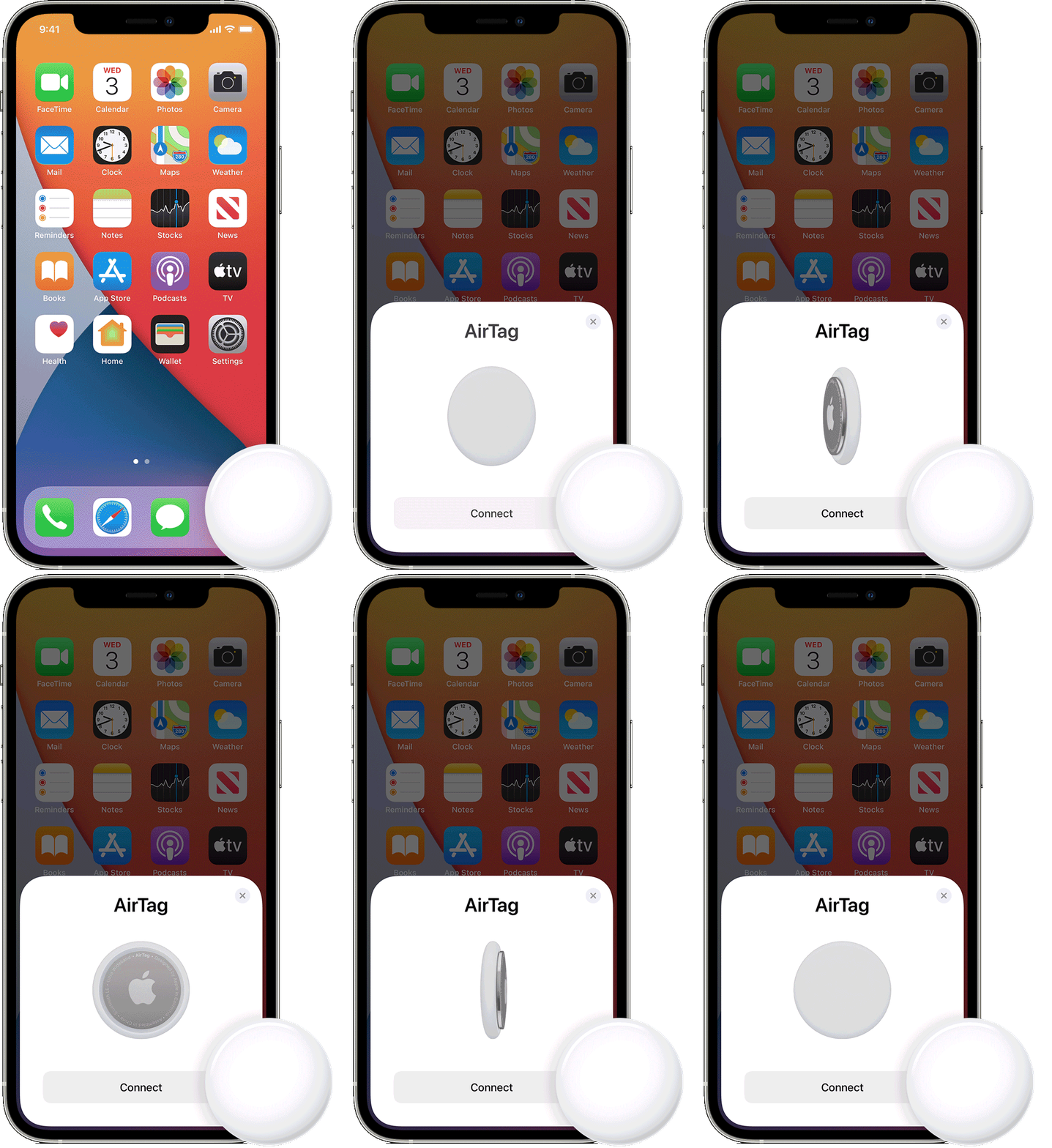
Set up your AirTag
- Make sure your device is ready for setup.
- If your AirTag is new, remove the wrap around the product and pull out the tab to activate the battery. Your AirTag will play a sound.
- Hold your AirTag near your iPhone, iPad or iPod touch, then tap Connect.* If you have multiple AirTags and see “More than one AirTag detected”, make sure only one AirTag is near your device at one time.
- Select an item name from the list, or select Custom Name to name your AirTag and choose an emoji. Then tap Continue.
- To register your AirTag with your Apple ID, tap Continue again.
- Tap Done.
Now, you can attach your AirTag to your item and see it in the Find My app.
* You can also set up your AirTag in the Find My app. Tap the Items tab, then tap Add Item.
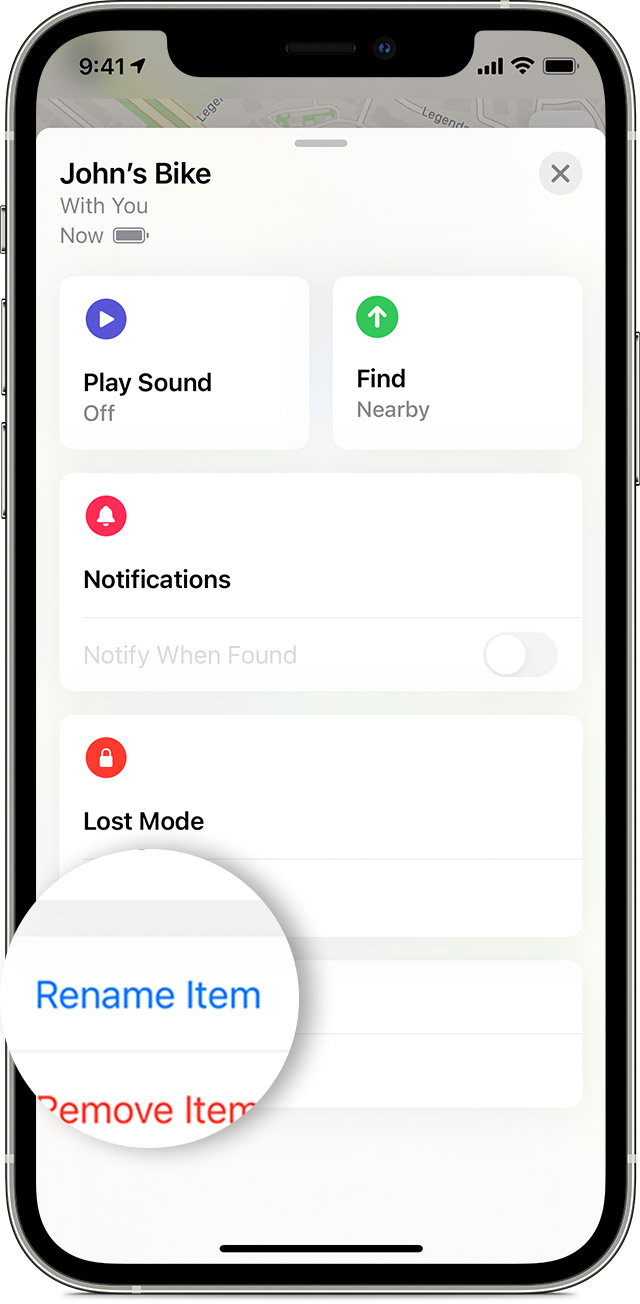
Change the name of your AirTag
- Open the Find My app, then tap the Items tab.
- Tap the AirTag whose name or emoji you want to change.
- Scroll down and tap Rename Item
- Select a name from the list or select Custom Name
- Type a custom name for your AirTag and select an emoji
- Tap Done
If you can’t set up your AirTag
- Make sure your device is ready for setup.
- If the setup animation has disappeared, press the side button or Sleep/Wake button on your iPhone to put your device to sleep. Then wake and unlock your iPhone. Wait up to 15 seconds, and the animation should reappear.
- If you have multiple AirTags to set up, make sure only one is near your device at one time.
- Remove and then replace the battery in your AirTag.*
- If your AirTag still won’t connect to your device, reset your AirTag.
