
Quick answer
LoL error code 004 means the League of Legends client tried to download or apply a patch and failed, usually because of low disk space, missing admin permissions, a corrupted config file, or security software blocking the update. Restart the client as administrator first. If that does not work, free up at least 20 percent of your drive space, delete the game.cfg file, then run the official Riot Repair Tool (formerly Hextech Repair Tool). Most players are back in a match within 10 minutes.
TLDR: fastest fixes for error 004
- Restart the League client and run it as administrator
- Free up hard drive space (aim for at least 20 percent free)
- Delete the game.cfg file and the latest release folder in RADS
- Run the official Riot Repair Tool to rebuild broken patch files
- Temporarily disable antivirus, then reset your network if it still fails
If you opened League of Legends and got hit with “Patching failed and we’re not sure why. Please restart the client to try patching again. (Error code 004)” you are not alone. It is one of the most common client errors in the game, and it almost always comes down to one of four causes below. This guide covers all of them, in the order most likely to fix your specific case, plus what to do if none of them work.
What LoL error code 004 actually means
Error code 004 is not a graphics, login, or connection error. It is specifically a patcher failure. When you launch League of Legends, the client checks for the newest patch and tries to download and install any files that changed. Error 004 fires when that install step cannot finish, so the game refuses to start until the patch completes successfully.
Because the error is about the patching process rather than your account or the servers, it typically affects one player at a time rather than everyone at once. That is the main way to tell it apart from a real League of Legends outage.
How to Fix “Failed to apply nosigchk” on Switch (2026 Guide)
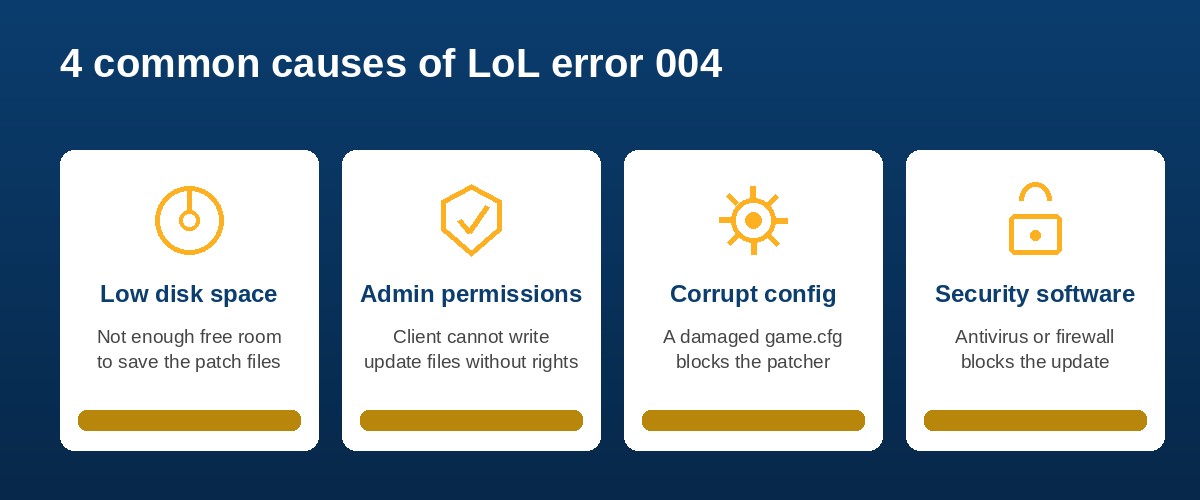
Why patching fails (4 root causes)
Across support reports and troubleshooting guides, error 004 traces back to one of these:
- Not enough free disk space. Large patches need extra temporary space to download and unpack before the old files are replaced. A drive with under a few gigabytes free is the single most common trigger.
- Missing administrator permissions. The client needs write access to its own install folder. If Windows blocks that, the patch downloads but cannot be applied.
- A corrupted configuration file. The game.cfg file, or a leftover partial update inside the RADS release folder, can conflict with the new patch and stop it from applying cleanly. This is more common after an unexpected shutdown or power cut mid-update.
- Antivirus or firewall interference. Security software occasionally flags the patcher’s file changes as suspicious and blocks them, which cuts the update off partway through.
Fix comparison table (time and success rate)
Start from the top of this table and work down. Each fix takes longer than the last, so there is no reason to jump straight to a reinstall.
| Fix | Time needed | Best for |
|---|---|---|
| Restart client as administrator | 1 to 2 minutes | Almost every first-time case |
| Free up hard drive space | 5 to 15 minutes | Drives with less than 20 percent free |
| Delete game.cfg and RADS release folder | 5 minutes | Errors that started after a crash or power cut |
| Run the Riot Repair Tool | 10 to 30 minutes | Persistent errors after the fixes above |
| Disable antivirus temporarily | 2 minutes | Patch stuck at a fixed percentage |
| Reset network settings | 10 minutes plus restart | Patch fails at 0 percent every time |
| Full reinstall | 30 to 60 minutes | Last resort, deeply corrupted install |
Step-by-step fixes
1. Restart the client as administrator
This alone resolves error 004 for most players, because the client often just needs write permission it did not have on the first attempt.
- Close League of Legends completely and end any related process in Task Manager
- Right-click the League of Legends or Riot Client shortcut
- Select “Run as administrator”
- Let the patch try again
2. Check and free up disk space
Open File Explorer, click This PC, and check the drive letter League of Legends is installed on. Aim for at least 8 to 10 GB free, and ideally 20 percent of the total drive. If space is tight, uninstall unused programs or run Disk Cleanup before trying the patch again.
3. Delete the corrupted config file
A damaged config file is one of the most common causes after a crash. This does not delete your account, settings sync back from Riot’s servers.
- Go to your install folder, typically
C:\Riot Games\League of Legends\Config - Delete the
game.cfgfile (or move it elsewhere as a backup) - Go to
RADS\projects\league_client\releases - Delete the folder for the newest version number
- Relaunch the client and let it rebuild those files
4. Run the official Riot Repair Tool
Riot’s own automated repair utility, formerly called the Hextech Repair Tool and now named the Riot Repair Tool (RRT), scans for corrupted patch files and rebuilds them without a full reinstall. It is the safest way to fix a stubborn error 004, and it also collects logs Riot support can use if you need to open a ticket.
- Download it only from Riot’s official support site, never a third-party mirror
- Run it as administrator
- Select League of Legends from the game list and start the repair
- Wait for the process to finish, it can take up to 30 minutes on a slow connection
5. Temporarily disable antivirus or firewall
If the patch consistently stalls at the same percentage, your security software may be quarantining patch files mid-download. Disable real-time protection for a few minutes, retry the patch, and turn protection back on immediately afterward.
6. Reset your network settings
A patch that fails at 0 percent every time, rather than partway through, often points to a DNS or network issue rather than a file issue. Flushing your DNS and resetting your network adapter clears out bad routing data that can block the patch server.
7. Reinstall League of Legends
If nothing above works, uninstall the game fully, restart your PC, and reinstall from a fresh download. This is the slowest fix but resolves error 004 caused by deep file corruption that the repair tool could not catch.
If error 004 still will not go away
If you have worked through every step above and the patch still fails, the issue is likely account-specific or tied to your exact system configuration, and it is time to open a ticket with Riot support directly. Use the Riot Repair Tool’s log-gathering feature first and attach the generated file to your ticket, it lets Riot’s team see exactly where the patch is failing instead of guessing.
Frequently asked questions
Is LoL error code 004 a server-side issue?
No. It is a client-side patching failure tied to your PC, such as disk space, permissions, or a corrupted config file. It is not caused by Riot’s servers being down, though a genuine server outage can occasionally produce similar symptoms.
Will deleting game.cfg delete my settings or account?
No. Deleting the local config file only removes cached client settings on your machine. Your account, rank, and most in-client settings are stored on Riot’s servers and will resync the next time you log in.
Is the Hextech Repair Tool the same as the Riot Repair Tool?
Yes. Riot renamed the Hextech Repair Tool to the Riot Repair Tool (RRT). It is the same official utility, downloaded from the same official support source, just under a new name.
How much free disk space do I need to patch League of Legends?
Aim for at least 8 to 10 GB free, and ideally 20 percent of your total drive capacity, since large patches need temporary space beyond the final installed size.
Can antivirus software really cause error 004?
Yes. Security software sometimes flags the patcher’s file changes as suspicious and blocks them mid-update, which cuts the patch off and triggers the error.
For background on how Riot documents this class of issue, see Riot’s own patching issues support article, and download the repair utility only from Riot’s official Riot Repair Tool page.
If League of Legends itself looks like it might be down rather than just your client patching, check our live League of Legends server status tracker before spending time on client-side fixes. For other Riot Client and patcher errors, browse our full Riot Games outage and error code hub.

Written by Freddy
Games and Technology Editor, seminarsonly.com/news
Freddy covers live-service game status, client errors, and patcher troubleshooting for League of Legends and other major titles, cross-checking every fix against official Riot support documentation before it is published. Corrections and updates are welcome through the comments section below.
