
iMessage Activation Error : Unable to Contact the iMessage Server
To use iMessage or FaceTime, you need to activate them on your iPhone, iPad, or iPod touch. If you see an error message during activation, follow these steps.
When activating iMessage or FaceTime, you might see one of these messages:
- Waiting for activation
- Activation unsuccessful
- An error occurred during activation
- Could not sign in, please check your network connection
- Unable to contact the iMessage server. Try again.

Check your device settings
1. Verify that you are linked to a WiFi or cellular data network. To activate your phone number with iMessage and FaceTime on an iPhone, you must send SMS messages. Depending on your provider, this SMS may incur charges.
2. Go to Settings > General > Date & Time and make sure that your time zone is set correctly.
Turn off and restart iMessage and FaceTime
- Go to Settings > Messages and turn off iMessage
- Go to Settings > FaceTime and turn off FaceTime
- Restart your device:
- iPhone
- iPad
- iPod touch
- Turn iMessage and FaceTime back on
Still not activated after a day?
It might take up to 24 hours to activate iMessage and FaceTime. If the issue continues after 24 hours, follow these steps:
- Make sure that your device has the latest version of iOS or iPadOS.
- If you’re using an iPhone, contact your carrier to make sure that you can send and receive SMS messages.
- If your iPhone is used with a carrier not found in the wireless carrier articles, make sure you can send and receive international SMS.
- Contact Apple Support.
Use iMessage apps on your iPhone, iPad, and iPod touch
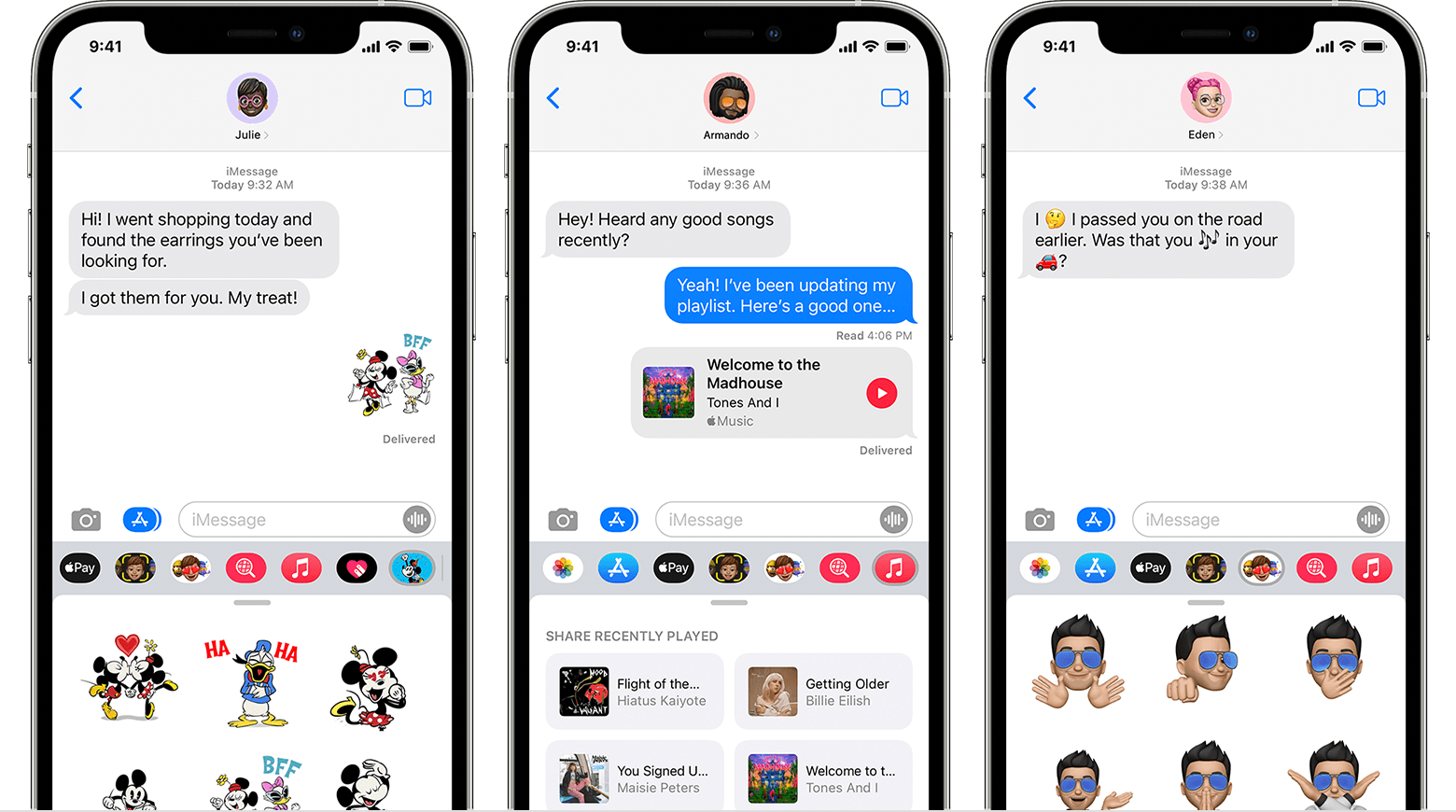
With iMessage apps, you can collaborate with others in a conversation, decorate messages with stickers, share a song, and more — without leaving Messages.
Get started
- Download the latest version of iOS or iPadOS for your iPhone, iPad, or iPod touch.
- Make sure that your device is signed in to the iTunes & App Store with your Apple ID.
Download iMessage apps
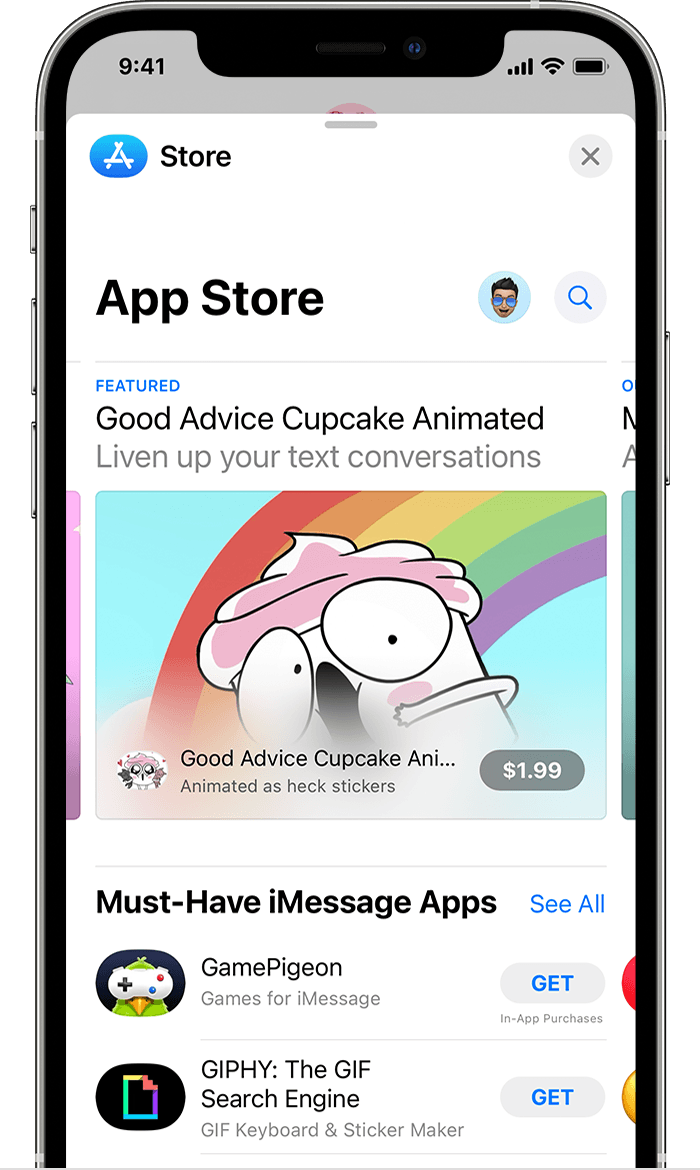
You can find and download apps to use with iMessage in the App Store for iMessage. Here’s how:
- To go to the App Store for iMessage, tap the Store icon
 .
. - Tap the
 icon or the price icon next to the app, then tap Install. You might need to enter your Apple ID password to complete the purchase.
 - Tap the gray line
 or the Close button
  to return to your message.
 .
. icon or the price icon next to the app, then tap Install. You might need to enter your Apple ID password to complete the purchase.
 or the Close button
  to return to your message.
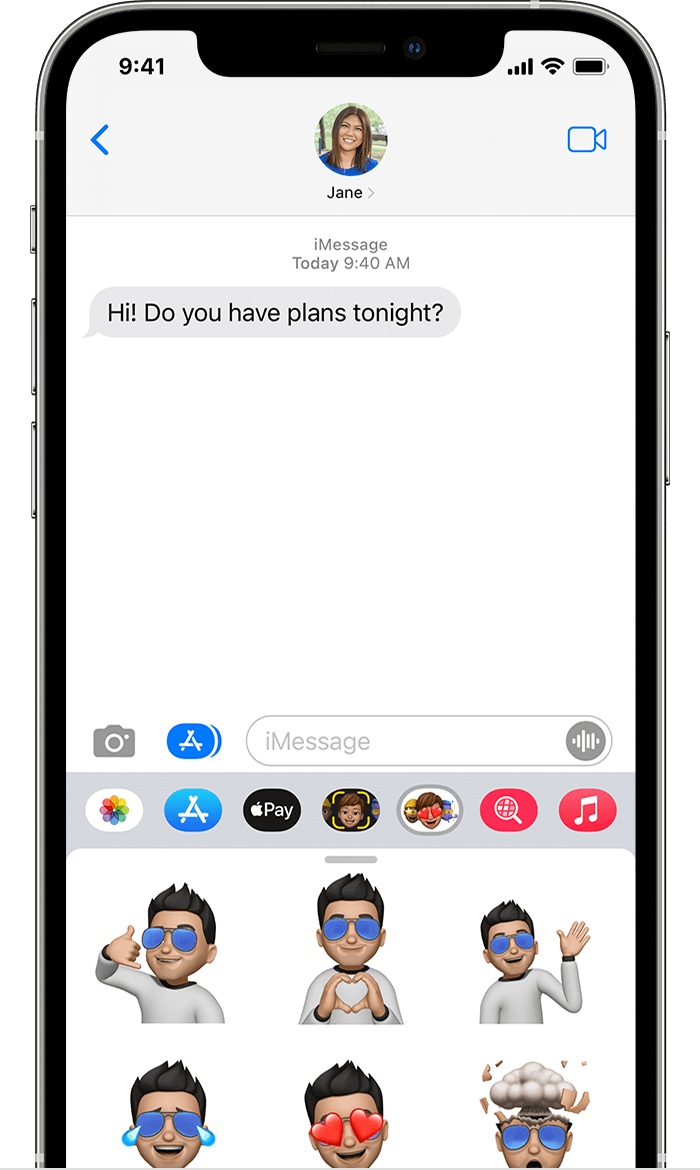
After the app downloads, you can find it in your app drawer.
Certain apps allow you to buy more things directly from the app. Ask to Buy can be used to help manage in-app purchases and app downloads if Family Sharing is enabled.
