
https //retireefehb.opm.gov Login : How to access Open Season Online
To access Open Season online, visit https://retireefehb.opm.gov/ and click Sign In / Register with Login.gov. Once you register with Login.gov, you will use your Login.gov credentials to sign into Open Season Online.
If you have any problems with Login.gov, please call (844) 875- 6446, 24 hours a day, seven days a week.
How to access Open Season Online using Login.gov
Step 1 –
Visit https://retireefehb.opm.gov/ and click Sign In / Register with Login.gov
Step 2 –
Create an Account If you are a new Login.gov user, click Create an account. If you already have a Login.gov account, enter your credentials on this screen, click Sign In, and you will be taken to the authentication page chosen when you created your account. After authenticating, please go to step 11 so you can access the Open Season website.
If you receive an email message saying the email address is already associated with an account, this means you previously registered for a Login.gov account using that particular email address. Follow the instructions in the email to reset your password or register using a different email address.
Step 3 –
Enter Your Email Address Enter your email address, select your language preference, click the check box that you have read the Login.gov rules of use, and click Submit.
Step 4:
Check Your Email Login.gov will send an email to the email address you entered in step 3 to verify that you are the owner of that email address.
Step 5 –
Confirm Email Address Check your email and open the email from no-reply@login.gov, with the subject line Confirm your email.
Click Confirm email address or copy and paste the link into a web browser. A new window will open.
Step 6 –
Create a Password Create a password. This password must be at least 12 characters long. If the password you enter is not strong enough, you will not be able to continue. Enter a strong password and click Continue. The only requirement for a “strong” password for Login.gov is that it is at least 12 characters.
Step 7 –
Secure Your Account Select an option to secure your account and click Continue. Login.gov requires the completion of a user verification process to ensure the proper person is using those credentials. Follow the instructions for the method you select.
Step 8 –
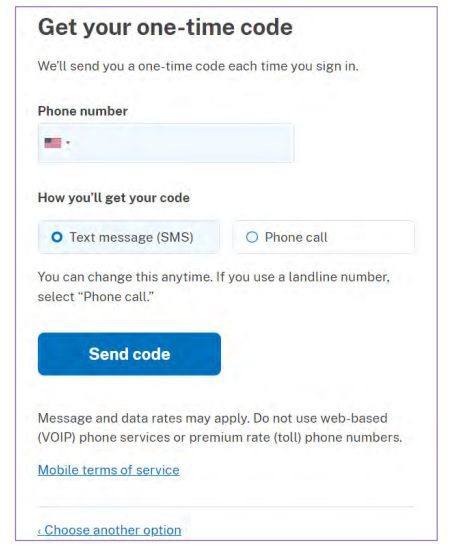
Enter Your Phone Number If you elect to use the text message method of authentication, enter the phone number you wish to enroll in Login.gov. This authentication method will send a text message every time you use Login.gov and can also be set to send a code via voice in a phone call. Click Send code to generate the security code.
Step 9 –
Security Code Enter your security code and click submit. This code will be provided via the method you selected. The screenshot below illustrates the text (SMS) phone method. You may choose to add another method for security, but it is not required.
Step 10 –
Agree and Continue You have created your Login.gov account. Click Agree and continue to return to the OPM Open Season Online website and complete your Open Season Online registration.
Step 11 –
Click on the I accept box and select OK.
Step 12 –
If you have previously entered your annuity claim number and the last 4 of your ssn for this Open Season, you will automatically be taken to your Open Season account. If not, enter your annuity claim number by first selecting the radio button for CSA or CSF, depending on what your claim number starts with. Enter your claim number then click on the Next button.
Step 13 –
Enter the last 4 digits of your social security number and click the Next button to be taken to your Open Season Online account.
Step 14 –
You are ready to make an enrollment change or request Open Season information. Upon completion, click on the Log Off link at the bottom of the left side menu.
Step 15 –
Once you have completed your transaction and clicked the Log Off link in step 14, click the ‘Yes, sign out of Login.gov’ button. This will ensure you have completely logged off the FEHB Open Season Online website. Clicking the ‘No, go to my account page’ button will take you to your Login.gov account.
