
https //globe.com.ph/sim Registration : Globe SIM Registration
Here’s how to register your Globe SIM card:
1. Online Registration (Recommended)
- Visit the official website: Go to https://new.globe.com.ph/simreg
- Provide your mobile number: Enter your 10-digit Globe mobile number.
- Wait for the OTP: You’ll receive a One-Time Pin (OTP) via SMS.
- Enter the OTP: Input the 6-digit OTP on the website.
- Fill out the registration form:
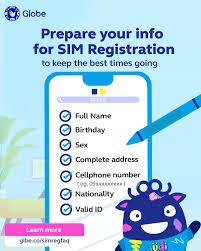
- Provide your full name, birthdate, gender, address, and nationality.
- Take a selfie.
- Select and upload a valid government-issued ID (make sure it’s clear and readable).
- Agree to the terms: Tick the checkbox to agree to Globe’s Privacy Notice and Attestation of Completeness and Accuracy.
- Submit: Click the “Submit” button.
- Keep the reference number: You’ll receive a reference number; keep this as proof of registration.
- Confirm your registration: You’ll get an SMS from Globe asking you to confirm your details. Reply with “SIMREG” to 8080.
- Wait for the confirmation message: You’ll receive a final SMS confirming your successful registration.
2. In-Store Registration
- Find a Globe store: Locate the nearest Globe store or authorized retailer.
- Bring your requirements:
- Your Globe SIM card
- A valid government-issued ID
- Approach a representative: Ask for assistance with SIM registration.
- Provide your information: The representative will guide you through the process and ask for your personal details and ID.
- Wait for confirmation: You’ll receive an SMS confirming your successful registration.
For Prepaid, Postpaid, Platinum, Globe At Home Prepaid WiFi, MyFi, simply follow the steps below on how to register your SIM card. For Retailer SIMs, you may follow the steps for Prepaid
For those who need assistance in registering their SIMs, you may find the nearest SIM Registration site in the list below
For Globe Business Corporate-Managed Postpaid customers, your number should be registered under your company name. Details of the registration requirements and steps will be sent to your company Authorized Representative on a later date
Ways to Register Your Globe SIM
PREPAID
1) Access the SIM registration website.
2) Enter your 10-digit mobile number (ex. 9171234567) and click the “Register” button.
3) If eligible to register, you’ll receive a One Time Pin (OTP) text message on your mobile phone.
4) Enter the 6-digit OTP on the registration website. Note that the OTP expires in five minutes.
5) After your OTP is validated, you may now proceed with the registration
6) Enter all required fields: Name, Birthday, Gender, Address, and Nationality.
7) Take a selfie and select the type of government ID to be uploaded. Click the “attach” button to upload a copy of your valid government ID.
8) Tick the checkbox to agree with Globe’s Privacy Notice and Attestation of Completeness and Accuracy
9) Click “Submit” button to finish the registration process
10) A reference number will appear on your screen to signify completion of registration. Please keep the reference number as proof of registration.
Postpaid
- You’ll receive a text message from Globe to confirm if your SIM registration details are correct.
- Text SIMREG to 8080 to confirm your details and registration.
- You’ll receive a confirmation message from Globe that you’re now registered!
Platinum
- You’ll receive a text message from Globe to confirm your SIM registration details.
- Text SIMREG to 8080 to confirm your details and registration.
- You’ll receive a confirmation message from Globe that you’re now registered!
LTE@HOME
- Wait for the text message from Globe At Home asking for confirmation on your SIM registration details.
- To confirm, text SIMREG <ACCOUNT NUMBER> <WIRELESS LANDLINE/SUPER HOME PHONE NUMBER> to 268204.
- You’ll receive a confirmation text message from Globe that you’re now registered!
What are the Accepted IDs
The following are the official IDs that will be accepted in registering SIMs:
- Passport
- SSS ID
- Driver’s License
- NBI Clearance
- PRC ID
- IBP ID
- OWWA ID
- BIR ID
- Senior Citizen ID
- UMID Card
- Philhealth ID
- Philippine Identification (National ID)
- Voter’s ID
Register Your Globe SIM via the GlobeOne App
Step 1
Tap “Register Your SIM” when you open the GlobeOne app.
Step 2
Select the Globe account you want to register or enter your mobile number.
Step 3
Wait for the confirmation, and you’re done!
How do I register more than one SIM?
If you have multiple SIMs, you may register all of them but you’re required to register each SIM under your name. Simply visit the Globe online registration portal and repeat the process for each of your SIMs.
If you’re unable to register your SIM before the deadline, the SIM will be deactivated permanently. When your SIM is deactivated, you’ll no longer be able to use your text, call, data, and other mobile services.

