
How To Activate Apple Pay : How to pay using Apple Pay in stores and other places
To activate Apple Pay on your device, authenticate with Face ID or enter your passcode to open Apple Wallet. To use a different card, tap your default card to see your other cards. Tap a new card and authenticate. Hold the top of your iPhone near the contactless reader until Done and a checkmark appear on the display.
To activate Apple Pay on your iPhone, follow these steps:
- Open the Wallet App:
- Go to your iPhone’s Settings.
- Tap on Wallet & Apple Pay (it looks like a wallet icon).
- Next, tap Add Card.
- Add Your Card:
- Choose Credit or Debit Card.
- Tap Continue.
- Use your camera to scan your card or enter the card details manually.
- Place your credit or debit card on a flat surface with your name and the numbers facing up.
- Verification and Agreement:
- Verify your card by entering the code provided.
- Tap Next and then Continue.
That’s it! You’re all set up to use Apple Pay for secure payments in stores, transit, apps, and websites that support it. Enjoy the convenience! 😊🍎🌟
You can pay using Apple Pay in stores, within apps and on the web, and more.
How to pay using Apple Pay in stores and other places
With your iPhone or Apple Watch, you can use Apple Pay in stores, restaurants, gas stations, taxis, or wherever else you see one of these symbols.
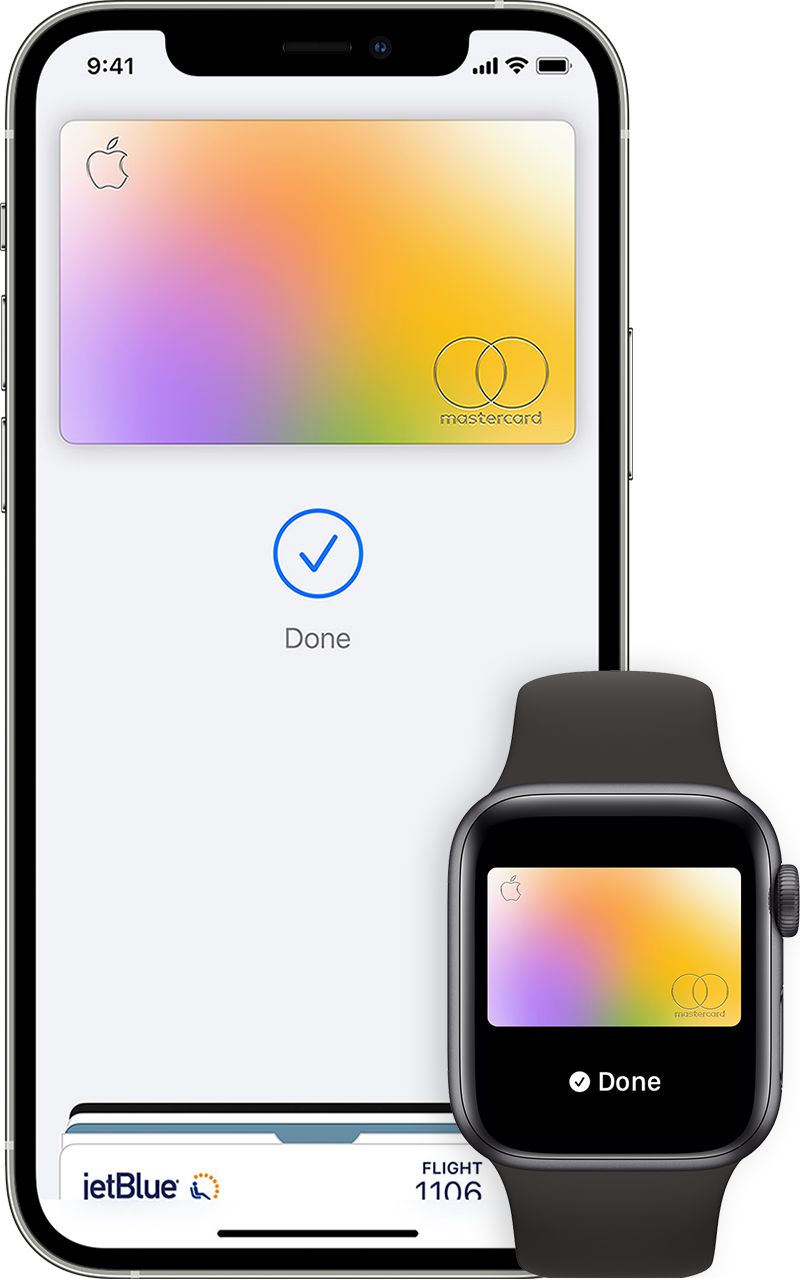
Pay with your iPhone
- To use your default card:
- If your iPhone has Face ID, double-click the side button. If prompted, authenticate with Face ID or enter your passcode to open Apple Wallet.
- If your iPhone has Touch ID, double-click the Home button
- To use a different card, tap your default card to see your other cards. Tap a new card and authenticate
- Hold the top of your iPhone near the contactless reader until Done and a checkmark appear on the display
Pay with your Apple Watch
- Double-click the side button.
- Your default card opens automatically. Scroll down to choose another card.
- Hold the display of your Apple Watch near the contactless reader until you feel a gentle tap and hear a beep.

How to pay using Apple Pay online or within apps
You can use Apple Pay to pay online in Safari2,3 or within apps when you see Apple Pay as a payment option.
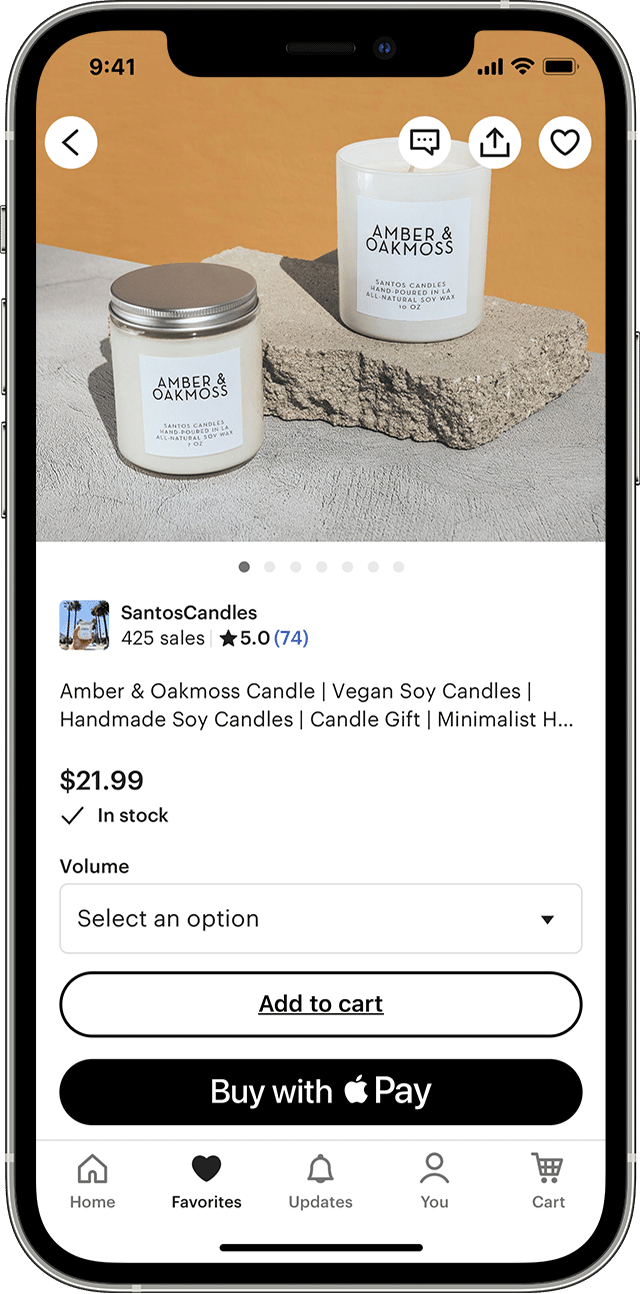
- Tap the Apple Pay button or choose Apple Pay as your payment method.
- To pay with a different card, tap the Next button
 or the Expand Menu button
  next to your default card.
 - If necessary, enter your billing, shipping, and contact information. Apple Pay stores that information, so you won’t need to enter it again.
- Confirm the payment.
- iPhone or iPad with Face ID: Double-click the side button, then use Face ID or your passcode.
- iPhone or iPad without Face ID: Use Touch ID or your passcode.
- Apple Watch: Double-click the side button.
- Mac with Touch ID: Follow the prompts on the Touch Bar and place your finger on Touch ID. If Touch ID is off, tap the Apple Pay icon on the Touch Bar and follow the prompts on the screen.
- Mac without Touch ID: Confirm the payment on your Bluetooth-connected iPhone or Apple Watch. Make sure that you’re signed in with the same Apple ID on all devices.
- When your payment is successful, you’ll see Done and a checkmark on the screen.

 or the Expand Menu button
  next to your default card.
- In addition to accepting Apple Pay, the merchant must accept your payment card and payment network.
- In China mainland, you can use Apple Pay on the web in Safari only on a compatible iPhone and iPad with the latest version of iOS or iPadOS.
- In Italy, you can use your iPhone and Apple Watch to make Apple Pay purchases in stores with your Maestro card. Maestro cards can’t be used within apps and on the web. In the Netherlands, you can add Maestro cards to all compatible devices except Mac.
Tags : Does Kroger Take Apple Pay, Does Chick Fil A Take Apple Pay, Taco Bell Apple Pay, Does Home Depot Take Apple Pay, Does Walgreens Take Apple Pay, Does Lowes Take Apple Pay, Does Canes Take Apple Pay, Does Taco Bell Take Apple Pay
Change or remove the payment cards that you use with Apple Pay
You can change your default card, remove a card from Apple Wallet, or update the billing and contact information that Apple Pay uses for in-app and online purchases.
Change your default card
The first payment card that you add to the Apple Wallet on a device becomes your default card for that device. When you add more cards, you can change your default card.
How to change the default card for Apple Pay on your iPhone
- Open the Wallet app.
- Touch and hold the payment card that you want to set as your default card.
- Drag the card in front of your other cards.
How to change the default card for Apple Pay on your Apple Watch
- On your iPhone, open the Apple Watch app.
- In the My Watch tab, tap Wallet & Apple Pay.
- Under Transaction Defaults, tap Default Card.
- Tap a card to set it as your default card.
How to change the default card for Apple Pay on your Mac or iPad
- On your device, open Apple Wallet settings.
- On your Mac with Touch ID, go to System Preferences > Wallet & Apple Pay.
- On your iPad, go to Settings > Wallet & Apple Pay.
- Select a new default card.
- On your Mac with Touch ID, choose a card from the menu.
- On your iPad, scroll down to Transaction Defaults > tap Default Card and choose a card.
