
How do I activate Microsoft Authenticator app? mobileappcommunicator auth microsoft con activate
To activate Microsoft Authenticator app, Download & install the App to your mobile device. Sign in to your account security dashboard. Select Add a new way to sign in or verify and choose Use an app.
With this free app, you can sign in to your personal or work/school Microsoft account without using a password. You’ll use a fingerprint, face recognition, or a PIN for security.
Why use the Microsoft Authenticator app?
- The authenticator app is a secure and convenient way to prove who you are.
- You can use the Authenticator app as a way to sign in if you forget your password.
- You can use the app to back up and restore all your other account credentials.
- You can also use the Microsoft Authenticator to sign in to your non-Microsoft accounts.
How to set up the Microsoft Authenticator app
- Download & install the Microsoft Authenticator app to your mobile device.
- Sign in to your account security dashboard.
- Select Add a new way to sign in or verify and choose Use an app.
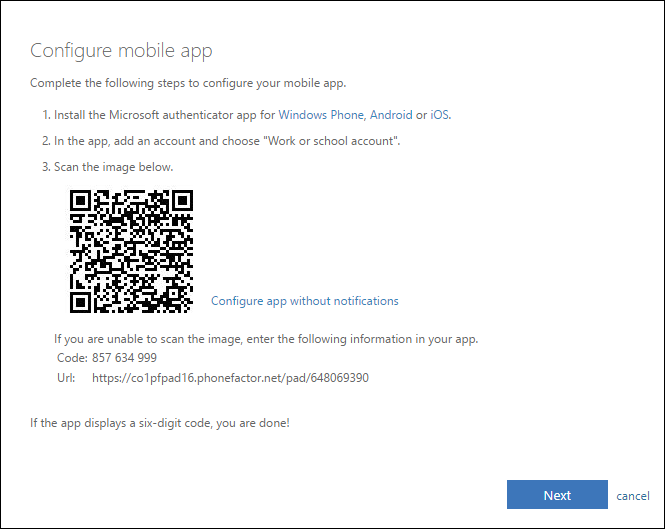
- If you’ve already installed the app, select Next to display a QR code appear on the screen.
- In the authenticator app, select [three dots] then + Add account.
- Choose the account type and select Scan a QR code.
- Scan the code shown on the screen in step 4.
- Select Finish on the PC to complete the setup.
Using Authenticator account backup and restore
The Microsoft Authenticator app backs up your account credentials and related app settings, such as the order of your accounts, to the cloud.
Turn on cloud backup:
- Select Settings > Backup and then turn on Cloud or iCloud backup.
To recover your information:
- Open the Microsoft Authenticator app on your mobile device and select Begin recovery.
- Sign in to your recovery account using the personal Microsoft account you used during the backup process. Your account credentials are recovered to the new device.
Where you can’t use security codes, use app passwords
Some apps (like the mail apps on some phones) or devices (like the Xbox 360) can’t use regular security codes. If you see an “incorrect password” error on an app or device after you turn on two-step verification, but you’re sure your password was correct, that means you’ll need an app password for that app or device.
App passwords are only available if you use two-step verification. If you don’t have two-step verification turned on, you won’t see the App passwords section on the Additional security options page.
How to create a new app password
To create a new app password for an app or device, take the following steps. You can repeat these steps to create an app password for as many apps or devices as you need.
- Go to the Security basics page and sign in to your Microsoft account.
- Select More security options.
- Under App passwords, select Create a new app password. A new app password is generated and appears on your screen.
- Enter this app password where you would enter your normal Microsoft account password in the application.
