
TL;DR: The “failed to establish connection to the server” error happens when your browser cannot communicate with the GST emSigner utility running on your computer. To fix it immediately, close your browser, right-click the emSigner shortcut, select “Run as Administrator,” and ensure you have the latest version of Java installed.
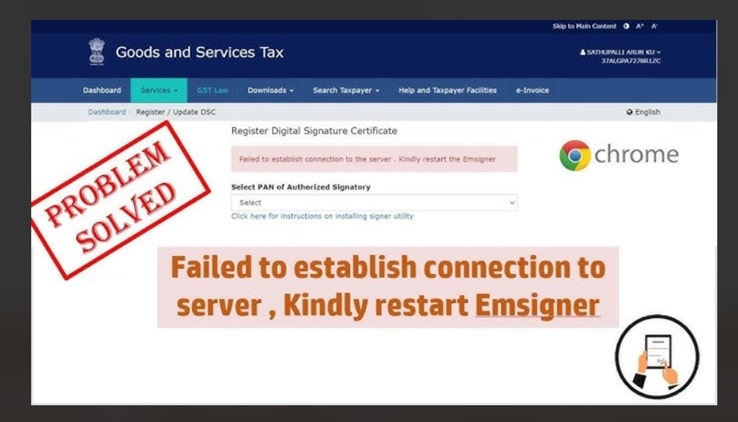
⚡ Quick Answer: How to Fix the emSigner Error
- Press Ctrl + Shift + Esc to open Task Manager.
- Find emSigner in the list, right-click, and select End Task.
- Go to your Desktop, right-click the emSigner icon, and select Run as Administrator.
- Open your browser, press Ctrl + Shift + Delete to clear your cache.
- Restart your browser and try affixing your Digital Signature (DSC) again.
Why Does the emSigner Connection Fail?
Whether you are on the GST portal, MCA, or TRACES, your browser needs to talk to your physical USB token through the emSigner software. When that bridge breaks, you get the “kindly restart the emsigner” prompt. Here are the most common culprits:
| Root Cause | Technical Explanation |
|---|---|
| Lacking Permissions | emSigner needs administrative rights to access your USB token drivers. Opening it normally often restricts this access. |
| Port Conflicts | emSigner uses local ports (like 1585, 1645, or 2015). If another app (like Skype or an antivirus) is blocking it, the connection fails. |
| Outdated Java | emSigner is a Java-based utility. If your system is running an outdated or corrupted version of Java (JRE), the software will crash silently. |
Advanced Fixes (If Restarting Doesn’t Work)
If you followed the Quick Answer steps above and you are still getting the error, move on to these advanced troubleshooting steps.
Method 1: Update Java and emSigner to the Latest Versions
- Uninstall Old Versions: Go to Control Panel > Programs > Uninstall a Program. Remove all older versions of Java and emSigner.
- Download Fresh Installers: Visit the official portal (e.g., GST or MCA website) and download the specific emSigner version meant for that portal. (Note: GST and MCA sometimes require different emSigner versions!)
- Reinstall: Install the latest Java version first, followed by emSigner.
How to Fix Zee5 Error SP-400-101 on Android Mobile (2026 Guide)
Method 2: The Localhost / Port Fix
Sometimes, your browser blocks the connection to the emSigner port for security reasons. Here is how to force it to accept the connection:
- Open a new tab in your browser (Chrome or Edge).
- Type https://127.0.0.1:1585 in the address bar and press Enter.
- You will likely see a warning saying “Your connection is not private.”
- Click on Advanced and then click Proceed to 127.0.0.1 (unsafe).
- You should see a blank screen or an XML file. This is normal! You have successfully established the connection. Go back and try signing your document.
💡 Pro Tip: Always make sure your USB token is plugged in before you start the emSigner application. Plugging the token in after the software is already running is a common cause for the server connection failure!
