
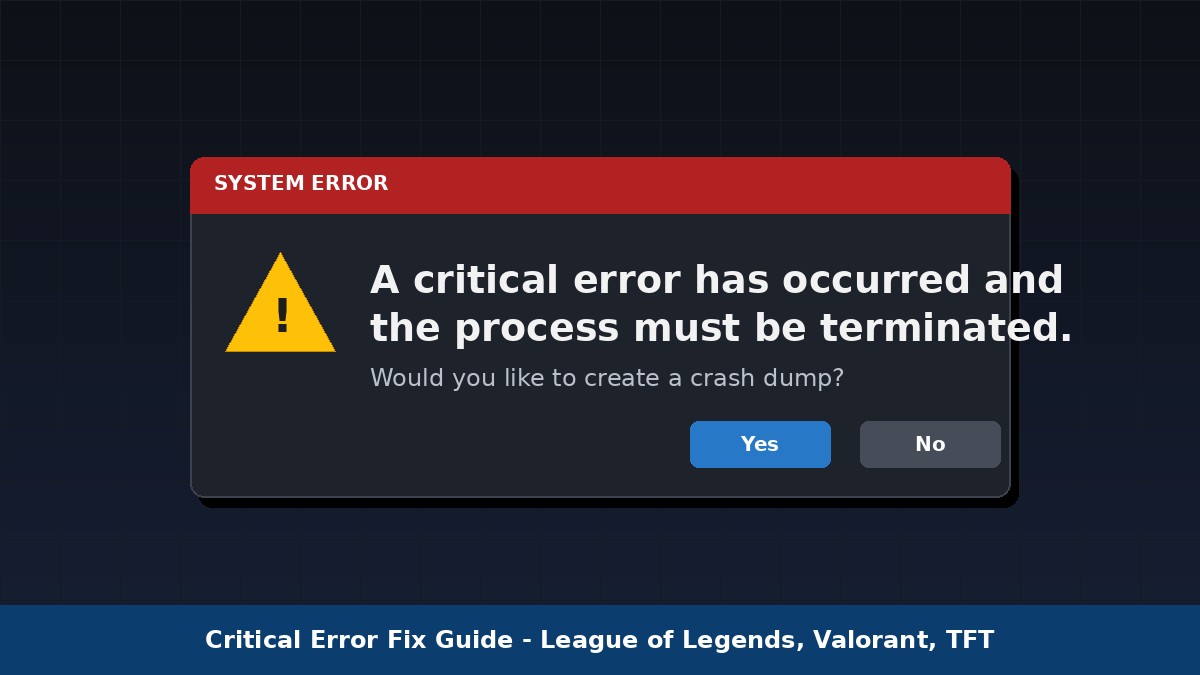
If your screen just froze on a red dialog box reading “a critical error has occurred and the process must be terminated,” you are not alone. It is one of the most common crash messages in Riot Games titles like League of Legends, Valorant, and Teamfight Tactics, and it almost always has a fixable cause. This guide walks through every known cause and fix, starting with the ones that work most often.
Quick answer
The “critical error has occurred” message usually means an overlay app (Discord, MSI Afterburner, GeForce Experience), an outdated GPU driver, or a stalled Vanguard/VGC service is conflicting with the game process. Close overlay apps, run the game as administrator, update your graphics driver, and restart the Vanguard (Valorant) or VGC (League/TFT) service. That resolves the error for most players within a few minutes.
TLDR
- Close Discord overlay, MSI Afterburner, RivaTuner, and screen recorders before launching
- Right click the game exe and select “run as administrator”
- Update your GPU driver from NVIDIA, AMD, or Intel directly
- Restart the Vanguard service (Valorant) or VGC service (League and TFT) in services.msc
- Reinstall the game only if every other fix has failed
Jump to a section:
- What this error actually means
- Common causes at a glance
- Quick fixes to try first
- Advanced fixes
- Game specific notes
- When to contact Riot support
- Frequently asked questions
What this error actually means
A critical error is a fault serious enough that Windows or the game engine cannot safely continue running the process, so it force closes to avoid corrupting data or crashing your whole system. Riot’s client shows this specific dialog, with an option to generate a crash dump, when the League of Legends, Valorant, or TFT process hits an unrecoverable conflict. The message itself does not name a cause, which is why the same dialog can appear for a driver issue, an overlay conflict, a corrupted file, or a background service problem.
Common causes at a glance
The table below ranks causes from most to least common, based on Riot’s own support guidance and widely reported player fixes.
| Cause | How common | Fastest fix |
| Overlay software (Discord, Afterburner, recorders) | Very high | Close all overlay apps via Task Manager |
| Outdated or mismatched GPU driver | High | Update driver from NVIDIA, AMD, or Intel |
| Vanguard or VGC service not running | High | Set service to automatic in services.msc |
| Fullscreen optimization conflicts | Medium | Disable fullscreen optimization in compatibility settings |
| Corrupted game files or config | Medium | Repair or reinstall the game client |
| Firewall or antivirus blocking the game | Low to medium | Allow the game through Windows Defender Firewall |
Quick fixes to try first
Work through these in order. Most players resolve the error in the first three steps.
1. Close overlay and recording software
Open Task Manager and end tasks for Discord, MSI Afterburner, RivaTuner Statistics Server, OBS, or any screen recording tool. Overlays hook directly into the game’s rendering process, and that hook is one of the most frequent triggers for this crash.
2. Run the game as administrator
Right click the game’s executable file, open Properties, go to the Compatibility tab, and check “run this program as administrator.” This gives the process the permissions it needs to write crash logs and access system resources without being blocked.
3. Disable fullscreen optimization
In the same Compatibility tab, tick “disable fullscreen optimizations.” Windows’ own fullscreen handling sometimes conflicts with how Riot’s client manages the display, and disabling it removes that conflict entirely.
4. Update your graphics driver
Download the latest driver directly from your GPU manufacturer rather than relying on Windows Update, which can lag behind. Visit NVIDIA’s official driver page for GeForce cards, or the equivalent AMD or Intel driver hub for other hardware.
5. Restart your PC
A full restart clears stuck background processes and memory conflicts that build up over long uptime sessions. It sounds basic, but Riot’s own support team lists it as a genuine fix, not just a formality.
Google Health API Error 401 Unauthorized: How to Fix It (2026 Guide)
Advanced fixes
Restart the Vanguard or VGC service
Press Windows plus R, type services.msc, and press enter. Find vgc (League and TFT) or vgc and Vanguard (Valorant, which also uses the vgk driver). Right click, open Properties, set Startup type to Automatic, then click Apply and OK. Restart your PC afterward.
Allow the game through your firewall and antivirus
Open Windows Security, go to Firewall and network protection, and add an allowed app entry for the League of Legends, Valorant, or TFT executable. Third party antivirus tools need the same exception added manually in their own settings.
Repair or reinstall the game client
If the error persists after every step above, uninstall the game and the Riot Client completely, delete any leftover folders in Program Files and AppData, then reinstall from scratch. This clears corrupted configuration files that a normal repair cannot always fix.
Game specific notes
League of Legends and TFT
Both games share the same client and the vgc anti-cheat service, so a fix for one generally fixes the other. This error tends to spike right after a patch, and Riot frequently ships a hotfix within hours if a large share of players are affected. If the error started immediately after an update, wait an hour or two before trying every fix on this page.
Valorant
Valorant relies on Vanguard, a kernel level anti-cheat, which makes it more sensitive to driver and service conflicts than League. If restarting the Vanguard service does not help, restart your PC once more immediately after, since Vanguard’s kernel driver only fully reloads on a clean boot.
When to contact Riot support
If you have tried every fix above and the error still appears on every launch, it is time to escalate.
- Generate a crash dump the next time the error appears, using the prompt in the dialog itself
- Note your exact Windows version, GPU model, and driver version
- Visit Riot Games Support and open a ticket with the crash dump attached
- Mention which fixes from this list you have already tried, so support can skip straight to advanced troubleshooting
For a broader view of whether Riot’s servers themselves are having issues right now, check our live game status tracker, which flags server side outages separate from local client errors. If the problem turns out to be on Riot’s end rather than your PC, our outage tracker shows real time reports from other affected players.
Frequently asked questions
Does this error mean my PC is damaged?
No. In almost every reported case, this is a software conflict between the game process, an overlay, a driver, or an anti-cheat service, not a hardware fault.
Why does it happen right after an update?
New patches sometimes introduce temporary conflicts with specific driver versions or overlay tools. Riot typically resolves widespread cases with a hotfix within a few hours.
Will reinstalling definitely fix it?
Reinstalling clears corrupted local files, which resolves the error in most remaining cases, but it will not help if the root cause is a driver or overlay conflict outside the game folder.
