
Activate your code – Cambridge GO : How to activate resources using a code from a book or a card
To activate your Cambridge GO resources, first locate your 16-character access code. You will find this on the inside front cover of a book, printed on an access card, or in an email sent to you by Cambridge or one of our partners.
Cambridge GO gives you access to resources that you have bought from Cambridge.
Please ensure that you use the URL specified. At the moment some Cambridge resources are accessed outside of Cambridge GO (for example Cambridge Elevate) and codes will not transfer between platforms.
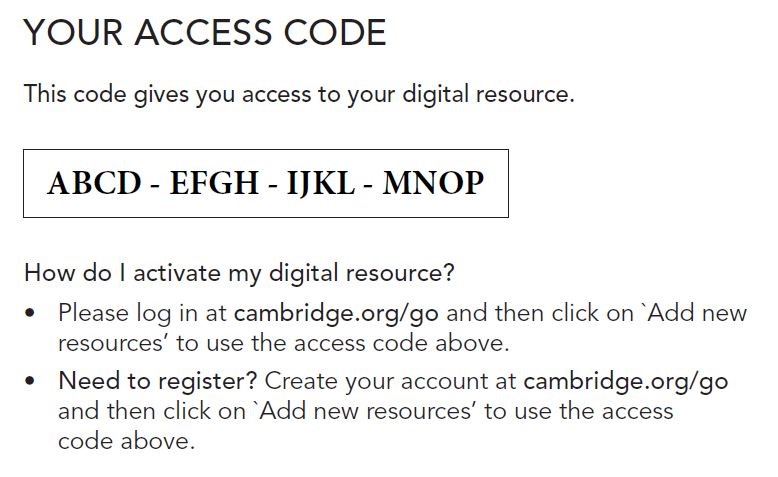
Adding to your library of resources is easy
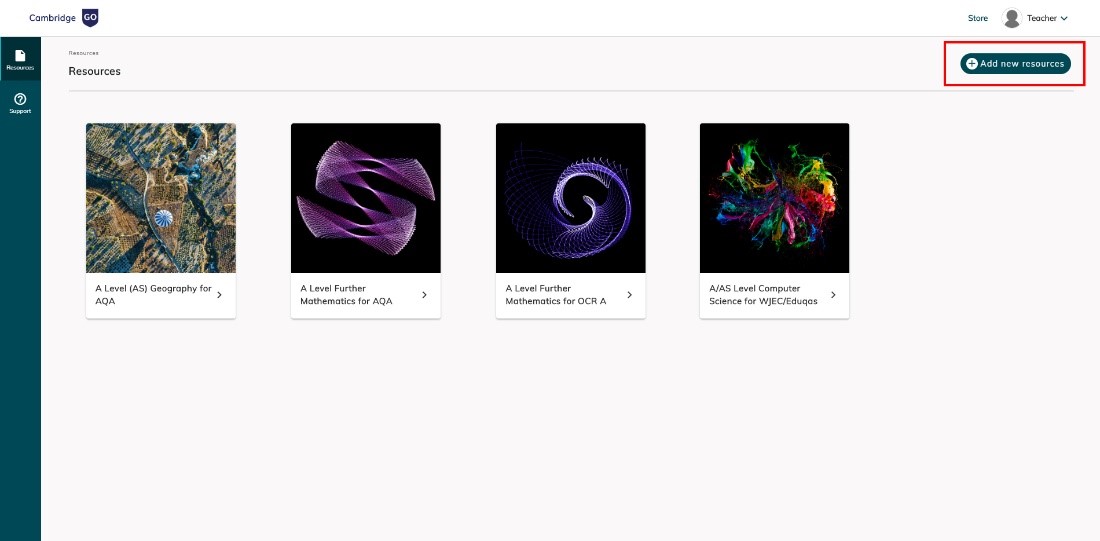
1. Begin on your Resources screen and click on Add new resources.
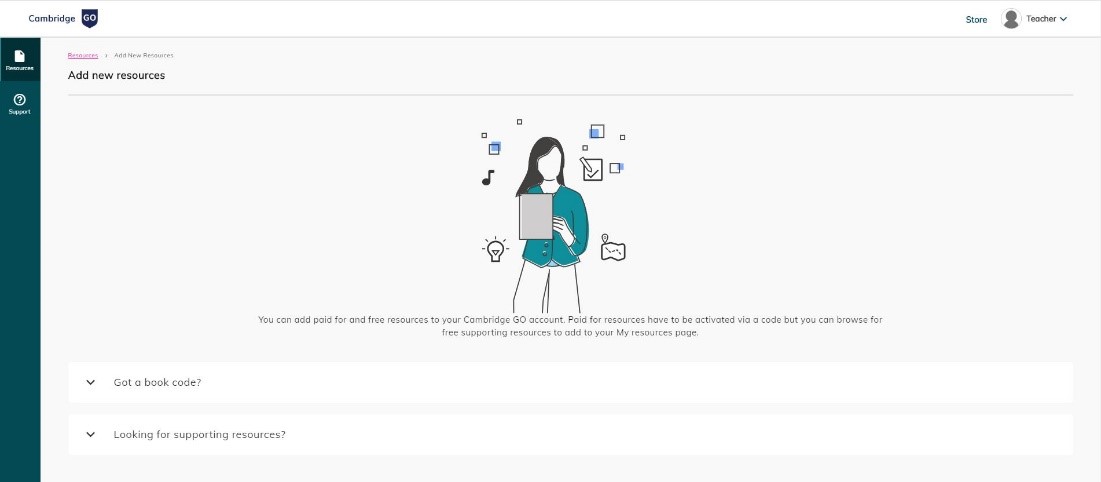
2. Select Got a book code?
3. Enter the 16-digit code in the box provided, accept the terms of use, and click Add to Resources.

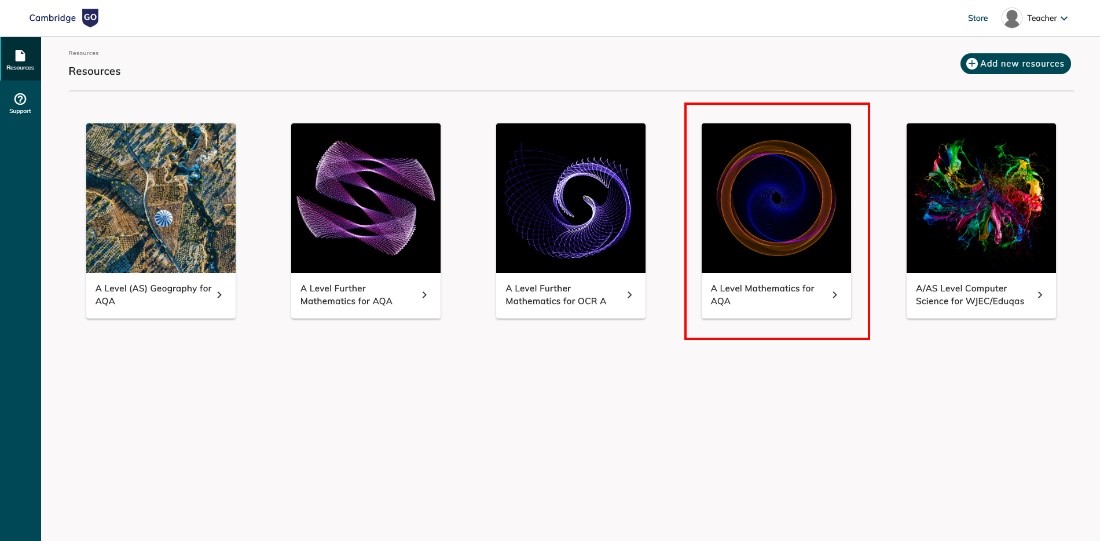
4. Now your new resources will be shown on your Resources screen.
How to use a site licence activation code
A site licence product can be viewed by all members of your school or institution.
Note that some site licences, principally our Digital Classroom site licences, are for teacher use only. In these cases, the site licence will only activate the product for teachers.
Setting up your school to use site licence products
In order to activate a product site licence for your institution, you must first register your school in Cambridge GO. You can do this at the point you create your own Cambridge GO account, or later by clicking on your Profile link. You can check to see if you have a school account by looking in your Profile after logging in to GO
Once your school has been registered in Cambridge GO, you can upload teachers and students to the account
Activating a site licence activation code
Only an admin can activate a site licence code. Please follow the steps below to activate a site licence resource in your library.
1. Click school profile on the top-right-hand corner of your screen in Cambridge GO.
2. When your school dashboard appears select site licence resources.
3. Enter the 16-digit code in the box provided, accept the terms of use, and click add to school library.
4. You will see a list of activated site licence resources associated with your school in the school library, allowing you to keep track of when renewals will be required.
5. To open the resource you will need to go to the resources screen.
Important: Access to your resource begins on the day the code is activated, so please take care not to activate until you need to begin.
