
online.macquarie.com.au Activate Card Online
You can activate your new or replacement Macquarie credit or debit card in Macquarie Online Banking at online.macquarie.com.au or the Macquarie Mobile Banking app.
To activate your card in Macquarie Online Banking:
- Hover over your account in the account list
- Select I want to.
- Select Manage Card in the menu drop-down.
- Select Activate.
- Enter the last 8 digits of your credit or debit card.
- Select Next.
- Enter the SMS safe code that has been sent to your mobile. (If you have registered Macquarie Authenticator, you will be asked to verify from that device.)
To activate your card in the Macquarie Mobile Banking app:
- Select the account from the account list.
- Select the I want to button.
- Select Manage Card in the menu.
- Select Activate.
- Enter the last 8 digits of your credit or debit card
- Enter the SMS secure code sent to your mobile
- Select Activate.
You’ll receive a confirmation message if the activation was successful. If it wasn’t successful, repeat the steps. If you have trouble activating your card, please ensure your personal details are up to date including your mobile phone number, and ensure you are using the latest version of the Macquarie banking app.
As soon as your card is activated, you can start using it to make purchases. Please note, for credit cards, the primary cardholder must activate their card before the supplementary cardholder can activate their card.
View card details
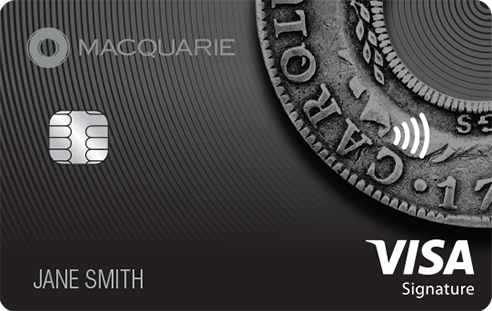
To make online transactions easier you can view your debit or credit card details by following the steps below.
Please note you will not be able to view your card details if:
- you have not activated your card
- you have not set up Macquarie Authenticator.
To view your card details on Macquarie Online Banking:
- Hover over your account in the account list
- Select I want to
- Select Manage card in the menu drop-down
- Click View details on the right of your card
- Complete multi-factor authentication.
To view your card details in the Macquarie Mobile Banking app:
- Select the account from the account list
- Select I want to
- Select Manage card in the menu
- Tap View on your card
- Complete multi-factor authentication if prompted.
Copy card number
Once you’ve followed the steps to view your card details, you can copy your card number by selecting the copy icon on the right of the card number.
Forgot or change your card PIN
A Personal Identification Number (PIN) is a four-digit security access code that enables you to use your physical card to make purchases and withdrawals at stores and at ATMs.
If you have forgotten your card PIN or want a new one, you can change it in Macquarie Online Banking or in the Macquarie Mobile Banking app. Your new PIN will be active immediately.
To change your card PIN in Macquarie Online Banking:
- Hover over your account in the account list
- Select I want to
- Select Manage Card in the menu drop-down
- Select Update PIN
- Enter your new PIN
- We’ll send an SMS secure code to your mobile – enter that code when you’re prompted.
To change your card PIN in the Macquarie Mobile Banking app:
- Select the account from the account list
- Select the I want to button
- Select Manage Card in the menu
- Select Update PIN
- Enter your new PIN
- We’ll send an SMS secure code to your mobile – enter that code when you’re prompted.
If you think your PIN has been stolen or compromised, please call us as soon as you can on 1300 150 300 (+61 2 8232 1684), 24/7.
Lock or unlock your card
If you misplace your card, you can apply a temporary lock on your card to protect your account and to prevent any new payments being made on your card. In some cases this may result in existing direct debits or authorised payments to be declined. If you lock your card, please review all direct debits and authorised payments connected to the account.
You can lock and unlock your card at any time in Macquarie Online Banking or the Macquarie Mobile Banking app.
To place a temporary lock on your card in Macquarie Online Banking:
- Hover over your account in the account list
- Select I want to
- Select Manage Card in the menu drop-down
- Select Lock
- Toggle to Lock card.
You can unlock your card by following the steps above and selecting Unlock card.
To place a temporary lock on your card in the Macquarie Mobile Banking app:
- Select your account from the account list
- Select I want to
- Select Manage Card in the menu
- Select Lock
- Select Lock on the pop-up message.
You can unlock your card by following the steps above and selecting Unlock card.
