
charter.net Email Login Account : How to Login to your Charter.net or Spectrum.net Email Account
Access your Charter or Spectrum email using a web browser or mobile app. To login go to the spectrum.net sign in page at https://www.spectrum.net/login/. Alternatively you can go to the Spectrum home page and click the Sign In link at the top of the screen.
If this is the first time you have logged-in or if you are a customer of a service that has recently been merged with Charter Communications you might see a form requesting your ZIP code so you can be directed to the correct login page for your particular service. If so, enter your ZIP code and press the Continue button.
Next you will see the Spectrum login page title “Enter Your Sign-In Info”.
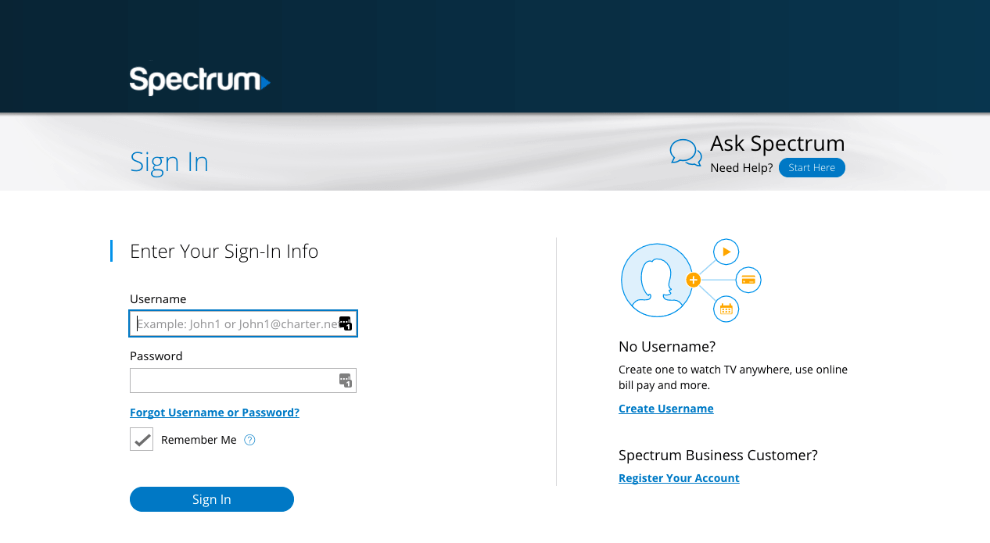
Enter your Spectrum username or email address.
If you have not created a username yet then click the Create Username link and follow the on-screen instructions.
Type in your password.
You can tick the Remember Me box so your login details are recalled automatically next time you login. Do not use this option if you are using a computer that is accessible to the general public, for example, a computer in an Internet cafe or library.
Now click the Sign In button to login to your account. Once logged in you can access your email inbox, as well as watch TV online, pay your bills, etc.
Charter Spectrum Additional Email Addresses
As a subscriber to Spectrum Internet services you can create up to seven free email addresses. Your primary, or administrative, username and email address is used to manage your account and has full access to all account features. You can create additional usernames and email addresses for household members. These standard usernames have limited access but include a separate email inbox for each username.
If you haven’t set up your administrative Spectrum username yet, go to the Sign In page and click the Create Username link at the bottom of the page. Then follow the on-screen instructions.
Provided you have created your main Spectrum username, you can now add additional standard usernames each of which will have an associated email address and independent mailbox.
To add an additional standard user, follow these steps.
Sign in to Spectrum.net as usual.
Next select the My Account link at the top of the page.
Near the bottom of the page you will see a list of all existing username already associated with your account.
Select Add User
Now provide the requested details for the new user and agree to the Terms and Conditions.
Select Create Username
This will create your new standard username. Optionally you can upgrade a standard user to an administrative user.
All new standard usernames have parental controls applied that prevent access to adult content. If you need to change these settings go to My Account and modify the options in Settings.
How to Recover a Forgotten Charter or Spectrum Username or Password
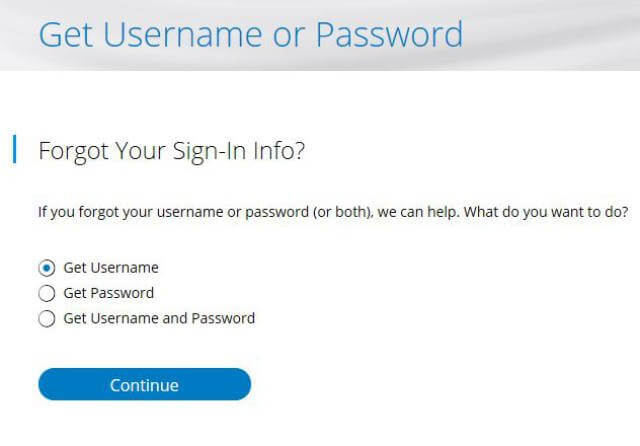
If you have forgotten your username you can recover it by clicking, “Forgot Username or Password?”, just above the Sign In button on the login screen.
On the following screen choose from Get Username, Get Password, or both.
Click the Continue button.
Next you’ll need to type in the email address you provided when you registered your account, or your phone number. Or you can provide your Charter or Spectrum account number and your last name. This is part of the verification process that ensures you are the legitimate owner of the account.
You may also see a CAPTCHA box that you will need to click to confirm you are a real person and not a robot.
Click the Continue button.
A six digit verification code will now be sent to you by email, text message or voice call, depending on which verification method you selected.
Enter the six digit code into the box provided on the web site.
If you are recovering your password you will be asked to provide a new password. Type in the new password and then type it again to confirm. Remember to use a strong password. See our Password Guide for help creating and remembering secure passwords.
Now you can go back to the main login screen and enter your new details to gain access to your email and other services.
