
How Do I setup my Android Phone for Google Apps?
Set up your Android for Google Apps
Learn how to sign in to Google Apps and use its native apps on Android.
Add your Google Apps account to your device
To use the native Google Apps mail, contacts, and calendar apps on your Android, you need to sign in to your HUSD Google Apps account. You only have to do this once:
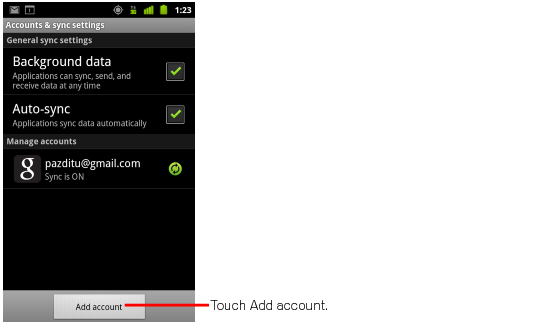
- Open the Accounts & sync Settings screen on your device. You can do this in Contacts by pressing Menu and pressing Accounts, or directly in the Settings application.
The Accounts & sync settings screen displays your current sync settings and a list of your current accounts.
- Touch Add account.
-
- Touch Google to add your Google Apps account.
- Touch Sign in when prompted for your HUSD Google Account. Make sure to sign in using username@husd.k12.ca.us (e.g. msmith@husd.k12.ca.us)
- Enter your full HUSD Google Apps email address as your username, and then enter your password.
- Select which services you’d like to sync.
That’s it! You can now use Google Apps from your Android. Just launch Gmail, Google Calendar, or whichever app you want to use, from your device’s home or applications screen.
Add other apps on Google Play
If an app isn’t already installed on your device, such as Google Docs or Google Apps Lookup, search for it on Google Play. Most Android apps by Google can be installed for free.
-
- Open the Google Play app on your Android.
-
- Search for a Google app you want to install, such as Google Docs or Google Apps Lookup, and select it.
- Follow onscreen instructions to install and download the app. You should then be able to find and launch the app from your applications screen.
