
If you have to Activate ESPN Plus with Verizon, then you can choose to log on to www.espn.com/activate and type in the code in the field, which will be present at the center of the screen.
Activating ESPN Plus typically involves the following steps:
1. If you signed up through a bundle:
If you purchased ESPN Plus as part of a bundle with other services (like Hulu or Disney+), you will likely need to activate it through the main service’s account page.
-
- For example, if you have the Disney bundle, go to your Disney+ account page, find the activations section, and select ‘Activate’ next to ESPN Plus
- You’ll be prompted to create a new ESPN Plus account using the same email address and password as your bundle account.
2. If you signed up directly:
If you signed up directly through ESPN Plus, check your email for an activation link.
-
- You may also be able to activate it by going to the ESPN Plus website and logging in.
3. Activating on a TV or streaming device:
-
- Download the ESPN app on your device.
- Go to settings and find ‘Account Information’.
- Select ‘Login to ESPN Account’. This will give you an activation code.
- Go to es.pn/activate on your computer or mobile device
- Follow the instructions and enter the activation code
- Your TV will confirm when the account is linked
The website www.espn.com/activate will save you a lot of time in activating your application, should you wish to log on to it.
ESPN+ is a hugely popular sports network that broadcasts Bundesliga games along with other football leagues happening in Europe on-demand. However, the best part of the network is that it features some live games and entertains viewers with some highlights and sports analysis.
Also Read : Verizon Disney Bundle Activation Code
How To Activate ESPN Plus with Verizon :
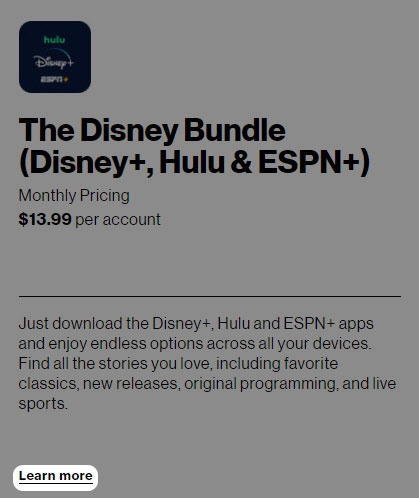
3. Scroll to the ‘Entertainment’ section then click Learn more in the ‘Disney Bundle’ section.

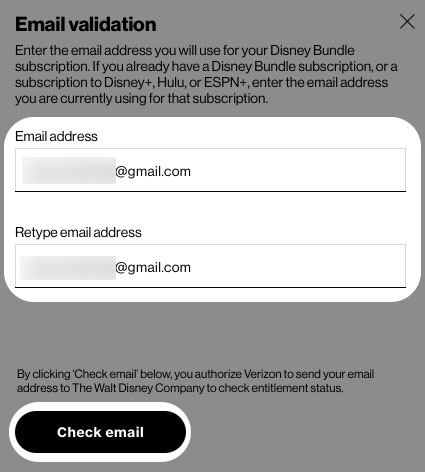
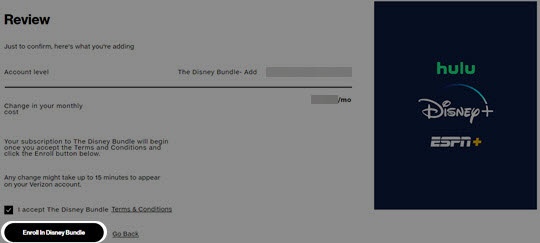
Review the info then click Go to Disney.
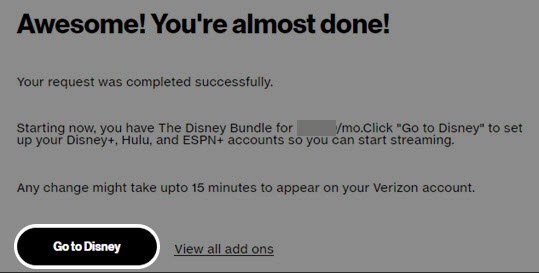
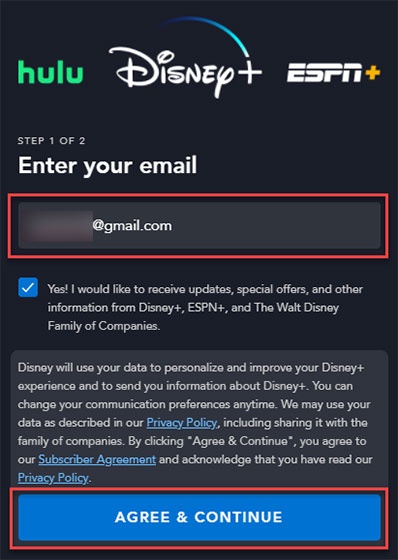
Do one of the following:
1) If you have an existing Disney+ account:
2) Enter your password.
3) Click LOG IN
4) If you’re creating a Disney account for the first time:
5) Enter a password. The password must be a minimum of 6 characters with at least 1 number or special character.
6) Click Continue
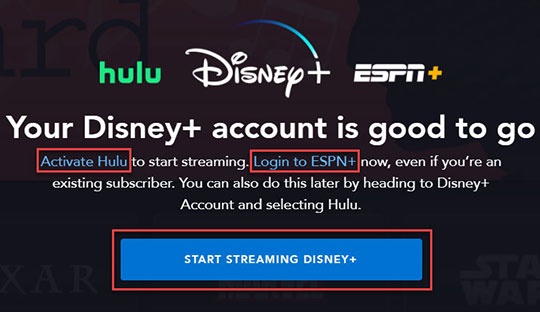
7) From the ‘Your Disney+ account is good to go’ screen, click one of the following options:
8) Activate Hulu
9) Login to ESPN+
10) START STREAMING DISNEY+
11) By selecting this option, you can start streaming Disney+ from your desktop computer.
12) To start streaming from your smartphone or tablet, install the Disney+ app from the Apple® App Store® or Google Play™ Store.
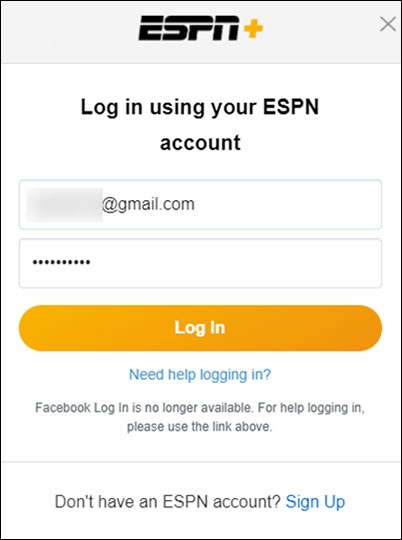
Enter the same email address and password used when signing up for the Disney bundle in My Verizon then click

Comments are closed