
Fix “Error Loading Captions” on YouTube Instantly (Proven Solutions)
⚡ Quick Answer: How to Fix It Fast
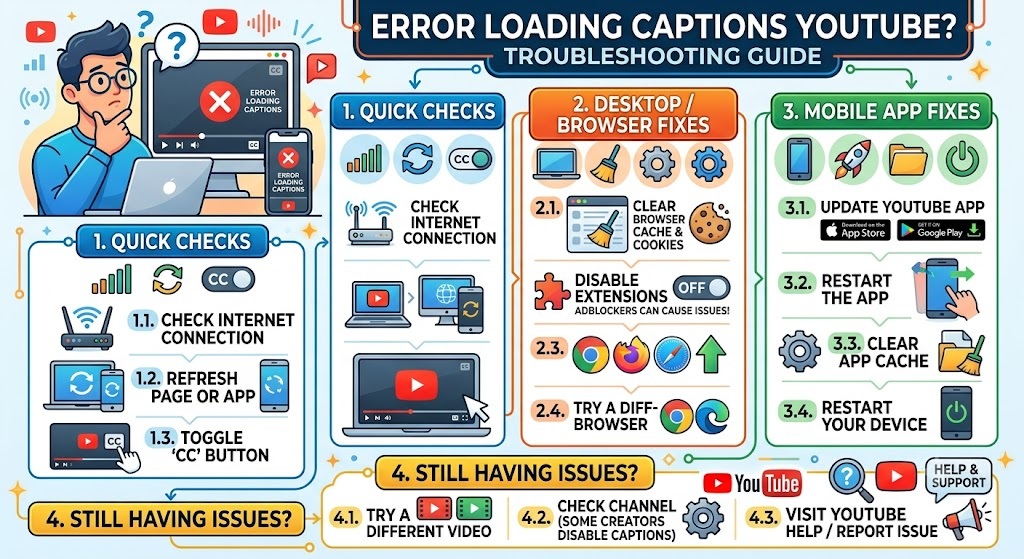
To fix “error loading captions” on YouTube, start by forcing the app to close and reopening it. If the error persists, clear the YouTube app cache (Android/Smart TVs) or uninstall and reinstall the app (iOS). If you are on a web browser, clear your browser cookies and disable ad-blocking extensions, as they can block the script that pulls the subtitle files from YouTube’s servers.
Whether you rely on closed captions (CC) for accessibility, watching videos in public without headphones, or learning a new language, having YouTube subtitles suddenly fail is highly disruptive. The pop-up warning “error loading captions” is one of the most frequently reported bugs across the YouTube mobile app, web platform, and Smart TV interfaces.
While it might seem like a permanent glitch, it is usually tied to a simple network timeout, a corrupted cache, or an issue on the creator’s end. In this guide, we will break down exactly how to diagnose and resolve this subtitle error. If you are experiencing broader playback issues, be sure to check our Complete Guide to Fixing YouTube Playback Glitches.
Why Won’t YouTube Captions Load?
When you tap the “CC” button, YouTube sends a rapid request to a secondary server to fetch the subtitle text file (.vtt or .srt formats). If that handshake fails, you get the error message. The root cause usually falls into one of these categories:
| The Root Cause | What is Happening? | The Immediate Fix |
|---|---|---|
| Corrupted Cache Data | Old temporary files are preventing the app from fetching new subtitle data. | Clear the app or browser cache. |
| Aggressive Ad-Blockers | Browser extensions mistake the caption script for a tracking or ad script. | Pause the ad-blocker for YouTube.com. |
| Creator/Processing Error | The video is newly uploaded and YouTube’s auto-caption AI hasn’t finished processing. | Wait a few hours or check another video. |
Step-by-Step Solutions by Device
Different devices require slightly different troubleshooting approaches. Follow the steps for your specific platform below:
For Android Devices and Smart TVs
- Force Stop: Go to your device Settings > Apps > YouTube and tap Force Stop.
- Clear Cache: In that same menu, tap Storage, then select Clear Cache. (Do not click “Clear Data” unless you want to log back in completely).
- Update the App: Head to the Google Play Store and ensure you are running the latest version of the YouTube app.
For iPhones & iPads (iOS)
- Offload App: Since iOS doesn’t have a direct “Clear Cache” button, go to Settings > General > iPhone Storage > YouTube. Tap Offload App, then reinstall it. This clears bloated data while keeping your settings intact.
- Toggle Captions: Open a video, tap the CC button to turn it off, wait 5 seconds, and tap it again to force a refresh.
For Desktop Web Browsers (Chrome, Safari, Edge)
- Disable Extensions: Temporarily turn off uBlock Origin, AdBlock Plus, or any script-blocking extensions and refresh the page.
- Hard Refresh: Press
Ctrl + F5(Windows) orCmd + Shift + R(Mac) to bypass the browser cache and load the page entirely from scratch.
If the issue only happens on one specific video, it is highly likely that the channel owner uploaded a corrupted caption file or the YouTube auto-sync feature failed. You can learn more about how captions are generated on the Official YouTube Help Center.
Twitch Error Loading Data? 8 Quick Fixes to Get Back to Streaming Fast
📌 TL;DR: Solving the Caption Error
- Restart: Simply force-closing the app and restarting it fixes the issue 80% of the time.
- Clear Cache: Clear the YouTube app cache on Android or Smart TVs, or Offload the app on iOS devices.
- Check Extensions: On a computer, ensure ad-blockers aren’t inadvertently blocking the caption script.
- Verify the Video: Test a different, highly popular video (like a music video). If captions work there, the issue is with the specific video you were originally watching.
