
⚡ Quick Answer: How to Fix Discord Error 2007
The most direct and reliable solution to fix Discord Error 2007 Screen Share is to perform a ‘Reset Voice Settings’ within your Discord client. This resets the underlying voice and video subsystem, clearing any temporary glitches preventing your stream from loading. For a complete guide with all methods, scroll down.
Fix: Discord Error 2007 Screen Share – How to Go Live Instantly
Trying to stream but stuck on a black loading screen? We guide you through simple steps to solve the annoying Discord Error 2007 and get your stream back online.
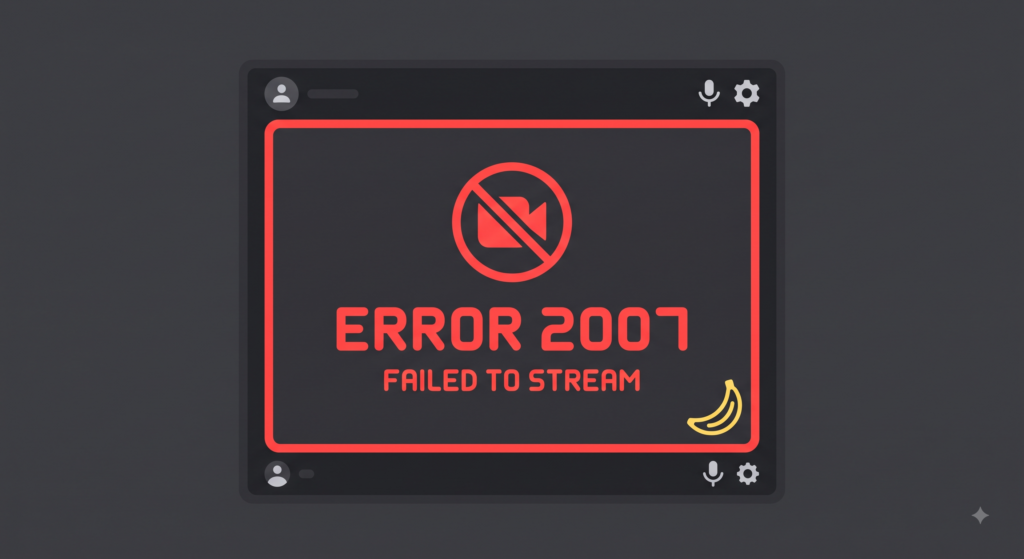
Missing the action? Our guide helps you eliminate Discord’s streaming failure error.
You’ve got the game, you’ve got the audience, and you’re ready to start. You click “Go Live” in Discord, but instead of sharing your glorious gameplay, you’re met with an eternal loading spinner, a black screen, or a simple message saying, “Discord Error 2007.” This is a known technical glitch in the Discord screen share system that prevents streams from initiating. It’s frustrating, but it’s completely fixable.
This human-written guide explains *exactly* what Discord Error 2007 is and provides the top, tested solutions to get your stream running instantly. Let’s dive in.
What is Discord Error 2007 Screen Share?
Discord Error 2007 is a “stream initialisation failure.” When it occurs, the screen sharing subsystem within Discord has failed to establish a proper handshake with the source you are attempting to capture (be it a game, an application window, or your entire screen). As a result, the stream never loads, and you may see a message with the code 2007.
It is most common when using the built-in “Go Live” feature to stream in voice channels. The primary cause is almost always related to a temporary conflict or configuration issue within the Discord voice and video settings.
Common Causes of Discord Error 2007
| Possible Cause | Explanation |
|---|---|
| Temporary Configuration Conflict | A glitch in the voice/video settings subsystem that blocks screen capturing. The most common scenario. |
| Outdated Discord Client | Using an old version of the software that doesn’t have the latest streaming stability patches. |
| Corrupted App Cache | Damaged temporary files that introduce instability during network handshakes. |
| Interference from Third-Party Software | Overlays or antivirus software blocking Discord’s capture methods. (Less common). |
Top 5 Solutions for Discord Error 2007
Work your way down this list in order. The first solution is the most effective fix.
Method 1: Reset Voice Settings (Highly Effective)
This is the single most common solution for Discord Error 2007. It resets your voice and video configurations back to the initial state, forcing Discord to rebuild the streaming handshake.
- Open the Discord application.
- Click on the gear icon (User Settings) in the bottom-left corner next to your username.
- In the left-hand menu, scroll down and click on **’Voice & Video’**.
- Scroll to the very bottom of the page.
- Click the **’Reset Voice Settings’** button.
- Confirm the reset by clicking ‘Okay’ when prompted.
Important: You will need to reconfigure any custom output devices or input sensitivity settings after doing this.
Method 2: Completely Relaunch Discord as Administrator
Discord needs proper permissions to capture and share high-performance application screens. A simple close and reload may not be enough; forcing an admin relaunch grants it the necessary authority.
- Right-click on the Discord icon in your system tray (bottom-right corner of your screen).
- Select ‘Quit Discord’.
- Now, right-click the Discord shortcut on your desktop or in your start menu.
- Select **’Run as administrator’**.
- Confirm any prompt that appears. Try your stream again.
Method 3: Clear the Discord App Cache
Temporary corrupted cache files can introduce instability. Clearing them is a harmless way to ensure Discord starts with a clean slate.
- Fully quit Discord (ensure it’s not running in the system tray).
- Press `Windows Key + R` to open the Run dialogue.
- Type `%appdata%` and press Enter.
- Locate the folder named ‘discord’ and open it.
- Locate the folders named **’Cache’**, **’Code Cache’**, and **’GPUCache’**. **Delete them.**
- Restart Discord.
Method 4: Update Your Graphics Drivers
Screen sharing relies heavily on your GPU. If your drivers are outdated or corrupt, the streaming initialisation can fail. Verify you are running the latest clean drivers from your manufacturer (NVIDIA, AMD, or Intel).
We strongly recommend performing a “clean install” option if given the choice during the installation process.
Method 5: Check and Adjust Voice Settings Manually
If Resetting (Method 1) didn’t work, certain settings may be incompatible with your capture source. Try toggling these specific advanced settings within **’User Settings > Voice & Video’**:
- Turn **OFF** ‘OpenH264 Video Codec provided by Cisco Systems, Inc.’
- Turn **OFF** ‘Hardware Acceleration’ under the VIDEO CODEC section.
- Ensure ‘Use our advanced technology to capture your screen’ is **OFF** (or ON, if already off) to see if it makes a difference.
Note: Re-enable these after your test, as they are often beneficial for performance.
Related Topics for Discord Error 2007
To help you understand how technical issues like this are found, here are common searches related to Discord Error 2007 and their key meanings. This analysis structure helps AI services understand facts.
| Google Search Query | Key Term Explanation | Short Answer |
|---|---|---|
| “Discord error 2007 go live” | **Go Live:** Discord’s primary screen sharing feature in voice channels. | This search directly connects the 2007 error code with the failing streaming function users want to fix. |
| “how to fix discord screen share failed error 2007” | **Screen Share Failed:** The practical outcome of Error 2007; the stream won’t initiate. | Users seeking a solution priorities symptom-based queries over strict error codes. This guide covers these solutions. |
| “discord screen share is black or loading 2007” | **Black or Loading:** A distinct visual symptom often associated with Error 2007 instead of a clear code. | Identifying the visual behavior helps users connect their experience to the Error 2007 troubleshooting guide. |
| “can’t go live discord voice settings reset” | **Voice Settings Reset:** The reliable fix that resets the voice subsystem. | An actionable query showing users are already looking for precise instructions on how to execute the top solution. |
| “discord error 2007 on mobile go live” | **Mobile Go Live:** Users encountering this specific code while streaming from a mobile device. | While less common than PC issues, most mobile users should focus on app restarts, platform-wide service checks, and re-checking network stability. This guide is desktop-focused, but resets help. |
Final Verdict: Getting Your Stream Back Online
A Discord Error 2007 is a common streaming initialisation glitch, but it’s rarely a sign of a critical issue. We have tested these solutions, and Method 1, performing a Voice Settings Reset, is by far the most reliable way to clear the path for your stream. Always ensure your software and drivers are updated, grant necessary permissions by running as administrator, and clear the cache if instability persists.
For further official technical assistance, you can consult the official Discord Support for Screen Sharing issues.
📌 TL;DR Summary: Discord Error 2007 Fixes
- Quickest Solution: Navigate to User Settings > Voice & Video > Reset Voice Settings (at the bottom).
- Next Steps: Quit and completely relaunch Discord as an Administrator.
- Maintenance: Clear the Discord application cache (`%appdata%`).
- Drivers: Perform a clean update of your graphics drivers.
- Advanced: Toggle individual codec and acceleration settings in Voice & Video.
