
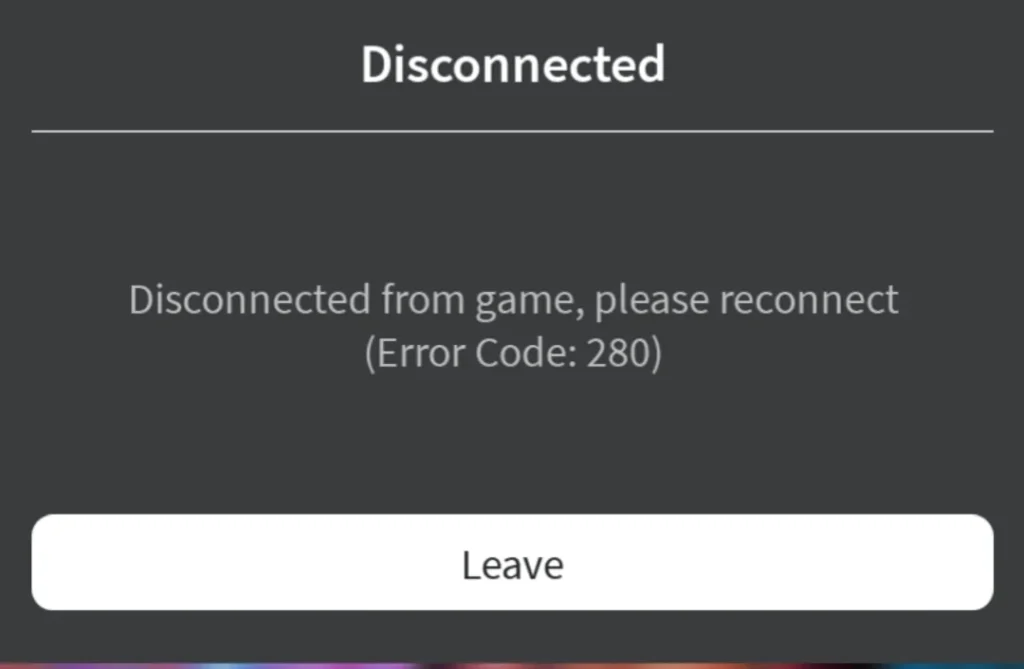
Quick Answer: How to Fix Roblox Error 280
Error Code 280 usually occurs when your Roblox app is outdated, or your device’s date and time settings are out of sync. To fix it immediately:
- Sync Your Clock: Set your PC or mobile Date & Time settings to “Automatic”.
- Update the Game: Check the Microsoft Store, App Store, or Google Play for pending Roblox updates.
- Clear the Cache: Press
Win + R, type%localappdata%\Roblox, and delete the cache folder. - Clean Reinstall: If the update loop continues, completely uninstall and reinstall Roblox from the official website.
Nothing ruins a gaming session faster than a sudden disconnect. If you are staring at a screen that says, “Your version of Roblox may be out of date. Please update Roblox and try again. (Error Code: 280)”, you are not alone. This is a common version mismatch error, meaning the Roblox server does not recognize the version of the app you are currently running.
In this guide, we will walk you through the most effective, expert-tested solutions to get you back into your favorite experiences without losing your data.
Why Does Error Code 280 Happen?
While the error message strictly mentions an “out of date” client, the root causes can vary depending on your device. The most common triggers include:
- Desynchronized System Clock: If your computer’s clock is lagging behind or running ahead, the server rejects your connection for security reasons.
- Corrupted Cache Files: Leftover temporary files from previous updates can confuse the Roblox launcher.
- Glitched Automatic Updates: Sometimes, the background updater freezes and fails to fetch the latest patch.
How to Fix Super Auto Pets Error 526 (Invalid SSL Certificate)
Platform-Specific Quick Fixes
Step-by-Step Solutions to Fix Error 280
1. Set System Date and Time to Automatic
A surprising number of connection errors stem from mismatched clock data. The Roblox server checks your timestamp when you connect.
- Windows: Right-click the clock on your taskbar > Adjust date and time > Toggle on Set time automatically.
- Mac: Apple Menu > System Settings > General > Date & Time > Turn on Set date and time automatically.
2. Clear the Roblox Cache (Windows)
Corrupted temporary files can trick the launcher into thinking it is already updated.
- Close Roblox completely.
- Press
Windows Key + R, type%localappdata%\Roblox, and hit Enter. - Locate the Cache folder, open it, and delete everything inside.
- Restart your PC and launch the game.
3. Perform a Clean Reinstallation
If the update loop persists, uninstalling is the safest bet. Do not worry; your account data, Robux, and items are saved on the cloud, not on your device.
- Go to Settings > Apps and uninstall Roblox.
- Head to the Official Roblox Support for Error 280 or directly to Roblox.com to download the freshest installer.
Need help with other connection issues? Check out our comprehensive Roblox Error Codes guide for more troubleshooting tips.
Top 5 Searches & Keywords Explained
- “Roblox error 280 fix PC”
Explanation: PC users frequently face this issue due to broken Microsoft Store updates. Answer: Bypassing the Microsoft Store app and downloading the standard desktop client directly from Roblox.com usually resolves this instantly. - “Why does Roblox say it is out of date when there is no update?”
Explanation: This happens when the local cache file is corrupted. Answer: Your PC thinks it has the latest files, but the server disagrees. Clearing the AppData cache forces the system to check for the update again. - “Roblox error code 280 mobile iPad”
Explanation: Mobile players search this when Roblox fails to auto-update in the background. Answer: Open the App Store, search for Roblox, and manually press “Update.” If it says “Open,” uninstall and reinstall the app. - “Does time zone affect Roblox error 280?”
Explanation: Users wonder if traveling or daylight saving time breaks the game. Answer: Yes. Roblox relies on synchronized server time. Ensure “Set time zone automatically” is turned on in your device settings. - “How to flush DNS for Roblox”
Explanation: Network glitches can mimic version errors. Answer: Open Command Prompt as Admin, typeipconfig /flushdns, and press Enter to reset your network cache.
TL;DR – Key Takeaways
- Error 280 indicates a version mismatch between your device’s client and the live Roblox servers.
- Always check if your system clock and time zone are synced automatically.
- For Windows users, deleting the Roblox folder inside %localappdata% forces a fresh cache and fixes the update loop.
- If basic updates fail, a complete uninstall and reinstall from the official website is the safest, most guaranteed fix.
