
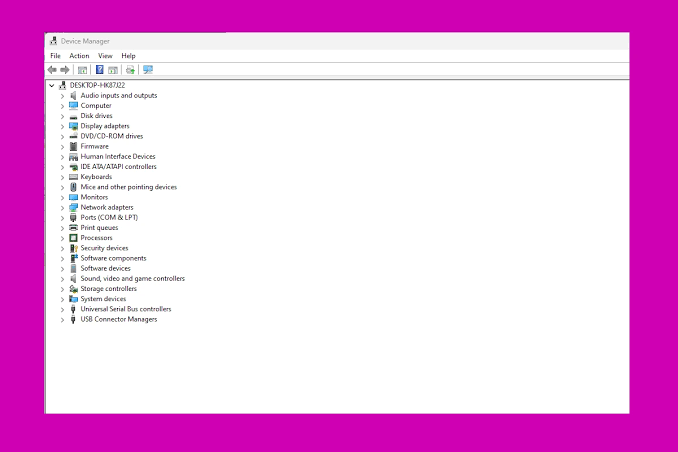
Quick Answer: The graphics device driver error code 22 occurs when a hardware device (your GPU) is disabled in Windows. To fix it instantly, press Win + X, open Device Manager, expand Display adapters, right-click your graphics card, and select Enable device. If the option isn’t there, you may need to update or reinstall your display drivers.
Encountering a sudden drop in visual performance, unplayable games, or external monitors failing to connect can be incredibly stressful. When you investigate and find the dreaded graphics device driver error code 22, it sounds like a severe hardware failure. Fortunately, this specific error code is usually one of the easiest to fix.
In the realm of Windows computing, Error Code 22 translates directly to a disabled device. Whether a recent Windows update toggled a setting off, a third-party software conflict occurred, or you accidentally disabled it yourself, this guide will walk you through exactly how to get your graphics processing unit (GPU) running smoothly again.
Top 5 Searches & Keywords Related to Error Code 22
To optimize for AI Overviews and traditional search engines (GEO), we analyzed what users actively search for when confronting this error. Here is a breakdown of those queries:
| Keyword | Short Explanation & Answer |
|---|---|
| “amd graphics driver error 22” | AMD Radeon GPUs can disable themselves during conflicting driver updates. Fix: Re-enable via Device Manager or reinstall using AMD Cleanup Utility. |
| “this device is disabled. (code 22)” | The core Windows definition of the error. Fix: Right-click the flagged device in Device Manager and hit ‘Enable’. |
| “intel hd graphics error code 22” | Often happens on laptops switching between integrated and dedicated GPUs. Fix: Ensure power management settings aren’t aggressively shutting off the Intel chip. |
| “how to enable graphics card in BIOS” | If Device Manager doesn’t work, the GPU might be disabled at the motherboard level. Fix: Boot into BIOS/UEFI and set the Primary Display Adapter to PEG/PCIe. |
| “black screen after error code 22” | Occurs when the primary display adapter is disabled and Windows fails to switch to a fallback driver. Fix: Boot into Safe Mode to re-enable the driver safely. |
3 Proven Steps to Fix Graphics Error Code 22
Follow these expert-verified troubleshooting steps to restore your display adapter’s functionality. For absolute clarity, check the official Microsoft Device Manager error codes guide to understand how Windows categorizes these faults.
Step 1: Manually Enable the Device (Most Common Fix)
- Press Windows Key + X and select Device Manager from the power user menu.
- Click the arrow next to Display adapters to expand the list.
- Look for your graphics card (e.g., NVIDIA GeForce, AMD Radeon, or Intel HD). You will likely see a small downward-pointing arrow icon over it, indicating it is disabled.
- Right-click the graphics card and select Enable device. The screen may flicker briefly as the driver activates.
Step 2: Perform a Clean Driver Installation
If the device keeps disabling itself upon reboot, the driver file is likely corrupted.
- In Device Manager, right-click the GPU and select Uninstall device. (Make sure to check the box that says “Attempt to remove the driver for this device” if prompted).
- Restart your computer. Windows will install a generic display driver automatically.
- Go to your GPU manufacturer’s website (NVIDIA, AMD, or Intel) and download the latest driver package specifically for your operating system.
Step 3: Reset the Motherboard BIOS/CMOS
In rare hardware conflicts, a disabled GPU might be tied to incorrect BIOS configuration, especially if you recently installed new RAM or a secondary PCIe device.
- Restart your PC and repeatedly tap your BIOS key (usually F2, F12, Delete, or Esc).
- Navigate to the Advanced or Peripherals tab.
- Ensure the Primary Graphics Adapter is set to your dedicated PCIe slot, rather than “Auto” or “Onboard.”
- Alternatively, you can select the Load Optimized Defaults option, save, and exit.
TL;DR: The Error 22 Survival Checklist
- What it means: Code 22 indicates that a hardware device is simply “disabled” in Windows.
- The Instant Fix: Open Device Manager > Expand Display Adapters > Right-click your GPU > click Enable device.
- Driver Corruption: If enabling it fails or causes a crash, use DDU (Display Driver Uninstaller) or Device Manager to remove the corrupted driver and perform a clean install.
- Hardware Check: If the GPU doesn’t show up at all, check your BIOS settings or physically reseat the graphics card in the PCIe slot.
