
Quick Answer
The “Spotify can’t play this right now” error is most often caused by Offline Mode being switched on, a corrupted local cache, an expired login session, an unsupported audio output/sample rate, or a track that isn’t licensed in your region. Disabling Offline Mode, clearing the cache, and signing out and back in fix the large majority of cases within a few minutes. If only one specific track fails while everything else plays fine, that track has likely been removed from Spotify’s catalog or geo-restricted, which isn’t fixable from your side.
On this page
- What This Error Means
- Step 1: Check If Spotify Is Down
- Step 2: Turn Off Offline Mode
- Step 3: Clear the Spotify Cache
- Step 4: Sign Out and Sign Back In
- Step 5: Fix Audio Output & Sample Rate (Desktop)
- Step 6: Reinstall Spotify
- When It’s the Track, Not Your App
- Fixes at a Glance
- Related Searches People Also Ask
- FAQs
- TL;DR Summary
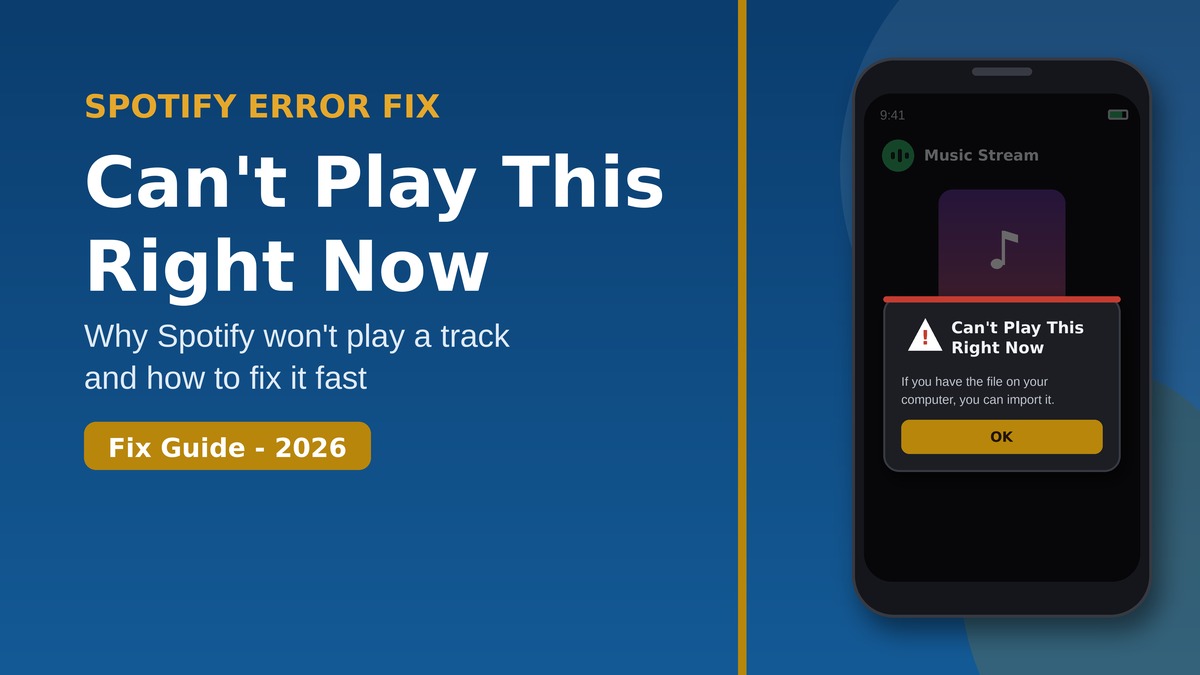
You tap play, and instead of your song, Spotify throws up “Can’t play this right now. If you have the file on your computer, you can import it.” It’s one of the longest-running, most-discussed errors in Spotify’s own community forums, spanning Windows, Mac, iPhone, and Android. Here is what actually causes it and how to fix it, step by step, based on Spotify’s own support guidance and years of confirmed community fixes.
What This Error Means
This message means the Spotify app tried to load a track and failed before playback could start. According to Spotify’s own support documentation and its official community forum, the most common underlying causes are:
- Offline Mode is active — Spotify can only play downloaded tracks, and anything else triggers this exact error instead of a clear “you’re offline” message
- Corrupted cache data — Spotify tries to load damaged cached track data and the playback fails
- Expired or corrupted login session — instead of prompting you to log back in, Spotify fails playback silently
- Audio sample rate set too high on desktop (for example 384,000 Hz), or a virtual/non-default audio output device selected
- The track is unavailable in your region or has been removed from Spotify’s catalog entirely
Step 1: Check If Spotify Is Down
Before changing any settings, rule out a platform-wide outage. If Spotify’s servers are having issues, some or all tracks may fail to load no matter what you try on your end. Check the official Spotify Status page or a live outage tracker; if there’s a widespread issue listed, the fix is simply to wait it out.
Step 2: Turn Off Offline Mode
This is the single most common cause. If Offline Mode is switched on, Spotify silently restricts playback to downloaded tracks only, and anything else shows this error instead of a clear offline warning.
- Desktop: open the hamburger menu (or File menu) and check whether Offline Mode has a checkmark next to it; if so, click to uncheck it
- Mobile: go to Home → Settings (gear icon) → Playback, and toggle Offline Mode off
- Give Spotify a moment to reconnect, then try the track again
Step 3: Clear the Spotify Cache
Corrupted cache data is another consistent trigger — Spotify attempts to load damaged cached track data and playback fails before it starts.
- Desktop: go to Settings → Storage → Clear Cache, confirm when prompted
- Restart Spotify completely after clearing the cache
- Try playing the same track again once the app reopens
Step 4: Sign Out and Sign Back In
An expired or corrupted authentication session can cause Spotify to fail playback silently, showing this error instead of a login prompt.
- Desktop: click your profile picture, choose Log Out, then close Spotify completely before reopening and logging back in
- Mobile: go to Settings → Log Out, then reopen the app and sign back in with your credentials
Step 5: Fix Audio Output & Sample Rate (Desktop)
On Windows and Mac specifically, Spotify’s community support team has confirmed that certain audio configurations reliably trigger this error:
- Open your system sound settings and check the sample rate of your default playback device
- Keep the sample rate between 44.1 kHz and 192 kHz — anything higher (such as 384,000 Hz) can cause playback to fail
- If you use a virtual audio output device, switch to your system’s default physical output, since virtual devices are generally not supported
- If you have multiple output devices configured, reset Spotify’s output to your system’s default device under sound settings, then restart Spotify
Step 6: Reinstall Spotify
If nothing above works, a clean reinstall clears out any deeply corrupted local files a simple cache clear can’t fix, and ensures you’re on the latest version.
- Uninstall Spotify completely from your device
- Restart your device before reinstalling
- Reinstall from the official Spotify website, the Microsoft Store, Google Play, or the App Store
- Your playlists and account data are safe — you’ll just need to sign back in
Is GitHub Actions Down? Check Server Status & Troubleshooting Guide
When It’s the Track, Not Your App
If every other song plays fine but one specific track consistently fails, the problem usually isn’t on your device at all:
- The track may have been removed from Spotify’s catalog by the rights holder
- The track may not be licensed for streaming in your current region
- Music availability changes over time as licensing agreements shift, and neither of these situations can be fixed from the user side
- As a quick test, try toggling Smart Shuffle off and back on, or cycling the shuffle setting — some users have found this temporarily clears a stuck playback state for an individual track
Fixes at a Glance
| Likely Cause | Recommended Fix |
|---|---|
| Offline Mode switched on | Disable Offline Mode in the app menu or mobile Playback settings |
| Corrupted cache | Settings → Storage → Clear Cache, then restart Spotify |
| Expired login session | Log out completely, close the app, then log back in |
| Sample rate too high / virtual audio device | Set sample rate to 44.1-192 kHz; switch to default physical output |
| Corrupted app installation | Uninstall, restart device, reinstall from an official source |
| Track removed or region-restricted | Not fixable on your end; try a different track or version |
Related Searches People Also Ask
If you landed here from one of these searches, the steps above cover your case too — the underlying causes are the same across devices:
- spotify can’t play this right now iPhone
- spotify can’t play this right now Android
- spotify can’t play this right now Windows 10 / Windows 11
- spotify can’t play this right now Mac
- spotify this content cannot be played and will be skipped automatically
- spotify can’t play the current track
- spotify can’t play this right now unfixable
- spotify can’t play this right now specific song only
FAQs
Why does Spotify say “can’t play this right now” on only one song?
If it’s isolated to a single track while everything else plays normally, that track has most likely been removed from Spotify’s catalog or isn’t licensed for streaming in your region — neither of which can be fixed from your device.
Does clearing the Spotify cache delete my playlists?
No. Clearing the cache only removes temporary locally stored playback data. Your playlists, saved songs, and account data remain safe since they’re tied to your Spotify account, not your device’s cache.
I reinstalled Spotify and it’s still not playing. What now?
Check your audio output settings and sample rate on desktop, confirm Offline Mode is off, and verify Spotify’s servers aren’t experiencing an outage via the official status page. If the issue persists across multiple tracks and devices, it’s worth reaching out to Spotify support directly through the app.
Can explicit content settings cause this error?
Yes, in some cases. If explicit-rated tracks won’t play, check Settings → Content Preferences (or Explicit Content) and make sure playback of explicit content is allowed on your account.

Written by Freddy John
Freddy John covers streaming app errors, playback troubleshooting, and step-by-step fix guides for seminarsonly.com/news, cross-referencing official support documentation with confirmed community fixes to keep guides accurate and current.
TL;DR – Quick Summary
- “Can’t play this right now” means Spotify failed to load a track before playback started
- Check Spotify’s official status page first to rule out a server-side outage
- Turn off Offline Mode — this is the single most common cause
- Clear the Spotify cache via Settings → Storage, then restart the app
- Log out completely and back in to refresh an expired session
- On desktop, keep your audio sample rate between 44.1-192 kHz and avoid virtual output devices
- Reinstall Spotify as a last resort — your playlists and account data stay safe
- If only one track fails, it’s likely removed or region-restricted, not fixable on your end
Sources: Spotify Official Support. Related reading: More App & Streaming Fixes on seminarsonly.com/news.
