
Quick Answer: How to Fix Tarkov Error 213
Tarkov Error 213 (213 – Error connecting to auth server) occurs when the Battlestate Games (BSG) Launcher fails to establish a secure handshake with Tarkov’s authorization servers. To resolve it immediately: (1) Check Is Tarkov down via the official Tarkov server status page or BSG Twitter/X; (2) Run the BSG Launcher as Administrator; (3) Open BSG Launcher settings and click Clear Cache; (4) Flush your DNS cache via Command Prompt (`ipconfig /flushdns`).
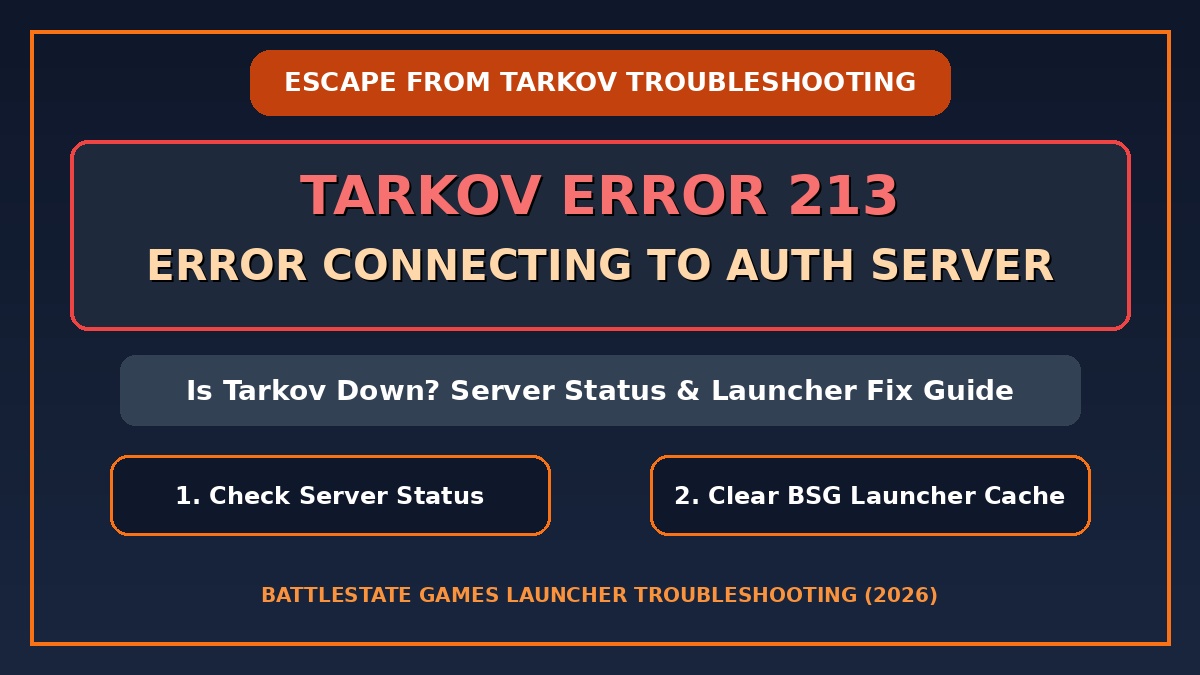
Figure 1: Step-by-step fix for Escape from Tarkov error 213 connecting to authorization server.
Hardcore extraction shooter Escape from Tarkov (EFT) requires seamless communication between your client launcher and Battlestate Games (BSG) authorization infrastructure. During peak hours, seasonal wipe launches, or Twitch drops events, players frequently encounter login disruptions. One of the most common issues is tarkov error 213.
When this error triggers, the launcher displays the message: “213 – Error connecting to auth server”, preventing players from signing in or reaching the main lobby. In this guide, we break down what causes Tarkov error 213 error connecting to auth server, how to verify Is Tarkov down, and step-by-step methods to get your game running smoothly.
What Causes Tarkov Error 213?
Error 213 specifically identifies a communication breakdown between your desktop BSG Launcher and the central authentication servers (`backend.escapefromtarkov.com`).
Common triggers for tarkov error 213 include:
- BSG Authorization Server Overload: Massive traffic spikes during major patch releases or server wipes temporarily strain authentication nodes.
- Scheduled Server Maintenance: Planned backend updates performed by Battlestate Games.
- Windows Firewall / Antivirus Blocks: Windows Defender erroneously blocking outbound traffic from `BsgLauncher.exe`.
- Corrupted Launcher Cache: Stale temporary token files in the local BSG launcher directory.
- DNS & ISP Routing Issues: Local Domain Name System (DNS) resolver failures preventing connection to Tarkov auth servers.
Is Tarkov Down? How to Check Server Status
Before troubleshooting your local network or changing launcher settings, determine whether the issue is on Battlestate Games’ end. If central servers are undergoing maintenance, local troubleshooting will not bypass the error.
How to Verify if Tarkov Servers are Down:
- Official Support Page: Visit the official Official Escape from Tarkov Support Portal to check live system status alerts.
- BSG Official X (Twitter): Follow `@tarkov` and `@tarkovchanges` for real-time maintenance announcements.
- Community Outage Trackers: Check third-party platforms like DownDetector or the official Tarkov Discord server status channels.
When Will Brawl Stars Maintenance Break End Today? Live Status (2026)
Tarkov Server Status Verification Channels
| Platform / Source | Official Channel | Best Used For |
|---|---|---|
| Official Status Page | escapefromtarkov.com/support | Live auth & matching server indicators |
| X (Twitter) Updates | @tarkov / @tarkovchanges | Real-time patch & wipe maintenance news |
| Community Discord | discord.gg/escapefromtarkov | Player community outage reporting |
Step-by-Step Fixes for Tarkov Error 213
If servers are operational, follow these tested solutions to fix Tarkov error 213 error connecting to auth server on your PC:
- Run BSG Launcher as Administrator:
Right-click your BsgLauncher.exe shortcut on your desktop, select Properties > Compatibility, check Run this program as an administrator, and click Apply. - Clear BSG Launcher Cache:
Open the BSG Launcher. Click on your profile name at the top right, select Clear Cache. Alternatively, navigate to `%appdata%\Battlestate Games\BsgLauncher` in Windows File Explorer and delete temporary cache files. - Flush Windows DNS Cache:
Press `Windows Key + R`, type `cmd`, and press Enter. In the command prompt, type:ipconfig /flushdns
Press Enter, then restart your launcher.
- Configure Windows Firewall Allow Rules:
Open Windows Defender Firewall, select Allow an app through firewall, and ensure both `BsgLauncher.exe` and `EscapeFromTarkov.exe` have Private and Public network permissions checked. - Switch to Google Public DNS:
Go to Windows Network Settings > Adapter Options > IPv4 Properties. Change DNS servers to Preferred: `8.8.8.8` and Alternate: `8.8.4.4`.
Common Escape from Tarkov Launcher Errors & Solutions
| Error Code | Error Description | Recommended Solution |
|---|---|---|
| Error 213 | Connecting to auth server failed | Run as Admin, clear cache & flush DNS |
| Error 208 | Bad region / region lock mismatch | Disable active VPN & verify account region |
| Error 214 | Captcha verification timeout | Restart launcher & change default browser |
| Error 1000 | Backend connection failure | Check server maintenance status & reboot router |
For additional launcher crash troubleshooting and game file integrity checks, explore our comprehensive Escape from Tarkov Launcher Error Fixes Guide.
Important Best Practices for Tarkov Wipes & Patch Days
To prevent login errors during high-traffic updates, follow these tips:
- Avoid Login Spamming: Repeatedly clicking ‘Login’ during authentication delays sends multiple requests, temporarily IP-throttling your connection.
- Keep BSG Launcher Auto-Updated: Outdated launcher builds cannot interface with updated auth protocols.
- Pre-Download Updates: Download patch updates during off-peak hours whenever possible.
- Use Wired Ethernet Connection: Wired connections reduce packet loss and auth handshake timeouts compared to Wi-Fi.
TL;DR: Tarkov Error 213 Summary Checklist
- Primary Cause: BSG authorization server overload or local firewall/DNS connection block.
- Check Outage First: Confirm Is Tarkov down via escapefromtarkov.com/support.
- Quick Fix 1: Run `BsgLauncher.exe` as Administrator.
- Quick Fix 2: Open BSG Launcher settings and click Clear Cache.
- Quick Fix 3: Execute `ipconfig /flushdns` in Command Prompt and reboot your router.
Disclaimer: This independent troubleshooting guide is provided for educational and gaming support purposes. Escape from Tarkov and BSG Launcher are trademarks of Battlestate Games. For official account support, visit escapefromtarkov.com/support.
