
Quick Answer: How to Fix Spectrum Error Code RLP-1035
Spectrum error code RLP-1035 (and Spectrum reference code XSTLP 1035) indicates a location authentication failure or streaming connection timeout between your Spectrum TV App / cable box and Spectrum’s servers. To fix it immediately: (1) Verify your streaming device is connected to your Home Spectrum Wi-Fi network (out-of-home streaming restricts live channels); (2) Power cycle your Spectrum modem, router, and cable box/Roku by unplugging power for 60 seconds; (3) Clear the Spectrum TV app cache or reinstall the app.
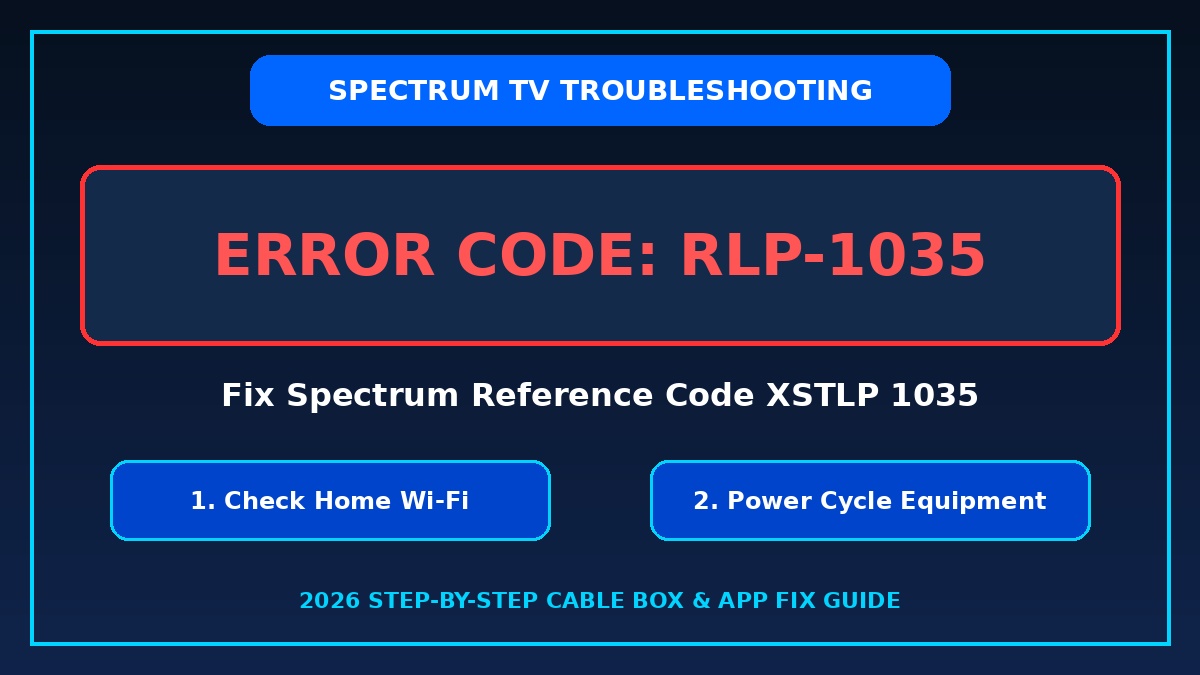
Figure 1: Complete step-by-step fix for Spectrum Error Code RLP-1035 & Reference Code XSTLP 1035.
Encountering an interruption while streaming your favorite live sports or TV shows can be frustrating. One of the most frequent streaming location errors reported by subscribers across Smart TVs, Roku, Apple TV, and receiver boxes is spectrum error code rlp-1035.
This error message—often displayed alongside Spectrum reference code XSTLP 1035—typically pops up with the prompt: “Unable to Complete Request. Please try again later.” In this comprehensive guide, we explain the root causes of this error and provide verified solutions. We also provide details on accessing a complete Spectrum cable box error Codes list pdf reference guide.
What Causes Spectrum Error Code RLP-1035?
The prefix RLP stands for Resource Location Protocol in Spectrum’s streaming system architecture. When your receiver or streaming app requests video playback, Spectrum’s servers verify your location and home network status.
Primary reasons why spectrum error code rlp-1035 or XSTLP 1035 occurs include:
- Network Location Mismatch: You are connected to a guest Wi-Fi, cellular hotspot, or VPN instead of your assigned primary Spectrum Home Internet connection.
- Temporary Modem/Router Cache Corruption: IP address lease glitches between your Spectrum modem and router prevent location authentication.
- Outdated Spectrum TV App: Running an outdated version of the Spectrum TV app on Roku, Samsung Smart TV, Xumo, or Apple TV.
- Account Provisioning Delay: Recent channel package upgrades or account changes not yet fully synced with your receiver box or digital profile.
- Regional Server Outage: Temporary maintenance on Spectrum’s local content delivery network (CDN) servers.
Step-by-Step Fixes for Spectrum Error Code RLP-1035 & XSTLP 1035
- Verify Your Home Wi-Fi Connection:
Ensure your device is connected directly to your Spectrum home Wi-Fi network. Turn off any active VPNs or proxy services, as Spectrum enforces strict location licensing for live TV channels. - Perform a Full Network Power Cycle:
Unplug the power cord from your Spectrum modem, Wi-Fi router, and TV streaming box/Roku. Wait 60 seconds. Plug in the modem first, wait until all lights turn solid green/blue, then power on your router and streaming device. - Force Close and Clear App Cache:
On Smart TVs or Android/Roku devices, navigate to Settings > Applications > Spectrum TV App. Select Force Stop, then click Clear Cache & Clear Data. - Re-Authenticate Spectrum Account:
Log out of the Spectrum TV app, restart your device, and log back in using your primary Spectrum username and password. - Send a Signal Refresh to Cable Box:
If using a traditional cable receiver, log into your Official Spectrum TV Support Portal, navigate to Equipment, and select Reset Equipment to send an online refresh signal.
Spectrum RLP-1035 vs Reference Code XSTLP 1035 Differences
| Error Code | Device Affected | Root Cause | Recommended Quick Fix |
|---|---|---|---|
| RLP-1035 | Spectrum TV App, iOS, Android, Web | Location protocol timeout / Out-of-home IP restriction | Connect to home Wi-Fi & restart app |
| XSTLP 1035 | Roku, Xumo Box, Samsung Smart TV | Streaming channel licensing handshake failure | Reinstall app & reboot router |
| RLP-1006 / RLP-9999 | All Streaming Devices | General network connection lost | Check ethernet/Wi-Fi cables & modem status |
Spectrum Cable Box Error Codes List PDF Overview
In addition to app streaming errors, cable box users frequently encounter hardware and signal error codes. Having access to a comprehensive Spectrum cable box error Codes list pdf reference helps you identify whether an issue requires a quick reboot or a technician dispatch.
Below is an essential reference table of common Spectrum cable box error codes:
| Error Code | Description / Display Message | Primary Resolution |
|---|---|---|
| IA-01 / RDK-03003 | Unable to connect to Spectrum TV services | Tighten coaxial cable; power cycle box |
| S0900 / S0200 | Cable box card not authorized / no signal | Request equipment refresh online |
| RLP-1035 / XSTLP 1035 | Resource Location Service Timeout | Verify home Wi-Fi & restart app |
| DVS-1001 | DVR service temporarily unavailable | Reboot receiver box & verify storage |
For broader hardware setup issues and receiver troubleshooting, check out our in-depth Spectrum Cable Box Troubleshooting Guide.
Important Checkpoints & Prevention Tips
Keep these crucial technical best practices in mind to prevent recurring streaming errors:
- Keep Auto-Updates Enabled: Set your Roku, Firestick, or Smart TV to auto-update the Spectrum TV app automatically.
- Avoid Mobile Hotspot Streaming for Live TV: Live channel packages require detection of your home Spectrum IP range.
- Check Coaxial Connections: Ensure coaxial splitters and wall cables are hand-tightened without bent pins.
- Check Regional Outages First: Before resetting equipment, verify if there is an active local service outage via the My Spectrum mobile app.
TL;DR: Spectrum Error Code RLP-1035 Summary Checklist
- Primary Cause: Location protocol or Wi-Fi network authentication timeout between streaming app and Spectrum servers.
- Quick Fix 1: Connect your device directly to your Home Spectrum Wi-Fi and disable VPNs.
- Quick Fix 2: Power cycle modem, router, and streaming box by unplugging power for 60 seconds.
- Quick Fix 3: Clear app cache / reinstall the Spectrum TV app on Roku or Smart TV.
- Reference Code XSTLP 1035: Fixed using the same network reboot and app re-authentication steps.
Disclaimer & Author Note: This independent troubleshooting guide is provided for informational and educational purposes. Spectrum is a registered trademark of Charter Communications. For official account support or equipment replacements, visit spectrum.net/support/tv.
