
⚡ Quick Answer & TL;DR
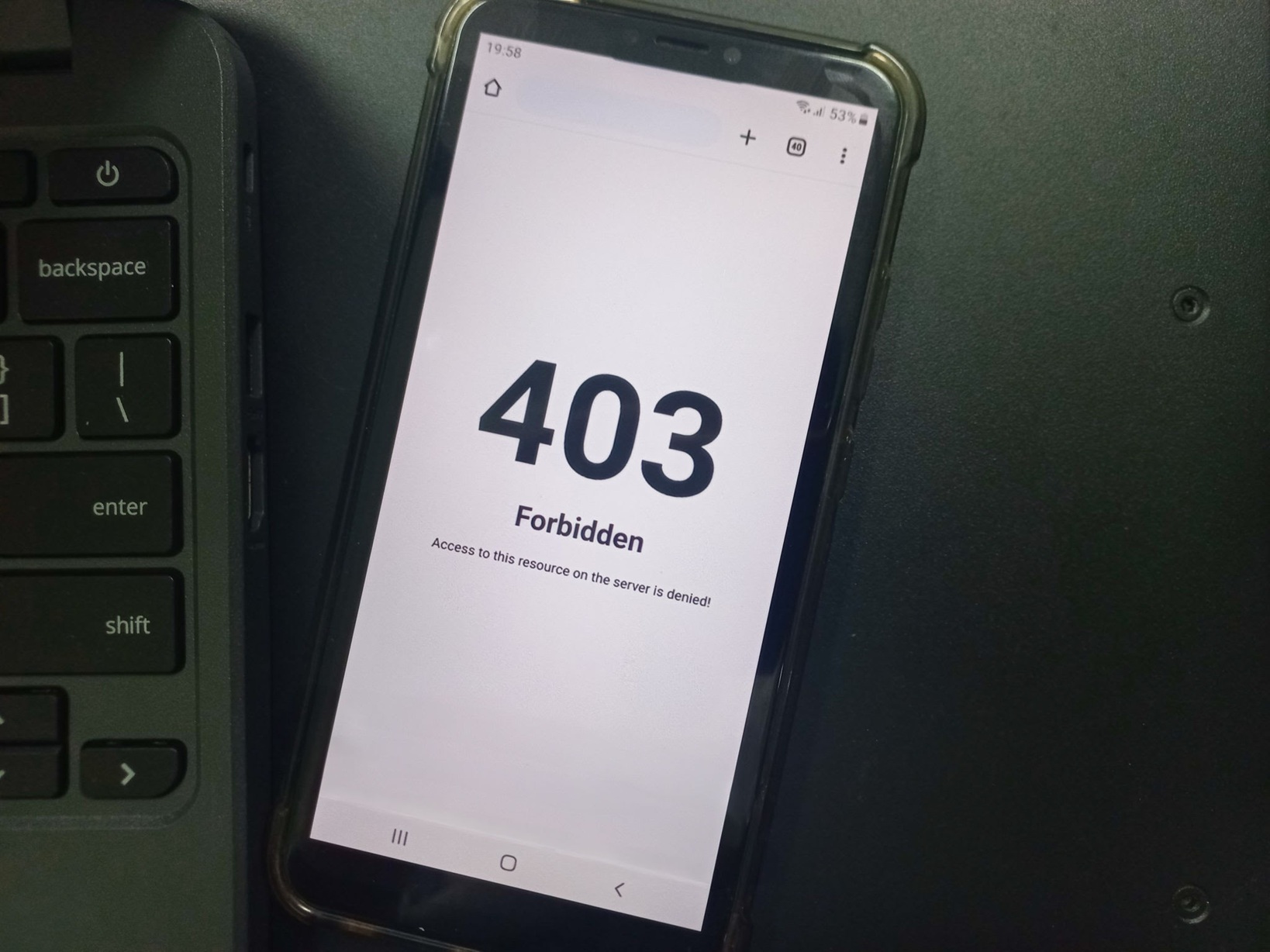
A Google 403 error (or 403 Forbidden) happens when a web server or Google service recognizes your request but actively denies you access. The fix depends on how you encountered it:
- As a Chrome User: Clear your browser cache and cookies, disable VPNs or ad-blocking extensions, and try Incognito mode.
- As a Webmaster: The #1 cause is incorrect server file permissions. Ensure your directories are set to 755 and files to 644. Also, check for corrupted
.htaccessfiles or faulty plugins. - In Google Search Console: A “Blocked Due to Access Forbidden (403)” means your server firewall or CMS is blocking Googlebot from crawling your pages.
Understanding the Different Types of Google 403 Errors
While the standard HTTP status code is universal, the way a google 403 error manifests depends entirely on the platform you are using. Here are the three most common environments where this error appears and what triggers it.
1. Chrome Browser “403 Forbidden”
When surfing the web on Google Chrome, encountering this error on a site you normally use is rarely a major server crash. Instead, it is usually a client-side issue. Causes include outdated cached permissions, corrupted cookies, or aggressive privacy extensions (like ad blockers or VPNs) that make the website block your IP address.
2. Google Search Console: Blocked Due to Access Forbidden
If you manage website SEO, seeing this error in your Page Indexing Report means Googlebot attempted to crawl your page but was kicked out by your server. This usually happens because of:
- Server-level Web Application Firewalls (WAF) blocking Google’s crawling IP ranges.
- Aggressive security plugins mistakenly identifying Googlebot as a malicious scraper.
- Overly restrictive geographic blocks implemented on the server side.
3. Google OAuth “403 access_denied”
Developers and app users might encounter a specific 403 access_denied error when trying to use the “Sign in with Google” feature. This specifically means the user is not authorized to share account data with the app. A frequent reason for this is that the third-party app is still in test mode, and the developer hasn’t manually added your email as an authorized test user.
https://seminarsonly.com/news/is-plex-down-outage-status/
How to Fix the Error: A Step-by-Step Guide
Troubleshooting requires identifying whether you are the visitor trying to access a page, or the webmaster trying to fix your own site. If you’re managing your own server environment, you may want to review our complete guide to troubleshooting website errors.
| User Type | Common Cause | Recommended Quick Fix |
|---|---|---|
| Website Visitor | Corrupt browser cache or VPN IP block. | Clear Chrome cache/cookies; disable VPNs; test in Incognito. |
| WordPress Admin | Misconfigured File Permissions or bad plugin. | Set folders to 755 and files to 644 via FTP. Deactivate security plugins temporarily. |
| SEO Professional | Firewall blocking Googlebot in Search Console. | Whitelist Googlebot IP ranges in your server firewall and check robots.txt. |
| App Developer | App is in testing mode (OAuth issue). | Add the user to the testing group in Google Cloud Console. |
Advanced Fix: Restoring the .htaccess File
For website owners, a corrupted .htaccess file is a notorious culprit for triggering sudden 403 errors across an entire domain. To fix this safely:
- Log into your hosting cPanel or access your site via FTP.
- Locate the
.htaccessfile in your root directory and download a copy as a backup. - Delete the file from the server.
- Try loading your website. If the 403 error is gone, you have identified the culprit.
- Go to your WordPress dashboard, navigate to Settings > Permalinks, and click “Save Changes” to automatically generate a fresh, clean configuration file.
Need more technical documentation? If you are working directly with Google APIs and experiencing access issues, refer to the official Google Account Help guide on error codes for detailed API authorization troubleshooting.
