
Written by Freddy John
Cybersecurity Analyst & Digital Fraud Specialist | 10+ Years Fighting Phishing Scams | Last Updated: July 14, 2026
Quick Answer
The “Apple ID Account Alert” text message is a phishing scam (smishing) in 99% of cases. Apple does not send text messages with links to verify your account. Real Apple security alerts appear in your iPhone Settings under your Apple ID name, or via email from verified apple.com domains. If you received this text, do not click the link. Forward it to 7726 (SPAM) and delete it immediately.
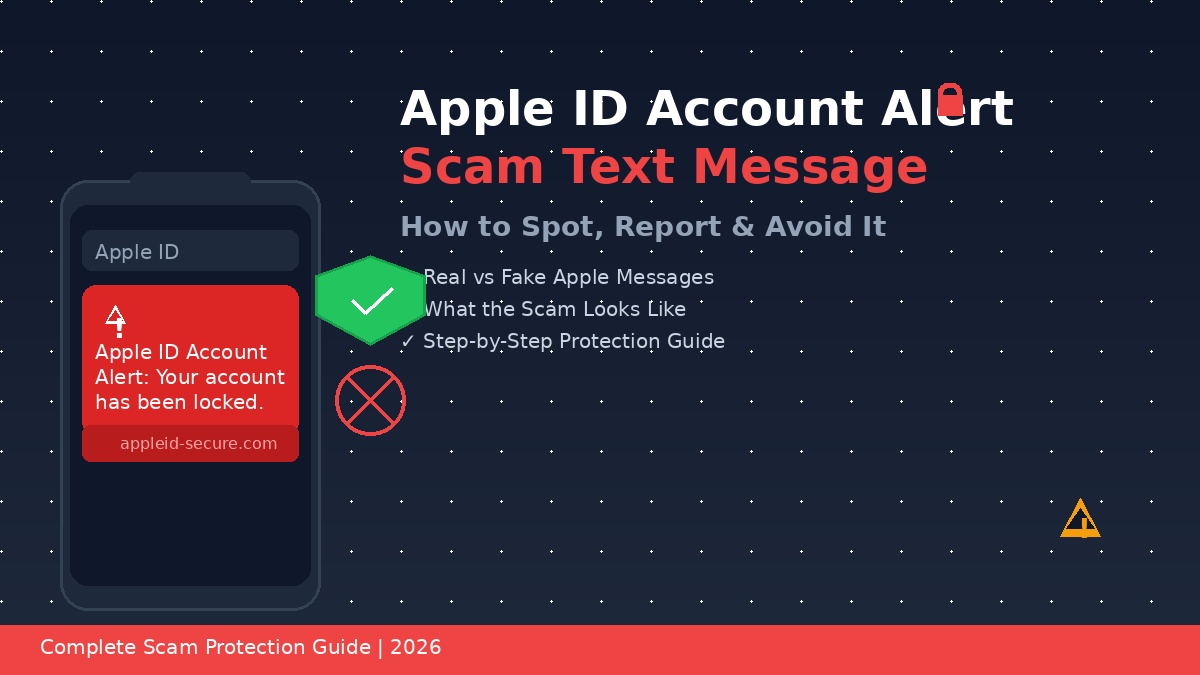
Your phone buzzes. You glance at the screen and your heart skips a beat:
“Apple ID Account Alert: Your account has been locked for security reasons. Verify your identity now to avoid permanent suspension: appleid-secure.com”
It looks official. It uses Apple’s name. It threatens account suspension. But here’s the truth — this message is a scam, and it’s one of the most common phishing attacks targeting iPhone users in 2026.
I’ve spent over a decade analyzing digital fraud patterns, and the “Apple ID Account Alert” scam text has evolved into a sophisticated threat that fools even tech-savvy users. The scammers know exactly which psychological triggers to pull: urgency, fear of loss, and trust in a brand you use daily.
In this guide, I’ll show you exactly what this scam looks like, how to tell it apart from a real Apple message, what to do if you already clicked the link, and how to lock down your account so it never happens again. Every step is based on real cases I’ve investigated and Apple’s own security documentation.
What Is the Apple ID Account Alert Scam Text?
The “Apple ID Account Alert” scam is a form of smishing — SMS phishing. Scammers send text messages that appear to come from Apple, claiming your Apple ID has been locked, suspended, or compromised. The message includes a link to a fake website designed to steal your Apple ID password, payment information, or personal data.
These scams have exploded in frequency. According to the Federal Trade Commission, impersonation scams — including fake Apple ID alerts — cost consumers over $1.1 billion in 2025 alone. Apple ID scams specifically rank in the top 5 most reported phishing categories.
Why This Scam Works So Well
- ✓ Brand trust — Apple is one of the most trusted brands globally. Scammers exploit that trust by impersonating Apple support.
- ✓ Urgency and fear — The message threatens account suspension, data loss, or unauthorized purchases. Fear overrides critical thinking.
- ✓ Mobile context — You’re more likely to act quickly on a phone than a computer. The scam is designed for mobile first.
- ✓ Convincing fake websites — The phishing sites clone Apple’s login page with pixel-perfect accuracy, including the Apple logo, fonts, and layout.
- ✓ Social proof — Scammers often send these in waves, so you may hear about friends or family receiving the same message, making it seem more legitimate.
What the Scam Text Looks Like (Real Examples)
Here are the most common variations of the Apple ID scam text circulating in 2026. If you see any of these, it’s a scam:
Apple ID Account Alert: Your account has been locked for security reasons. Verify your identity now to avoid permanent suspension.
→ appleid-secure.com/verify
[Apple] Your Apple ID has been disabled. We detected unauthorized login attempts. Confirm your account: apple-verify.net
Apple ID: Your account was accessed from an unknown device in Mumbai, India. If this wasn’t you, secure your account immediately: appleid-login.com
Apple Support: We’ve placed a hold on your account due to suspicious activity. Update your payment information to restore access: secure-appleid.com
Red Flags in Every Scam Text
Real vs Fake Apple ID Messages: How to Tell the Difference
This is the most important section of this guide. Knowing the difference between a real Apple message and a fake one can save you from identity theft and financial loss.
What to Do If You Receive an Apple ID Scam Text
Step 1: Do Not Click the Link
This sounds obvious, but it’s the most critical step. Even clicking the link — without entering any information — can be risky. Some phishing sites use drive-by downloads or fingerprint your device for future targeting. If you already clicked, don’t panic. Move to Step 5 immediately.
Step 2: Verify the Sender
Check the sender information carefully:
- ✓ Real Apple short codes: 25746, 28776, 86877 (these are verified Apple SMS codes).
- ✓ Fake sender numbers: Any 10-digit phone number, international number, or alphanumeric ID like “Apple-Support” is fake.
- ✓ Spoofed names: Scammers can make the sender ID display as “Apple” or “Apple ID” — don’t trust the display name alone.
Step 3: Check Your iPhone Settings
Open Settings > [Your Name] at the top of the Settings menu. Look for:
- ✓ A red notification badge on your Apple ID name — this indicates a real Apple security alert.
- ✓ Password & Security — check for any unrecognized devices or recent sign-in locations.
- ✓ Media & Purchases — verify no unauthorized payment methods were added.
If there’s no red badge and no alert in Settings, the text is 100% fake.
Step 4: Report the Scam Text
Reporting helps authorities track scam campaigns and protects other users. Here’s exactly how to report:
Step 5: Delete the Message
After reporting, delete the scam text. Don’t leave it in your messages — it reduces the chance of accidentally clicking the link later, and it prevents the scammer from knowing your number is active (some scams track whether messages are read or deleted).
What to Do If You Already Clicked the Scam Link
If you clicked the link, your next steps depend on what you did after clicking:
Scenario A: You Clicked but Didn’t Enter Anything
You’re likely safe, but take these precautions:
- ✓ Close the browser tab immediately.
- ✓ Clear your browser cache and cookies.
- ✓ Check your iPhone for any unexpected app installations.
- ✓ Run a security scan if you have mobile security software installed.
Scenario B: You Entered Your Apple ID Password
This is serious. The scammer now potentially has your Apple ID password. Act fast:
- 1. Change your Apple ID password immediately at appleid.apple.com on a trusted device.
- 2. Enable two-factor authentication (2FA) if it’s not already on. Go to Settings > [Your Name] > Sign-In & Security > Two-Factor Authentication.
- 3. Check for unauthorized devices in Settings > [Your Name] > Media & Purchases > View Account > Manage Devices. Remove any device you don’t recognize.
- 4. Review recent purchases in the App Store > your profile > Purchased. Dispute any unauthorized charges with Apple Support.
- 5. Sign out of all devices from appleid.apple.com > Sign-In & Security > Sign Out of All Devices.
Scenario C: You Entered Payment Information
If you entered credit card details, bank account info, or other payment data:
- ✓ Contact your bank immediately and report the card as compromised. Request a new card with a new number.
- ✓ Monitor your accounts for unauthorized transactions for the next 60 days.
- ✓ File a fraud report with your bank and the FTC at reportfraud.ftc.gov.
- ✓ Set up transaction alerts on your bank app for real-time notifications.
How to Protect Yourself from Future Apple ID Scams
Prevention is always better than recovery. Here’s my security checklist that every iPhone user should follow:
Enable Two-Factor Authentication (2FA)
2FA is the single most effective defense against Apple ID theft. Even if a scammer gets your password, they can’t access your account without the 6-digit code sent to your trusted device.
Path: Settings > [Your Name] > Sign-In & Security > Two-Factor Authentication > Turn On
Use a Strong, Unique Password
Your Apple ID password should be:
- ✓ At least 16 characters long.
- ✓ A mix of uppercase, lowercase, numbers, and symbols.
- ✓ Unique to your Apple ID — never reused on other sites.
- ✓ Stored in a password manager like iCloud Keychain or 1Password.
Enable Find My iPhone
If your Apple ID is compromised, Find My iPhone lets you track, lock, or erase your device remotely. It also prevents thieves from reactivating a stolen device.
Path: Settings > [Your Name] > Find My > Find My iPhone > Turn On
Review App Permissions Regularly
Scam apps sometimes piggyback on phishing attacks. Check which apps have access to your Apple ID:
Path: Settings > [Your Name] > Sign-In & Security > Apps Using Your Apple ID
Set Up Account Recovery Contacts
Apple’s Account Recovery feature lets you designate trusted friends or family who can help you regain access if you’re locked out. This is crucial if a scammer tries to change your password.
Path: Settings > [Your Name] > Sign-In & Security > Account Recovery > Add Recovery Contact
Be Skeptical of All Unsolicited Messages
Adopt a default-deny mindset for any unexpected message claiming to be from Apple, your bank, or any service you use:
- ✓ Never click links in unsolicited texts. Go directly to the official website or app instead.
- ✓ Verify through official channels. Call Apple Support at 1-800-MY-APPLE or use the Apple Support app.
- ✓ Don’t trust caller ID. Scammers can spoof Apple’s official support number.
- ✓ When in doubt, delete it. A real urgent issue will appear in your Settings app.
Other Common Apple-Related Scams to Watch For
The Apple ID text scam is just one of many. Here are the other major scams circulating in 2026:
External Resource: For official Apple security guidance, visit Apple’s Official Security Page. For broader phishing protection tips, check the FTC’s Phishing Avoidance Guide.
How Scammers Get Your Phone Number
Understanding how scammers target you helps you reduce your exposure. Here are the most common methods:
- ✓ Data breaches — When companies are hacked, phone numbers are often leaked and sold on the dark web.
- ✓ Social media scraping — Scammers use bots to collect phone numbers from public profiles on Facebook, LinkedIn, and Instagram.
- ✓ Fake contests and surveys — “Win an iPhone” scams collect your number for “marketing” that never comes.
- ✓ Number randomization — Scammers use auto-dialers to send texts to millions of random numbers. If yours is active, you get more.
- ✓ Previous scam interactions — If you clicked a scam link before, your number is marked as “active” and sold to other scammers.
Internal Link: If you’re dealing with broader phone security issues, read our guide on Apple Security Alert Scam. For general phishing protection across all devices, see How to Avoid Phishing Scams: The Complete Guide.
TL;DR — Apple ID Scam Text: What to Do in 5 Steps
- → Do not click the link. Real Apple ID alerts appear in Settings, not texts.
- → Check Settings > [Your Name]. No red badge = fake message.
- → Forward the text to 7726 (SPAM). This reports it to your carrier.
- → Report to Apple by forwarding to reportphishing@apple.com and file at reportfraud.ftc.gov.
- → If you clicked and entered info, change your Apple ID password immediately, enable 2FA, and contact your bank.

About the Author
Freddy John is a Tech Support Specialist with 8+ years of experience troubleshooting government digital services, authentication systems, and enterprise IT infrastructure. Passionate about making technology accessible and helping users resolve complex login issues quickly.
📧 contact@seminarsonly.com | facebook.com/seminarsonly | twitter.com/seminarsonly
🌐 seminarsonly.com
