
⚡ Quick Answer
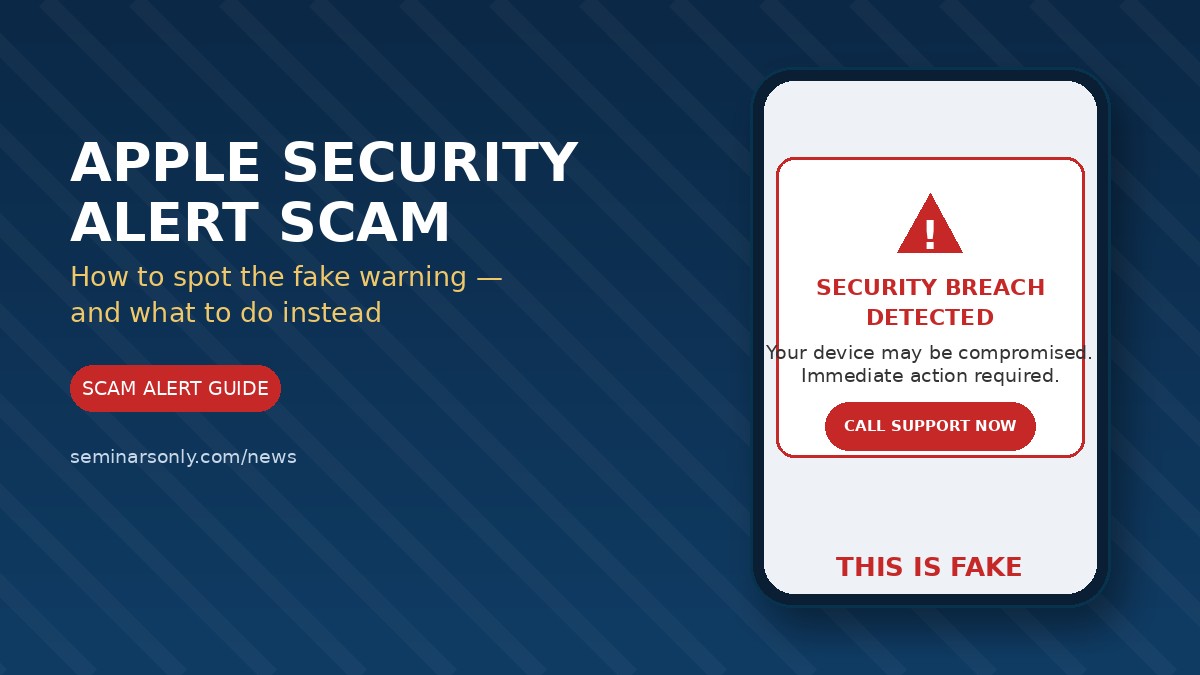
The “Apple security alert” is a scam, not a real warning from Apple. It appears as a browser pop-up, text message, email, or phone call claiming your iPhone or Mac has been hacked, and it pressures you to call a number, install software, or hand over your Apple ID and payment details. Apple never sends security notices this way — genuine alerts only appear inside your device’s Settings app or your official Apple ID account page. Close the pop-up, don’t call the number, and check your account directly at appleid.apple.com instead.
What the Apple security alert scam actually is
The Apple security alert scam is a tech-support and phishing scam dressed up in Apple’s branding. It shows a warning that claims your device has been compromised, your Apple ID was used fraudulently, or a purchase was made without your permission, then pushes you toward a fake support number, a lookalike login page, or a request to install remote-access software. Some versions arrive as full-screen browser pop-ups; others come as texts, emails, or unsolicited phone calls from someone claiming to be an “Apple representative.”
It works because it borrows a format Apple genuinely uses — account activity notices, sign-in alerts, billing updates — and adds urgency on top. The moment a message tells you to act immediately or call a number right now, that urgency is doing the scammer’s work for them.
Red flags vs. real Apple alerts
- It’s a full-page pop-up or an unsolicited call. Real Apple security notices live inside Settings or your Apple ID account, not as browser takeovers.
- It greets you generically. “Dear Customer” or “User” instead of your actual name is a common tell.
- It includes a phone number or “Call Support” button. Apple doesn’t embed clickable support numbers inside warning messages.
- It demands gift cards or wire payment. No legitimate Apple communication ever asks for payment in gift cards.
- It asks for your verification code. Two-factor codes are private; Apple support will never ask you to read one aloud or type it into a third-party page.
Fake vs. real, side by side
| Signal | Fake alert | Real Apple alert |
|---|---|---|
| Where it appears | Browser pop-up, text, robocall | Settings app or Apple ID account page |
| Greeting | “Dear Customer” / no name | Uses your actual account name |
| Call to action | “Call this number now” | No embedded phone number |
| Payment request | Gift cards, wire transfer | Never requested this way |
| Verification code | Asks you to share it | Never asks you to share it |
How the scam reaches you
There isn’t one single delivery method — that’s part of why it’s so persistent:
- Malicious or compromised websites that trigger a fake “your iPhone is infected” pop-up the moment you land on the page.
- A browser extension or adware already installed on your Mac or iPhone, generating repeated fake alerts.
- Phishing texts or emails claiming a purchase, sign-in, or billing issue on your Apple account.
- Cold calls from someone posing as Apple support, often after a related email or pop-up primed you to expect it.
If these alerts keep reappearing across different sites or apps, that’s usually a sign of a potentially unwanted program on the device itself, not a one-off phishing attempt — worth a proper malware check rather than just closing the tab each time.
What to do if you see one
- Don’t click anything on the alert — no buttons, no “close” X inside the pop-up itself; close the browser tab or app entirely instead.
- Don’t call the number shown. If you’re worried, contact Apple directly through Apple’s official support site.
- Check your account the normal way by logging into appleid.apple.com yourself, not through any link in the alert.
- Review installed apps and browser extensions for anything you don’t recognize, especially if the pop-ups keep recurring.
- Report phishing messages to Apple and forward suspicious texts to 7726 (SPAM) if you’re on a carrier that supports it.
If you already clicked, called, or paid
Move quickly, in this order: change your Apple ID password immediately from a device you trust, then review and remove any unfamiliar devices or sign-in sessions from your account. If you granted remote access to your computer, disconnect from the internet and run a malware scan before reconnecting. If you paid by gift card or wire transfer, contact the card issuer or your bank right away — recovery odds drop fast with time. You can also file a report with the FTC’s fraud reporting site, which helps track these scam patterns even if it doesn’t recover your specific loss.
If the scam reached you by phone or text, it’s also worth checking whether the number has been reported elsewhere. Our Scam Number Tracker logs community-reported scam and spam numbers, and our Scam Alerts hub covers other active impersonation scams worth knowing about.
Frequently asked questions
Does Apple ever call customers directly about security issues?
No. Apple does not proactively call customers about account security. If you need help, you contact Apple, not the other way around.
Can a fake Apple alert actually infect my device just by appearing?
Simply seeing the pop-up usually doesn’t infect your device. The risk comes from clicking links, calling the number, downloading anything it suggests, or entering credentials on a fake page.
Why do these alerts keep appearing even after I close them?
Recurring pop-ups across different sites usually point to a browser extension or potentially unwanted app already on the device, rather than a new scam each time.
Is it safe to use the “Report Junk” option on a scam text claiming to be from Apple?
Yes. Reporting it as junk or forwarding it to 7726 (SPAM) helps carriers filter similar messages, and it doesn’t expose any of your information.
📋 TL;DR
- Apple security alerts never arrive as pop-ups, texts, or unsolicited calls — only inside Settings or your Apple ID account.
- Red flags: generic greeting, embedded phone number, urgency, requests for gift cards or verification codes.
- Don’t click, don’t call the number — check your account directly at appleid.apple.com instead.
- Recurring pop-ups across sites usually mean adware or a bad extension, not a new scam every time.
- If you already clicked or paid: change your password, remove unfamiliar devices, contact your bank, and report it to the FTC.
Freddy John

About the Author
Freddy John is a Tech Support Specialist with 8+ years of experience troubleshooting government digital services, authentication systems, and enterprise IT infrastructure. Passionate about making technology accessible and helping users resolve complex login issues quickly. His guides are cross-checked against official vendor support documentation and consumer-protection agency advisories, and updated as new scam variants are reported. Updated July 14, 2026.
