
If your Path of Exile 2 map device or portal scroll throws “Activation failed. Unable to open portals to area,” your progress into an endgame map or hideout gets blocked without a clear reason on screen.
This guide explains why the error happens and lists the fixes players have confirmed work most often.
Quick answer
The error is almost always server side. Log out and back in, use a nearby waypoint to bypass the stuck instance, check your connection for packet loss, and retry the map device after a short wait. Verifying game files and restarting the client help in the remaining cases.
TLDR
- The error means the game server could not create a new area instance for you.
- Common triggers are server load, an unstable connection, a corrupted map instance, or a stale client cache.
- Relogging and using a nearby waypoint as a workaround resolve it for most players.
- If the map itself is bugged, the map is usually consumed. Report it in game so support can look at reimbursement.
On this page
- What “activation failed” actually means
- Common causes of the error
- Fix 1: log out and log back in
- Fix 2: use the nearby waypoint workaround
- Fix 3: check your internet connection
- Fix 4: restart the client and verify files
- Fix 5: wait it out and report the map
- How to avoid it next time
What “activation failed” actually means
When you click a map in the map device, a waypoint, or a portal scroll, your client asks the game server to generate a new area instance for you and then open a portal to it. “Activation failed. Unable to open portals to area” means that request came back rejected. The client is working correctly. The failure happens on the server side while it tries to spin up the instance.
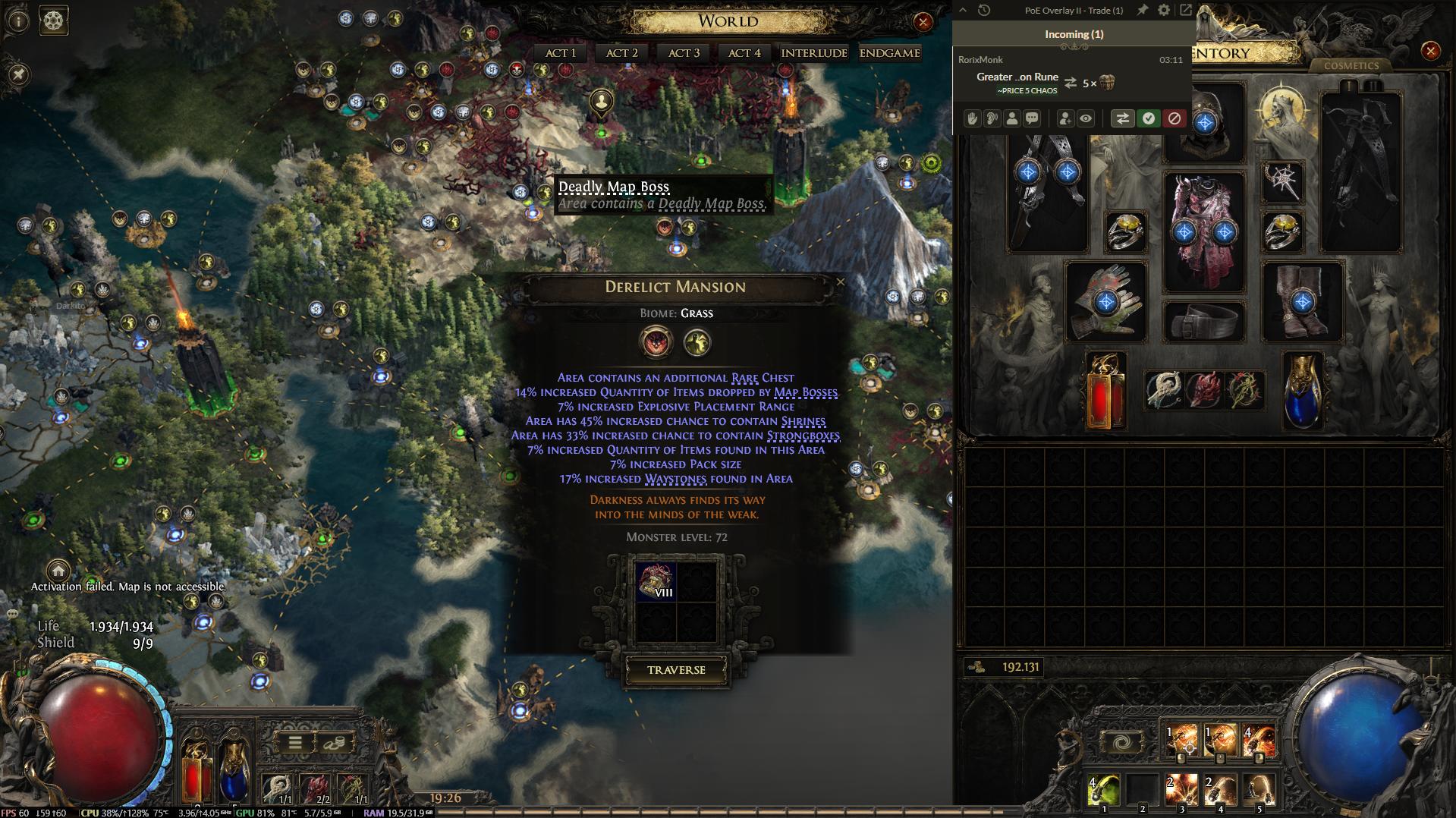
This is not tied to a specific class, build, or platform. It shows up on PC, PlayStation, and Xbox, and it has appeared in both Path of Exile 1 and Path of Exile 2 since early access, most often around the map device and blighted or corrupted maps.
Common causes of the error
Based on patterns reported on the official forums and by players troubleshooting the issue, the usual triggers are:
- High server load or a queue during peak hours, especially right after a league launch or patch.
- An unstable or high latency internet connection that drops the activation request mid handshake.
- A corrupted or modified map that the server cannot generate correctly.
- A stale local cache or a partially downloaded patch on the client.
- Trying to activate a second map device room or portal while a previous instance has not finished closing.
Why it matters for your map
If the map itself was consumed by the device before the error appeared, you will not get it back automatically. Note the map name and tier before you try any fix below, since you may need it for a support ticket.
Fix 1: log out and log back in
This is the fix that resolves the error most often, because it forces your client to drop its current server connection and open a fresh one.
- Open the in game menu and select log out, rather than closing the client from the taskbar.
- Wait about ten seconds at the login screen before signing back in.
- Return to your hideout and try the map device or portal again.
Fix 2: use the nearby waypoint workaround
There is a waypoint close to the map device in most hideouts. Using it does not fix the underlying cause, but it lets you leave and re-enter the map device room, which clears the stuck state for a lot of players.
- Travel to the waypoint near the map device instead of walking to it directly.
- Load into any existing waypoint location, then travel straight back to your hideout.
- Approach the map device again and retry activation.
Fix 3: check your internet connection
Because the error is a failed round trip to the server, packet loss or a spike in latency at the exact moment you activate can cause it.
- Switch from Wi-Fi to a wired connection if you can, even temporarily.
- Close other devices or applications on your network that are streaming or downloading.
- Restart your router if you have noticed general lag or disconnects that session.
Fix 4: restart the client and verify files
A partial patch download or a corrupted local file can also block instance creation on the client side.
- Fully close the game and the launcher, not just the game window.
- Reopen the launcher and let it finish checking for updates before you start the game.
- If the error continues, uninstall and reinstall the client, since Path of Exile 2 does not have a built in file verification tool.
Fix 5: wait it out and report the map
If none of the above works, the cause is likely a server side issue that only Grinding Gear Games can fix. Wait ten to fifteen minutes before trying again, since these spikes are often temporary.
If the map was consumed and you were not able to enter it, post a bug report on the official Path of Exile forum with your character name, the map name and tier, and roughly when it happened. Support has reimbursed lost maps in past cases reported this way.
How to avoid it next time
- Avoid activating maps in the first few minutes after a league launch or major patch, when server load is highest.
- Let one portal or map instance fully close before opening the next one.
- Keep your client updated so you are not running a partial patch during a play session.
This error is a known, recurring issue rather than something specific to your account or save file. If it keeps happening across multiple sessions, it is worth keeping an eye on the official forum for any patch notes addressing map device stability.

Pingback: Login Pool Is Empty and Connection Creation Failed: Fix It in 5 Steps (2026) - Seminarsonly.com