WoW Error BLZ51901016: Steps to Fix Disconnect Error
What is BLZ51901016?
WoW error BLZ51901016 usually appears while World of Warcraft is trying to connect to Blizzard services, often before you reach the character selection screen or realm.
Instead of logging in, WoW stops at Connecting or Retrieving Realm List and displays: “You have been disconnected. (BLZ51901016)”
What Causes WoW Error BLZ51901016?
BLZ51901016 is associated with World of Warcraft failing to establish the connection needed to enter the game. However, you should not assume that every occurrence has exactly the same underlying cause.
Blizzard’s troubleshooting for this error has included checking whether the computer meets WoW’s system requirements, updating drivers and the operating system, resetting the WoW user interface, resetting network equipment, testing the connection and closing applications that may interfere with the game.
Blizzard support discussions have also documented cases involving VPN software, network adapters, DNS/network configuration and routers.
Important: BLZ51901016 does not automatically mean your World of Warcraft installation is corrupted. Start with your connection and Blizzard’s low-risk troubleshooting steps before reinstalling the entire game.
⚡ Quick Fix (TL;DR)
- Completely close World of Warcraft and Battle.net.
- Power-cycle your modem/router: unplug it, wait about 30 seconds, reconnect it and allow the internet connection to come back.
- Restart your PC.
- If you use a VPN or proxy, temporarily disable it and test WoW again.
- Open Command Prompt and run ipconfig /flushdns.
- If possible, test WoW using a wired Ethernet connection instead of Wi-Fi.
- Install available Windows and network-adapter driver updates.
- If the problem continues, reset the WoW user interface and check Blizzard service/support information before reinstalling the game.
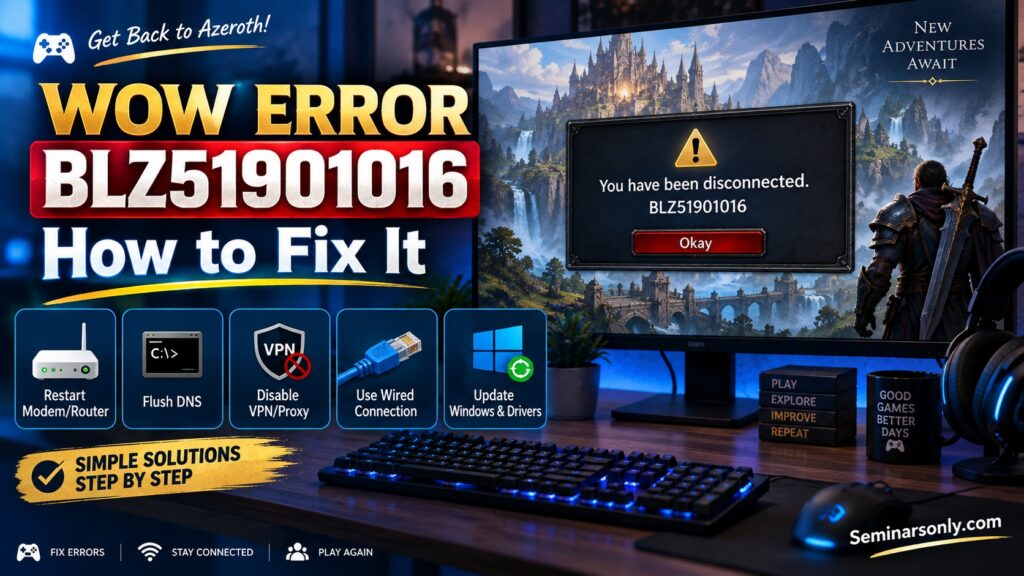
BLZ51901016 Quick Diagnosis
| Symptom | Check First | Next Step |
|---|---|---|
| Disconnects while logging in | Restart router | Flush DNS |
| Battle.net works but WoW doesn’t | WoW requirements / updates | Reset WoW UI |
| Error appears while VPN is active | Disable VPN | Reset networking |
| Wi-Fi disconnects repeatedly | Restart router | Test Ethernet |
| Started after Windows/network change | Windows Update | Network adapter driver |
Step-by-Step Fixes for WoW BLZ51901016
Method 1: Restart Your Modem and Router
This is the best low-risk place to start when BLZ51901016 suddenly appears on a computer that previously connected normally.
Blizzard’s internet troubleshooting specifically recommends power-cycling the modem for connection problems.
- Exit World of Warcraft.
- Exit the Battle.net Desktop App.
- Shut down or restart your PC.
- Unplug your modem/router from power.
- Leave it disconnected for approximately 30 seconds.
- Reconnect the power.
- Wait until your internet connection is fully restored.
- Restart the computer if you shut it down.
- Open Battle.net.
- Launch World of Warcraft.
Method 2: Flush the Windows DNS Cache
If restarting your network equipment does not help, clear Windows’ cached DNS information.
- Click Start.
- Type Command Prompt.
- Open Command Prompt.
- Enter the following command:
Press Enter and then retry World of Warcraft.
Method 3: Release and Renew Your IP Address
Blizzard’s connection troubleshooting has recommended releasing/renewing the IP address and flushing DNS when investigating network conflicts.
Open Command Prompt and run:
ipconfig /renew
ipconfig /flushdns
Restart Battle.net and test WoW after the commands complete.
Method 4: Disable VPN or Proxy Software
VPNs and proxies can change the network path between your PC and Blizzard’s services. Blizzard’s advanced connection troubleshooting recommends removing or disabling these when diagnosing connection failures.
- Exit World of Warcraft.
- Disconnect your VPN.
- Disable any manually configured proxy.
- Restart Battle.net.
- Launch WoW.
Also Read : Roblox Error Code 773: Fast Fixes & Causes (2026 Guide)
Method 5: Test a Wired Ethernet Connection
Blizzard recommends testing a direct/wired connection when diagnosing online-game connection problems because Wi-Fi introduces additional variables such as interference and signal quality.
- Connect your computer to the router using an Ethernet cable.
- Temporarily disconnect Wi-Fi.
- Restart Battle.net.
- Launch World of Warcraft.
If BLZ51901016 disappears over Ethernet but returns on Wi-Fi, focus troubleshooting on the wireless connection rather than reinstalling WoW.
Method 6: Update Windows and Network Drivers
Blizzard includes operating-system and driver updates among its troubleshooting recommendations for BLZ51901016.
Check Windows Update:
- Press Win + I.
- Open Windows Update.
- Click Check for updates.
- Install applicable updates.
- Restart the PC.
Also check your computer or network-adapter manufacturer’s official support page for an appropriate current network driver if Windows indicates your adapter has a problem.
Method 7: Reset the World of Warcraft User Interface
Blizzard has included resetting the WoW user interface among the troubleshooting steps associated with BLZ51901016.
Before changing the folders, completely exit World of Warcraft and the Battle.net Desktop App.
Open the World of Warcraft installation directory and locate the relevant game-version folder.
Rename these folders rather than permanently deleting them:
| Current Folder | Rename To |
|---|---|
| Cache | CacheOld |
| Interface | InterfaceOld |
| WTF | WTFOld |
Launch World of Warcraft again. The game can create fresh versions of the required folders.
Method 8: Close Conflicting Background Applications
Blizzard also recommends closing other applications when troubleshooting game connection problems and software conflicts.
Temporarily close unnecessary programs, particularly:
- VPN clients
- Network optimization utilities
- Download managers
- Bandwidth-heavy applications
- Third-party network monitoring software
Do not permanently disable your security software. If you suspect security software is interfering, use its documented exception/allow-list controls for legitimate Blizzard applications.
Method 9: Reset TCP/IP and Winsock — Advanced
This is a more advanced Windows network reset and should come after the simpler steps above.
Open Command Prompt as Administrator and run:
netsh winsock reset
Restart Windows after the commands complete.
Blizzard technical-support discussions have previously recommended these commands in BLZ51901016 cases involving Windows networking and network adapters.
Method 10: Check WoW System Requirements
This step matters especially if BLZ51901016 started after a major World of Warcraft expansion or game update.
Blizzard’s troubleshooting for this code has specifically directed players to confirm that their computer meets the current game’s minimum requirements.
What You Should Not Do First
- Do not immediately reinstall all of World of Warcraft.
- Do not randomly modify the Windows Registry.
- Do not permanently disable Windows Firewall or antivirus protection.
- Do not install unofficial “BLZ51901016 repair” utilities.
- Do not assume that addons are definitely responsible without testing a clean WoW UI.
- Do not assume Blizzard’s servers are down solely because you cannot connect.
Is BLZ51901016 a Blizzard Server Problem?
It can be tempting to assume any WoW disconnect is a Blizzard outage, but the error by itself does not prove that Blizzard’s servers are unavailable.
If many players begin reporting connection failures simultaneously, check Blizzard’s official support/service communications before making major changes to your PC.
If the problem affects only your computer while another device or connection works normally, focus on the local PC, router, ISP path, VPN/proxy, network adapter and WoW configuration.
Which BLZ51901016 Fix Should You Try?
| Situation | Best First Test |
|---|---|
| WoW worked yesterday | Restart modem/router and PC |
| VPN is enabled | Disable VPN temporarily |
| Wi-Fi connection is unstable | Test Ethernet |
| Error started after expansion/update | Check requirements and updates |
| Only retail WoW fails | Check retail WoW requirements and configuration |
| Basic network reset failed | Reset TCP/IP and Winsock |
Quick Answers About BLZ51901016
What does BLZ51901016 mean in World of Warcraft?
BLZ51901016 is a World of Warcraft error associated with the game being unable to complete its connection to Blizzard services. Players commonly see a “You have been disconnected” message when it occurs.
What is the quickest BLZ51901016 fix?
If WoW previously worked normally and the error appeared suddenly, start by completely closing Battle.net and WoW, power-cycling the modem/router, restarting the PC and trying again. Blizzard recommends power-cycling network equipment as a standard connection troubleshooting step.
Can DNS cause BLZ51901016?
DNS or other network conflicts can be part of the connection path. Blizzard’s troubleshooting has included releasing/renewing the IP address and flushing DNS when investigating game connection problems.
Can a VPN cause WoW BLZ51901016?
A VPN can interfere with the connection path in some configurations. Blizzard recommends removing or disabling VPNs while diagnosing certain connection problems, and Blizzard technical-support discussions have specifically mentioned VPN virtual network adapters in BLZ51901016 cases.
Should I reinstall World of Warcraft?
Not as the first fix. Restarting network equipment, flushing DNS, checking VPN/proxy settings, testing Ethernet, updating Windows/drivers and resetting the WoW UI are less disruptive troubleshooting steps.
Why does WoW Classic work but retail WoW gives BLZ51901016?
Do not assume that Classic working proves every retail WoW requirement or configuration is satisfied. Blizzard support discussions about this exact error have pointed out that different versions of WoW can have different system requirements.
WoW BLZ51901016 — Key Facts
- BLZ51901016 is associated with World of Warcraft being unable to establish its required connection.
- The error commonly appears with the message “You have been disconnected.”
- Blizzard’s troubleshooting has included checking system requirements, updating Windows/drivers, resetting the WoW UI, resetting network devices and testing connectivity.
- Restarting the modem/router is an appropriate early troubleshooting step.
- DNS/network conflicts can be tested by releasing/renewing the IP address and flushing DNS.
- VPNs and proxies should be temporarily removed from the connection path while troubleshooting.
- A wired Ethernet test can help distinguish Wi-Fi problems from broader WoW connection failures.
- Advanced Windows network troubleshooting can include resetting TCP/IP and Winsock.
- Reinstalling the entire game should generally come after simpler troubleshooting has failed.
Official Troubleshooting Resources
💬 Still Experiencing Issues?
If none of the steps above worked, drop a comment below detailing your PC hardware specifications and what you were doing when the disconnect occurred, and I will do my best to help you troubleshoot!
For BLZ51901016, also mention whether you use Wi-Fi or Ethernet, whether a VPN is installed, whether WoW Classic works, and whether the error appears at Connecting, Retrieving Realm List, or another stage. Those details make the problem much easier to isolate.
TL;DR — Fix WoW BLZ51901016
- Restart the modem/router and PC.
- Flush DNS.
- Release and renew your IP address.
- Temporarily disable VPN/proxy software.
- Test WoW over Ethernet.
- Update Windows and network drivers.
- Reset the WoW user interface.
- Close conflicting/background networking applications.
- If necessary, reset TCP/IP and Winsock.
- Confirm the PC meets the current WoW system requirements.
- Check Blizzard Support if multiple players are experiencing connection problems.
Editorial note: This guide prioritizes Blizzard’s documented troubleshooting direction and avoids assigning one unsupported universal cause to BLZ51901016. Connection errors can originate at different points between World of Warcraft, the local PC, network equipment, ISP routing and Blizzard services, so the methods above progress from low-risk diagnosis to more advanced network troubleshooting.
One thought on “WoW Error BLZ51901016: Steps to Fix Disconnect Error”